
How to Install Whatsapp on Android: A Step-by-step Guide
Are you a little tech-savvy but still want to know how to install WhatsApp on your Android device? Well, you’ve come to the right place! In this article, we’ll guide you through the process of installing WhatsApp on your Android smartphone or tablet in a simple and easy-to-follow manner.
Why Install Whatsapp on Your Android Device?
WhatsApp is one of the most popular messaging apps used worldwide. With over 2 billion monthly active users, it’s an excellent way to stay connected with friends, family, and colleagues. By installing WhatsApp on your Android device, you’ll be able to send messages, make voice and video calls, share photos and videos, and even use the app’s various features such as groups and file sharing.
Installing Whatsapp on Your Android Device
To install WhatsApp on your Android device, follow these steps:
- Open The Google Play Store: Tap the Google Play Store icon on your home screen or find it in your app drawer.
- Search For Whatsapp: Type “WhatsApp” in the search bar and select the app from the results.
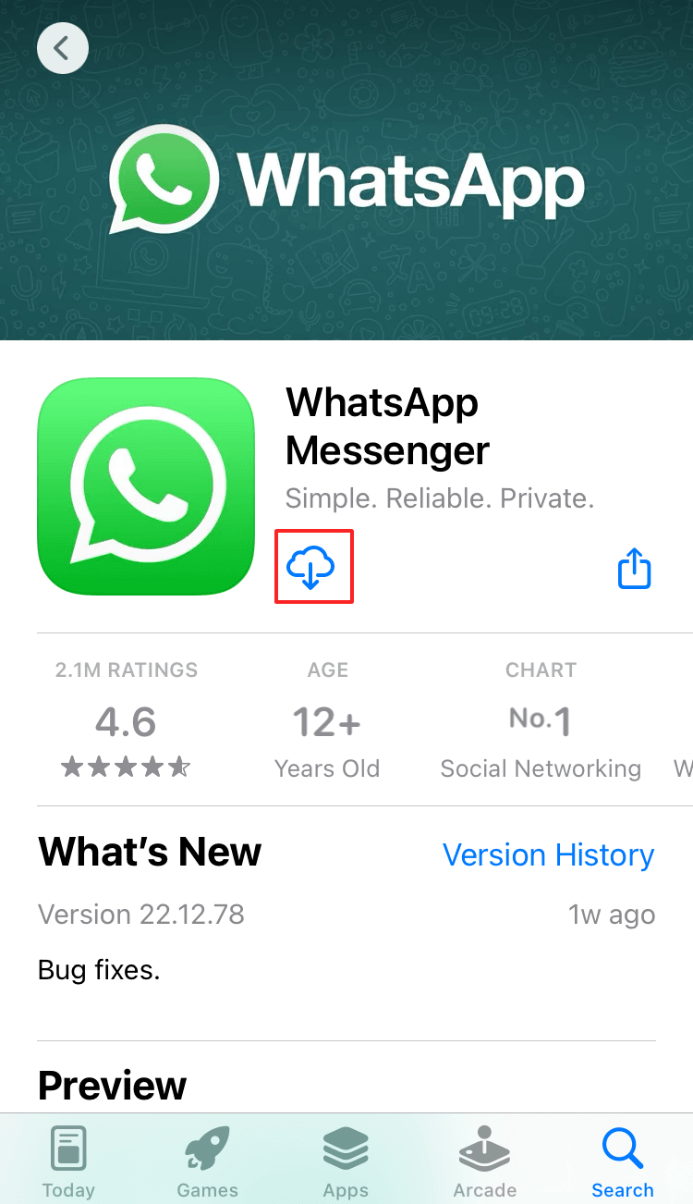
- Tap Install: Tap the “Install” button to begin the installation process.
- Wait For The Installation: Wait for the app to download and install on your device. This should only take a few seconds.
- Open Whatsapp: Once installed, tap the WhatsApp icon to open the app.
Installing Whatsapp Without The Play Store
If you’re unable to access the Google Play Store on your Android device (e.G., On a Huawei phone), there’s an alternative way to install WhatsApp:
- Enable Unknown Sources: Go to Settings > Security > Unknown sources and toggle the switch to enable it.
- Download The Apk File: Visit the official WhatsApp website using a web browser and download the APK file for your device.
- Install Whatsapp: Open the downloaded APK file and follow the installation prompts.
Installing Whatsapp on Your Android Auto
If you use an Android Auto system in your car, installing WhatsApp is a bit different:
- Connect Your Smartphone: Connect your smartphone to your car’s infotainment system via Bluetooth or USB.
- Open Whatsapp: Open WhatsApp on your phone and follow the usual installation process.
Installing 2 Instances of Whatsapp on Your Android Device
If you need to install two instances of WhatsApp on your device (e.G., For business purposes), there are a few options:
- Install Whatsapp Business: Download and install WhatsApp Business from the Google Play Store.
- Clone The App: Clone the WhatsApp app using an app like Cloning Master or Phone Clone.
Installing Whatsapp on Your Android Tablet
The process of installing WhatsApp on your Android tablet is similar to that of a smartphone:
- Open The Google Play Store: Tap the Google Play Store icon on your home screen.
- Search For Whatsapp: Type “WhatsApp” in the search bar and select the app from the results.
- Tap Install: Tap the “Install” button to begin the installation process.
Installing Whatsapp on Two Devices at Once
If you need to use two devices with the same WhatsApp account, here’s how:
- Open Whatsapp on Device 1: Open WhatsApp on your primary device and go to Settings > Linked devices.
- Scan The QR Code: Scan the QR code displayed on your secondary device using the camera app.
Downloading Whatsapp Web on Your Android Device
If you need to access a second WhatsApp account or want to use WhatsApp Web, follow these steps:
- Open Whatsapp Web: Visit the WhatsApp Web page in a web browser and scan the QR code.
- Connect to Whatsapp Web: Connect your device to WhatsApp Web by scanning the QR code.
Conclusion
Installing WhatsApp on your Android device is a straightforward process that can be completed in just a few minutes. Whether you’re looking to install WhatsApp for personal or business use, this guide has provided you with step-by-step instructions to get started.
Frequently Asked Questions (FAQs)
- Q: How do I Install Whatsapp on my Android Device?
A: To install WhatsApp, open the Google Play Store, search for WhatsApp, and tap the “Install” button. - Q: Can I Install Whatsapp Without The Play Store?
A: Yes, you can download the APK file from the official WhatsApp website and install it manually. - Q: How do I Install Whatsapp on my Android Auto System?
A: Connect your smartphone to your car’s infotainment system via Bluetooth or USB and open WhatsApp on your phone. - Q: Can I Have Two Instances of Whatsapp on my Device?
A: Yes, you can install WhatsApp Business or clone the app using an app like Cloning Master or Phone Clone. - Q: How do I Install Whatsapp on my Android Tablet?
A: Open the Google Play Store, search for WhatsApp, and tap the “Install” button. - Q: Can I Use Two Devices With The Same Whatsapp Account?
A: Yes, you can link a secondary device to your primary device by scanning the QR code. - Q: How do I Access Whatsapp Web on my Android Device?
A: Visit the WhatsApp Web page in a web browser and scan the QR code to connect your device.


