
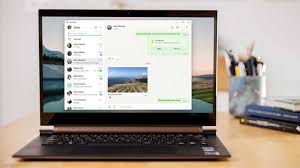
Installing Whatsapp on Pc: A Step-by-step Guide
Are you tired of using your smartphone to chat with friends on WhatsApp? Well, you’re in luck! In this article, we’ll show you how to install WhatsApp on your computer, making it easy to stay connected with loved ones without having to constantly check your phone.
System Requirements
Before we dive into the installation process, it’s essential to know that the WhatsApp client for PC is compatible with Windows 10 and macOS 11 or later versions. Also, keep in mind that the client functions independently of the smartphone app, allowing you to use WhatsApp on your computer without needing a phone.
Installing Whatsapp on Windows
If you’re using a Windows computer, follow these steps to install WhatsApp:
- Open The Microsoft Store: Click on the Microsoft Store icon on your taskbar or search for it in your start menu.
- Download Whatsapp: Search for WhatsApp in the store and click on the result. Then, click on the “Download” button.
- Install Whatsapp: Once the download is complete, click on the “Install” button to start the installation process.
- Initiate Whatsapp: After the installation is complete, click on the “Initiate” button to start using WhatsApp.
Installing Whatsapp on Macos
If you’re using a Mac, follow these steps to install WhatsApp:
- Open The Mac App Store: Click on the Mac App Store icon in your dock or search for it in your applications folder.
- Download Whatsapp: Search for WhatsApp in the store and click on the result. Then, click on the “Get” button.
- Install Whatsapp: Once the download is complete, enter your Apple ID password to confirm the installation.
- Initiate Whatsapp: After the installation is complete, click on the WhatsApp icon to start using it.
Installing Whatsapp on PC Without a QR Code
Unfortunately, it’s not possible to install WhatsApp on PC without scanning a QR code. However, once you’ve installed WhatsApp on your smartphone and added a device to your account, you can access WhatsApp on your computer by scanning the QR code with your phone.
Installing Whatsapp on PC Using Emulators
Another option is to use an Android emulator like BlueStacks to install WhatsApp on your PC. Here’s how:
- Download Bluestacks: Visit the BlueStacks website and download the software for your Windows or macOS computer.
- Install Bluestacks: Follow the installation instructions to get BlueStacks up and running.
- Add a Google Account: Sign in with a Google account to access the Play Store.
- Download Whatsapp: Search for WhatsApp in the Play Store and click on the result to download it.
- Use Whatsapp: Once installed, you can use WhatsApp on your computer as if you were using it on your smartphone.
Conclusion
Installing WhatsApp on your PC is a straightforward process that allows you to stay connected with friends and family without having to constantly check your phone. Whether you’re using Windows or macOS, follow the steps outlined in this article to get started.
Frequently Asked Questions (FAQs)
- Is Whatsapp Available For Other Operating Systems?
No, WhatsApp is currently only compatible with Windows 10 and macOS 11 or later versions. - Can I Use Whatsapp on my PC Without a Smartphone?
Yes, you can add a device to your WhatsApp account using the “Add Device” feature in the app settings. - Do I Need a QR Code to Install Whatsapp on my Pc?
Yes, scanning a QR code with your phone is required to access WhatsApp on your computer. - Can I Use Multiple Devices With Whatsapp?
Yes, you can add multiple devices to your WhatsApp account, but each device must be scanned separately using the “Add Device” feature. - Is it Possible to Use Whatsapp Without a Smartphone?
No, WhatsApp requires a phone number to activate and use the service.
I hope this article has been helpful in showing you how to install WhatsApp on your PC. If you have any further questions or need clarification on anything mentioned above, please don’t hesitate to ask!


