
Installing Whatsapp on Your Mobile Device: A Step-by-step Guide
Are you tired of using multiple messaging apps on your smartphone? Do you want to stay connected with friends, family, and colleagues in one place? Look no further than WhatsApp! With over 2 billion users worldwide, WhatsApp is the most popular messaging app available. In this article, we’ll show you how to install WhatsApp on your mobile device, whether it’s an Android or iOS smartphone.
Why Install Whatsapp?
Before we dive into the installation process, let’s talk about why you should install WhatsApp in the first place. With WhatsApp, you can:
- Send messages, photos, and videos to individuals or groups
- Make voice and video calls
- Share your location with friends and family
- Use end-to-end encryption for secure messaging
Installing Whatsapp on Android
If you have an Android smartphone, installing WhatsApp is a breeze. Here’s how:
- Open The Google Play Store: Tap the Google Play Store icon on your home screen to open it.
- Search For Whatsapp: Type “WhatsApp” in the search bar and select the app from the results.
- Tap Install: Select the WhatsApp icon and tap the “Install” button.
- Wait For Downloading: Wait for WhatsApp to download and install on your device.
- Launch Whatsapp: Once installed, launch WhatsApp by tapping the icon on your home screen.
Installing Whatsapp on Iphone
If you have an iOS smartphone, installing WhatsApp is just as easy:
- Open The App Store: Tap the App Store icon on your home screen to open it.
- Search For Whatsapp: Type “WhatsApp” in the search bar and select the app from the results.
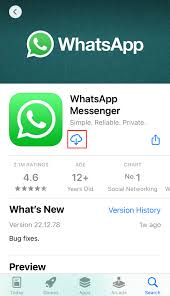
- Tap Get: Select the WhatsApp icon and tap the “Get” button.
- Wait For Downloading: Wait for WhatsApp to download and install on your device.
- Launch Whatsapp: Once installed, launch WhatsApp by tapping the icon on your home screen.
Installing Whatsapp on Ipad
If you have an iPad, you can still use WhatsApp, but you’ll need to access it through the web version or a third-party app:
- Open Safari: Tap the Safari icon on your home screen to open it.
- Go to Whatsapp Web: Type “web.Whatsapp.Com” in the address bar and select the link.
- Scan The QR Code: Scan the QR code displayed on the screen using the WhatsApp app on your smartphone.
- Use Whatsapp Web: Use WhatsApp Web to access your chats, send messages, and make calls.
Installing Whatsapp on PC
If you want to use WhatsApp on your computer, you can download the desktop client:
- Open The Microsoft Store: Tap the Microsoft Store icon on your home screen to open it.
- Search For Whatsapp: Type “WhatsApp” in the search bar and select the app from the results.
- Tap Install: Select the WhatsApp icon and tap the “Install” button.
- Wait For Downloading: Wait for WhatsApp to download and install on your device.
- Launch Whatsapp: Once installed, launch WhatsApp by tapping the icon on your home screen.
Installing Whatsapp on Apple Watch
If you have an Apple Watch, you can still receive notifications from WhatsApp, but you won’t be able to use it directly on your watch:
- Open The App Store: Tap the App Store icon on your home screen to open it.
- Search For Whatsapp: Type “WhatsApp” in the search bar and select the app from the results.
- Tap Get: Select the WhatsApp icon and tap the “Get” button.
- Wait For Downloading: Wait for WhatsApp to download and install on your device.
Installing Whatsapp Business
If you’re a business owner, you can use WhatsApp Business to communicate with customers:
- Open The Google Play Store or App Store: Tap the store icon on your home screen to open it.
- Search For Whatsapp Business: Type “WhatsApp Business” in the search bar and select the app from the results.
- Tap Install: Select the WhatsApp Business icon and tap the “Install” button.
- Wait For Downloading: Wait for WhatsApp Business to download and install on your device.
Conclusion
Installing WhatsApp on your mobile device is a straightforward process that can be completed in just a few minutes. Whether you’re using an Android or iOS smartphone, iPad, PC, or Apple Watch, you can use WhatsApp to stay connected with friends, family, and colleagues. With its end-to-end encryption and user-friendly interface, WhatsApp is the perfect messaging app for anyone.
Frequently Asked Questions
- Q: Can I install WhatsApp on my iPad?
A: Yes, but you’ll need to access it through the web version or a third-party app. - Q: How do I install WhatsApp on my PC?
A: You can download the desktop client from the Microsoft Store. - Q: Can I use WhatsApp on my Apple Watch?
A: No, but you can receive notifications and respond to messages directly from your watch.


