
How to Install Windows 10 on Ssd: A Step-by-step Guide
Are you tired of using a mechanical hard drive as your primary storage device? Do you want to experience the speed and efficiency of a Solid-State Drive (SSD)? Look no further! In this article, we will guide you through the process of installing Windows 10 on an SSD.
What is an Ssd?
An SSD, or Solid-State Drive, is a type of non-volatile storage device that uses flash memory to store data. Unlike traditional hard drives, which use mechanical parts to read and write data, SSDs use electrical signals to access and transfer data. This makes them much faster and more reliable than traditional hard drives.
Benefits of Using an Ssd
Using an SSD as your primary storage device offers several benefits, including:
- Faster Speeds: SSDs are significantly faster than traditional hard drives, with read and write speeds that can reach up to 500 MB/s.
- Improved Reliability: SSDs have no moving parts, which makes them less prone to mechanical failure and data loss.
- Increased Storage Capacity: SSDs come in a variety of capacities, from 128 GB to 2 TB or more.
Installing Windows 10 on an Ssd: A Step-by-step Guide
Installing Windows 10 on an SSD is a relatively straightforward process that requires a few basic steps. Here’s how to do it:
Mounting The Ssd in Your Pc
To install an SSD in your PC, you will need a few basic tools and components, including:
- A New Ssd: This can be purchased from most electronics stores or online retailers.
- A Sata Cable: This is used to connect the SSD to your motherboard.
- A Power Cable: This is used to provide power to the SSD.
To mount the SSD in your PC, follow these steps:
- Shut down your PC and disconnect all cables from the back of the case.
- Locate the SSD and remove any protective covering or packaging.
- Connect the SATA cable to the SSD and then connect it to a free port on your motherboard.
- Connect the power cable to the SSD and then connect it to a free port on your power supply.
Installing Windows 10 on The Ssd
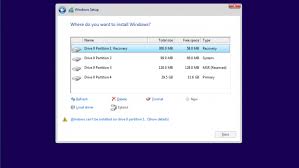
Once you have mounted the SSD in your PC, follow these steps to install Windows 10:
- Insert the installation media (such as a USB drive or DVD) into your PC.
- Boot from the installation media by pressing the corresponding key (usually F2, F12, or Del).
- Follow the prompts to select your language and keyboard layout.
- Click “Next” to proceed with the installation.
Cloning Your Existing Hard Drive
If you already have a hard drive installed in your PC, you can clone it onto the SSD using software such as EaseUS Todo Backup Free. This will allow you to transfer all of your files and settings from the old hard drive to the new SSD.
Tips And Tricks
Here are some additional tips and tricks to keep in mind when installing Windows 10 on an SSD:
- Make Sure Your PC is Compatible: Before purchasing an SSD, make sure that your PC is compatible with it.
- Use a High-quality Sata Cable: A good quality SATA cable can help ensure reliable data transfer between the SSD and your motherboard.
- Install The Latest Drivers: Make sure to install the latest drivers for your SSD to ensure optimal performance.
Conclusion
Installing Windows 10 on an SSD is a relatively straightforward process that requires a few basic steps. By following these instructions, you can experience the speed and efficiency of an SSD while keeping all of your files and settings intact.
Frequently Asked Questions (FAQs)
Here are some frequently asked questions about installing Windows 10 on an SSD:
Q: What is an Ssd?
A: An SSD, or Solid-State Drive, is a type of non-volatile storage device that uses flash memory to store data.
Q: How Fast Are Ssds?
A: SSDs can read and write data at speeds of up to 500 MB/s, making them significantly faster than traditional hard drives.
Q: What Benefits do Ssds Offer?
A: SSDs offer improved reliability, increased storage capacity, and faster speeds compared to traditional hard drives.
Q: How do I Install Windows 10 on an Ssd?
A: To install Windows 10 on an SSD, follow the steps outlined in this article.
Q: Can I Clone my Existing Hard Drive Onto The Ssd?
A: Yes, you can use software such as EaseUS Todo Backup Free to clone your existing hard drive onto the SSD.
Q: What Are Some Tips And Tricks For Installing Windows 10 on an Ssd?
A: Make sure your PC is compatible with the SSD, use a high-quality SATA cable, and install the latest drivers for optimal performance.


