
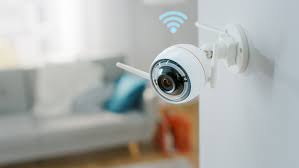
Installing Wireless Surveillance Cameras: A Step-by-step Guide
Are you interested in installing a wireless surveillance camera system at home or office? With the increasing demand for security and peace of mind, setting up a reliable and efficient monitoring system has become more accessible than ever. In this article, we will guide you through the process of choosing the right wireless surveillance cameras, determining their placement, configuring them, and utilizing their features to ensure your space is always under observation.
Choosing The Right Wireless Surveillance Camera
Before diving into the installation process, it’s essential to select a camera that meets your specific needs. The following factors should be considered when purchasing a wireless surveillance camera:
- Resolution: Ensure the camera captures high-quality images and videos in HD or Full HD.
- Quality of Images: Check for a camera with a decent frame rate (FPS) and focal opening to ensure clear footage, even in low-light conditions.
- Connectivity: Make sure the camera can connect to your Wi-Fi network without any issues.
- Sensors: Opt for a camera equipped with motion detection sensors to alert you of potential intruders.
- Audio: Choose between monodirectional or bidirectional audio capabilities, depending on your needs.
Determining Placement
The placement of wireless surveillance cameras is critical for effective monitoring. Consider the following:
- Outdoor Cameras: For outdoor use, choose a camera with weather resistance and night vision capabilities to ensure clear footage.
- Indoor Cameras: Opt for an indoor camera that can be discreetly placed in areas you want to monitor.
- Range of Action: Consider cameras with a wide range of action or fisheye lenses to capture more extensive views.
Configuring Your Wireless Surveillance Camera
Once you have chosen the right camera, follow these steps:
- Powering The Camera: Connect the power cable to an electrical outlet, ensuring the camera is safely positioned.
- Downloading And Installing Software: Download and install the companion app for your camera from the Google Play Store or Apple App Store.
- Configuring The App: Follow the instructions provided in the app to set up your account and connect your camera.
Example Setup: Configuring a Tapo Wireless Surveillance Camera
For this example, we will be using the TP-Link Tapo C420S1 wireless surveillance camera.
- Powering The Camera: Plug in the power cable and ensure it is securely connected.
- Downloading And Installing Software: Download the TP-Link Tapo app from the Google Play Store or Apple App Store.
- Configuring The App: Create a new account, add your device, and connect it to your Wi-Fi network.
- Assigning Device Settings: Choose your camera’s name, assign a room to it, select an operating mode (performance, balanced, or energy-saving), and enable motion detection.
Conclusion
Installing wireless surveillance cameras is easier than ever. By choosing the right camera, determining its placement, configuring it correctly, and utilizing its features, you can ensure your space remains under observation at all times. Remember to consider factors like resolution, quality of images, connectivity, sensors, audio capabilities, and range of action when selecting a camera.
Frequently Asked Questions
- What is The Difference Between HD And Full Hd?
HD (High Definition) typically means 1280×720 pixels, while Full HD (1920×1080 pixels) offers more detailed images. - Can I Use my Smartphone to Monitor The Camera Remotely?
Yes! Most wireless surveillance cameras come with companion apps that allow you to view footage from your smartphone or tablet. - Do All Wireless Surveillance Cameras Have Motion Detection Capabilities?
Not all cameras, but many modern models feature built-in sensors that alert you of potential intruders. - Can I Record Video And Take Photos With my Wireless Surveillance Camera?
Yes! Many cameras allow for recording video and taking photos remotely through the companion app. - Is it Necessary to Use a Hub or Router For my Wireless Surveillance Camera?
Not always, but some cameras may require a separate hub or router for connectivity.
I hope this article has provided you with valuable insights into installing wireless surveillance cameras at home or office. By following these steps and considering the factors outlined above, you can enjoy peace of mind knowing your space is always under observation.
Recommended Wireless Surveillance Cameras
- TP-Link Tapo C420S1 Wireless Surveillance Camera
- Imou Wireless Surveillance Camera (3MP, 2K resolution)
- EZVIZ C6N Wireless Surveillance Camera (1080p resolution)
(Note: The above cameras are examples and may not be specifically recommended or endorsed by the author.)


