
Reversing Colors on Iphone: A Step-by-step Guide
Are you tired of dealing with color sensitivity issues? Do you struggle to read text or see colors on your iPhone screen? Worry no more! In this article, we will guide you through the process of reversing colors on your iPhone, making it easier for you and others like you to navigate.
What is Color Reversal?
Color reversal is a feature that inverts the colors on your iPhone’s screen. This means that black becomes white, and vice versa. It’s an essential tool for people with color vision deficiency (daltonismo) or those who struggle to see certain colors due to visual impairments.
Why Should I Reverse Colors?
Reversing colors can be incredibly helpful in various situations:
- Accessibility: For individuals with daltonismo or other visual impairments, color reversal can make it easier to read text and navigate the screen.
- Color Blindness: People who are color blind can benefit from color reversal, as it helps them distinguish between different colors.
- Personal Preference: Some users simply prefer a reversed color scheme for aesthetic reasons.
How to Reverse Colors on Iphone
There are two ways to reverse colors on your iPhone:
Method 1: Using Settings
- Open the Settings app on your iPhone.
- Tap on “Accessibility.”
- Scroll down and tap on “Display & Text Size.”
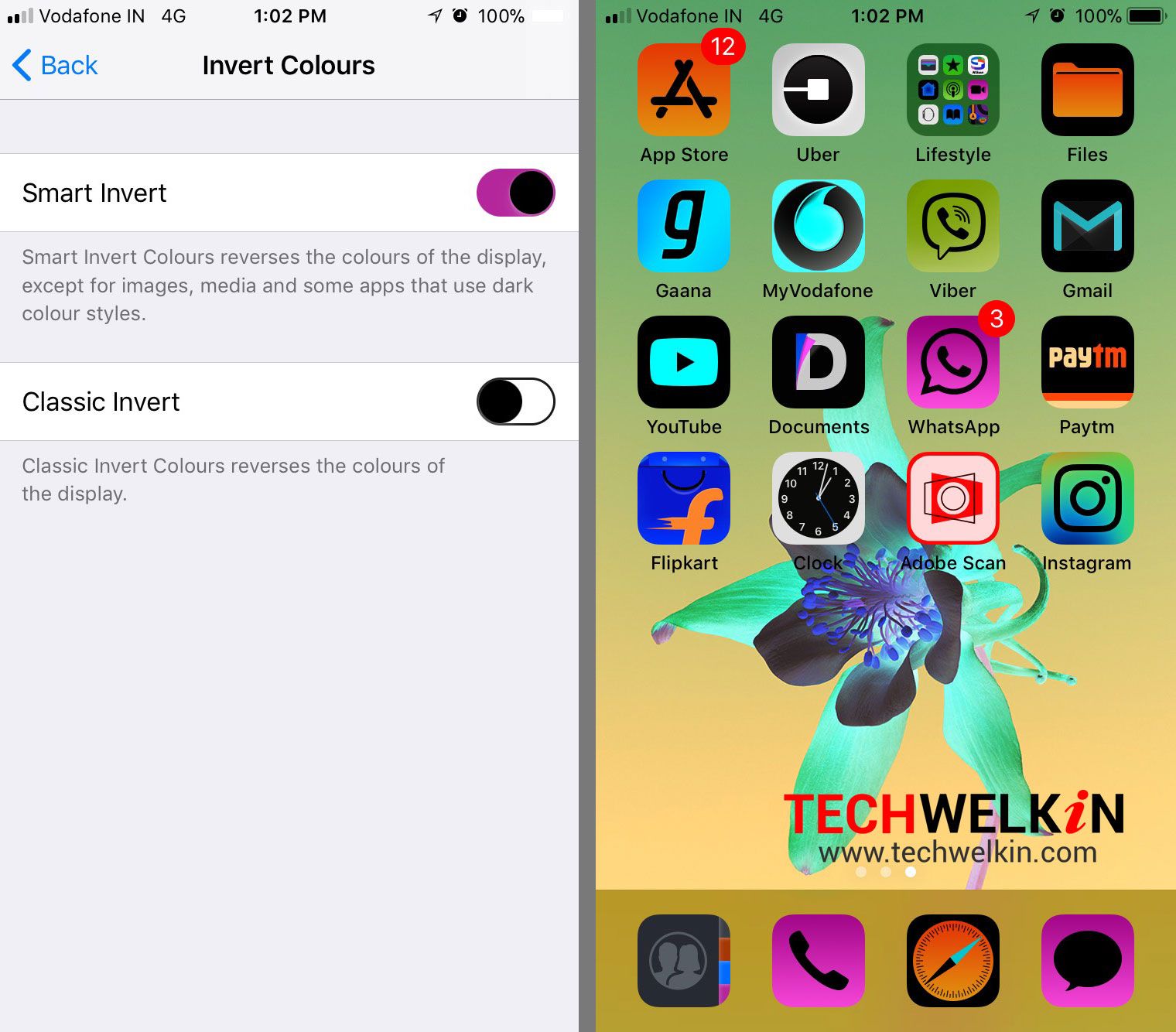
- Toggle the switch next to “Smart Invert” or “Classic Invert” depending on your preference.
Note: Smart Invert only reverses colors for non-media elements, while Classic Invert inverts all colors.
Method 2: Using The Home Button (iPhone 8 And Earlier)
- Open the Settings app.
- Tap on “Accessibility.”
- Scroll down and tap on “Accessibility Shortcut.”
- Choose either “Invert Colors” or “Smart Invert.”
- Press the Home button three times quickly to toggle the color inversion feature.
How to Reverse Colors in Photos
Unfortunately, there is no built-in function to reverse colors in photos directly on iPhone. However, you can use a third-party app like Negative Photo Effects (available for free, with optional premium features).
- Install and launch the app.
- Grant necessary permissions for the app to work correctly.
- Tap on “Get Started” and select the photo you want to invert colors in.
- Use the brush tool to apply the color inversion effect to specific areas of the photo.
Conclusion
Reversing colors on your iPhone can be a game-changer for those who struggle with color sensitivity or visual impairments. By following these simple steps, you can easily enable color reversal and enjoy improved accessibility features on your device.
Frequently Asked Questions (FAQs)
- What is The Difference Between Smart Invert And Classic Invert?
Smart Invert only reverses colors for non-media elements, while Classic Invert inverts all colors. - Can I Reverse Colors in Photos Directly on Iphone?
No, there is no built-in function to do so. You can use third-party apps like Negative Photo Effects instead. - How do I Enable Color Reversal Using The Home Button (iPhone 8 And Earlier)?
Press the Home button three times quickly while in Settings > Accessibility > Display & Text Size. - Can I Customize The Color Inversion Effect?
Yes, you can adjust the brush size and other settings within third-party apps to fine-tune your color inversion effect.


