
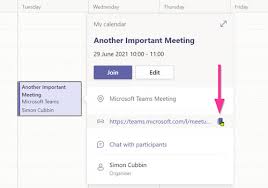
How to Invite Participants to Meetings on Microsoft Teams
Are you wondering how to invite participants to meetings on Microsoft Teams? Look no further! In this article, we will guide you through the steps of inviting users to a meeting on Teams using your smartphone or tablet, computer, and even directly from Outlook.
Understanding Microsoft Teams
Before we dive into the procedures for inviting users, let’s quickly understand what Microsoft Teams is. Microsoft Teams is a communication and collaboration platform based on cloud technology developed by Microsoft. It allows you to create and join virtual meetings, share documents, and engage in textual or vocal conversations with team members.
Using Microsoft Teams on Your Smartphone or Tablet
To invite participants to a meeting on Teams using your smartphone or tablet, follow these steps:
- Initiate The App: Open the Microsoft Teams app on your Android or iOS device.
- Access Your Account: Log in with your Microsoft account.
- Create a New Meeting: Tap on the camera icon in the top-right corner to create a new meeting.
- Name The Meeting: Type in the name of the meeting and tap on it to confirm.
- Invite Participants: Choose how you want to share the invitation with participants, such as via messaging app or email.
- Initiate The Meeting: Tap on the “Join” button to initiate the meeting.
Inviting Participants Using Microsoft Teams on Your Computer
If you’re using a computer, follow these steps:
- Initiate Microsoft Teams: Open the Microsoft Teams app or access it through the web version.
- Access Your Account: Log in with your Microsoft account.
- Create a New Meeting: Click on the “Calendar” icon and choose to create a new meeting.
- Name The Meeting: Type in the name of the meeting and click on the “Meet now” button.
- Invite Participants: Choose how you want to share the invitation with participants, such as via email or calendar sharing.
- Join The Meeting: Click on the “Join” button to initiate the meeting.
Inviting External Participants
To invite external participants (guests) to a meeting on Teams, follow these steps:
- Create a New Meeting: Use the same procedure as above to create a new meeting.
- Share The Invitation: Share the meeting link with guests via messaging app or email.
- Copy The Meeting Link: Copy the meeting link and share it manually with guests.
Inviting Participants Directly From Outlook
To invite participants directly from Outlook, follow these steps:
- Open Outlook: Open the Microsoft Outlook application on your computer.
- Create a New Meeting: Click on the “New Message” icon and choose to create a meeting.
- Add Participants: Add the email addresses of participants in the “To” field.
- Name The Meeting: Type in the name of the meeting and click on the “Send” button.
Conclusion
In this article, we have walked you through the steps of inviting participants to meetings on Microsoft Teams using various devices and platforms. Whether you’re using a smartphone or tablet, computer, or even directly from Outlook, inviting users to a meeting on Teams is a straightforward process that can be completed in just a few clicks.
Frequently Asked Questions
- Q: Can I Invite External Participants to a Meeting on Microsoft Teams?
A: Yes, you can invite external participants by sharing the meeting link with them. - Q: How do I Create a New Meeting on Microsoft Teams Using my Smartphone or Tablet?
A: Tap on the camera icon in the top-right corner of the app to create a new meeting. - Q: Can I Invite Multiple Participants to a Meeting on Microsoft Teams at Once?
A: Yes, you can add multiple email addresses in the “To” field when creating a new meeting. - Q: How do I Share The Meeting Link With External Participants?
A: Share the meeting link via messaging app or email. - Q: Can I Schedule a Meeting on Microsoft Teams For Later?
A: Yes, you can schedule a meeting by choosing the “New Meeting” option and setting the date and time. - Q: How do I Join a Meeting on Microsoft Teams?
A: Click on the “Join” button to initiate the meeting. - Q: Can I Add Attachments to a Meeting on Microsoft Teams?
A: Yes, you can attach files or documents to a meeting invitation. - Q: Is it Possible to Record Meetings on Microsoft Teams?
A: Yes, you can record meetings by clicking on the “Record” button during the meeting.
Bolded Heading
Inviting External Participants Using Microsoft Teams
To invite external participants (guests) to a meeting on Teams, follow these steps:
- Create a New Meeting: Use the same procedure as above to create a new meeting.
- Share The Invitation: Share the meeting link with guests via messaging app or email.
- Copy The Meeting Link: Copy the meeting link and share it manually with guests.
Conclusion
In this article, we have walked you through the steps of inviting participants to meetings on Microsoft Teams using various devices and platforms. Whether you’re using a smartphone or tablet, computer, or even directly from Outlook, inviting users to a meeting on Teams is a straightforward process that can be completed in just a few clicks.
Frequently Asked Questions
- Q: Can I Invite External Participants to a Meeting on Microsoft Teams?
A: Yes, you can invite external participants by sharing the meeting link with them. - Q: How do I Create a New Meeting on Microsoft Teams Using my Smartphone or Tablet?
A: Tap on the camera icon in the top-right corner of the app to create a new meeting. - Q: Can I Invite Multiple Participants to a Meeting on Microsoft Teams at Once?
A: Yes, you can add multiple email addresses in the “To” field when creating a new meeting.
Please let me know if you need any further clarification or have other questions.


