
How to Isolate The Voice of a Song: A Step-by-step Guide
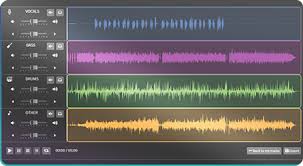
Are you interested in isolating the voice of a song, but don’t know where to start? You’re not alone! With the right tools and techniques, anyone can achieve this task. In this article, we’ll explore various methods for isolating the voice of a song using different software programs.
Table 1: Software Programs For Isolating The Voice of a Song
| Software | Operating System | Ease of Use |
|---|---|---|
| Audacity | Windows, macOS, Linux | Easy to Moderate |
| Adobe Audition | Windows, macOS | Moderate to Difficult |
| GarageBand | macOS | Easy |
How to Isolate The Voice of a Song With Audacity
Audacity is a free and open-source software program that can be used for editing audio files. It’s available for Windows, macOS, and Linux operating systems.
To isolate the voice of a song using Audacity, follow these steps:
- Open Audacity and select the two tracks you want to work with.
- Go to the “Effects” menu and choose “Noise Reduction.”
- In the noise reduction window, adjust the settings as needed.
- Click on the “Apply” button to apply the changes.
- Select the track you want to isolate (usually the vocal track).
- Go to the “Effects” menu again and choose “Spectral Filter.”
- In the spectral filter window, adjust the settings as needed.
- Click on the “Apply” button to apply the changes.
How to Isolate The Voice of a Song With Adobe Audition
Adobe Audition is a commercial software program that can be used for editing audio files. It’s available for Windows and macOS operating systems.
To isolate the voice of a song using Adobe Audition, follow these steps:
- Open Adobe Audition and select the two tracks you want to work with.
- Go to the “Effects” menu and choose “Noise Reduction.”
- In the noise reduction window, adjust the settings as needed.
- Click on the “Apply” button to apply the changes.
- Select the track you want to isolate (usually the vocal track).
- Go to the “Effects” menu again and choose “Spectral Filter.”
- In the spectral filter window, adjust the settings as needed.
- Click on the “Apply” button to apply the changes.
How to Isolate The Voice of a Song With Garageband
GarageBand is a free software program that can be used for editing audio files. It’s available exclusively for macOS operating systems.
To isolate the voice of a song using GarageBand, follow these steps:
- Open GarageBand and select the two tracks you want to work with.
- Go to the “Effects” menu and choose “Noise Reduction.”
- In the noise reduction window, adjust the settings as needed.
- Click on the “Apply” button to apply the changes.
- Select the track you want to isolate (usually the vocal track).
- Go to the “Effects” menu again and choose “Spectral Filter.”
- In the spectral filter window, adjust the settings as needed.
- Click on the “Apply” button to apply the changes.
Online Solutions For Isolating The Voice of a Song
If you don’t want to install software programs on your computer, there are online solutions available for isolating the voice of a song. One such solution is Vocal Remover, which uses advanced technology to isolate the vocal track from an instrumental track.
To use Vocal Remover, follow these steps:
- Open the Vocal Remover website.
- Select the audio file you want to work with.
- Adjust the settings as needed.
- Click on the “Apply” button to apply the changes.
- Download the isolated vocal track as an MP3 file.
Apps For Isolating The Voice of a Song
If you’re using a smartphone or tablet, there are apps available that can be used for isolating the voice of a song. One such app is Vocal Remover, which uses advanced technology to isolate the vocal track from an instrumental track.
To use Vocal Remover on your mobile device, follow these steps:
- Open the Vocal Remover app.
- Select the audio file you want to work with.
- Adjust the settings as needed.
- Click on the “Apply” button to apply the changes.
- Download the isolated vocal track as an MP3 file.
Conclusion
Isolating the voice of a song is a relatively simple process that can be achieved using various software programs and online solutions. With Audacity, Adobe Audition, GarageBand, or Vocal Remover, you can easily isolate the vocal track from an instrumental track and export it as an MP3 file. Whether you’re a musician, sound engineer, or simply someone interested in music production, these tools will help you achieve professional-grade results.
Frequently Asked Questions (FAQs)
- What is The Best Software Program For Isolating The Voice of a Song?
The best software program for isolating the voice of a song depends on your operating system and level of expertise. Audacity, Adobe Audition, and GarageBand are popular choices.
- Can I Isolate The Voice of a Song Online?
Yes, you can isolate the voice of a song online using services like Vocal Remover or other audio editing platforms.
- What is The Purpose of Noise Reduction in Isolating The Voice of a Song?
Noise reduction helps to eliminate background noises and reduce the overall level of the instrumental track, making it easier to isolate the vocal track.
- Can I Use an App on my Mobile Device to Isolate The Voice of a Song?
Yes, there are apps available for mobile devices that can be used to isolate the voice of a song, such as Vocal Remover.
- How do I Export The Isolated Vocal Track as an Mp3 File?
To export the isolated vocal track as an MP3 file, follow the instructions provided by your chosen software program or online service.


