
How to Connect to a Wi-fi Network: A Step-by-step Guide
Are you struggling to connect to a Wi-Fi network? Do you find yourself frustrated with the complexity of the process? Look no further! In this article, we will guide you through the simple steps of connecting to a Wi-Fi network on your computer, smartphone, or tablet.
What You Need to Know Before We Begin
Before we dive into the details, it’s essential to understand that not all Wi-Fi networks require a password. Some public hotspots and open networks may not have a password, while others may be protected by a password or WPS (Wi-Fi Protected Setup) technology.
Step 1: Check Your Device
The first step is to check if your device has a built-in Wi-Fi adapter. If you’re using a laptop or desktop computer, it’s likely that the Wi-Fi adapter is integrated into the machine. However, if you’re using a smartphone or tablet, ensure that the Wi-Fi feature is enabled.
Step 2: Identify Your Wi-fi Network
Once you’ve confirmed that your device has a built-in Wi-Fi adapter, the next step is to identify the Wi-Fi network you want to connect to. If you’re at home, it’s likely that the network name (SSID) will be displayed on your router or modem. If you’re in public, look for signs or ask someone about the network name.
Step 3: Check if You Need a Password
Before proceeding further, check if the Wi-Fi network requires a password. Some networks may have a password, while others may not. If you’re unsure, try to find out from the network administrator or owner.
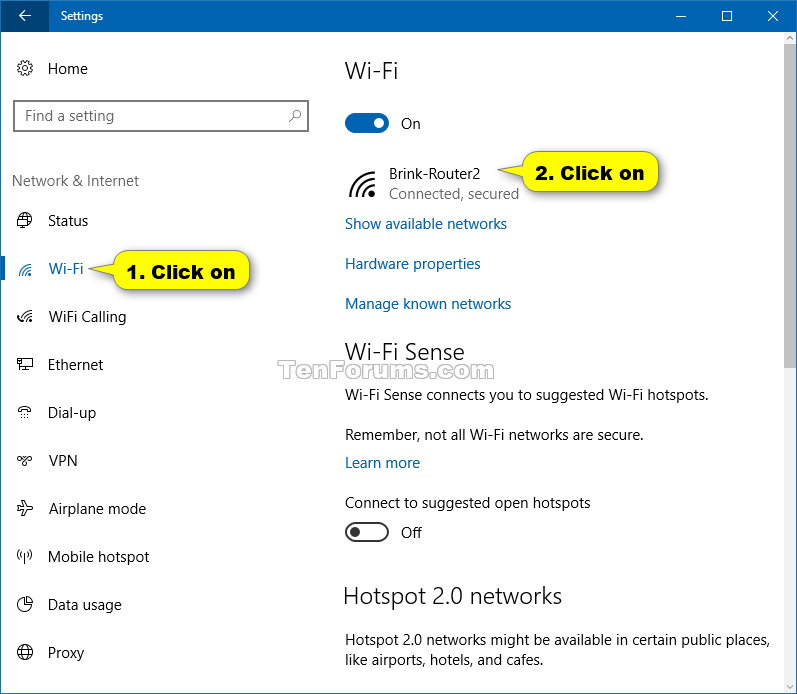
How to Connect to a Wi-fi Network on Windows 11/10
If you’re using a Windows device, follow these steps:
- Accessing The Settings: Click on the Start button and select the “Settings” app.
- Network & Internet: In the Settings window, click on “Network & Internet.”
- Wi-fi: Select the Wi-Fi option from the left-hand menu.
- Available Networks: A list of available networks will be displayed. Find your network name (SSID) and select it.
- Password Input: Enter the password for the network when prompted.
How to Connect to a Wi-fi Network on Mac
If you’re using a Mac, follow these steps:
- Accessing The System Preferences: Click on the Apple menu and select “System Preferences.”
- Network: Select the “Network” option from the System Preferences window.
- Wi-fi: Select the Wi-Fi option from the left-hand menu.
- Select Network: Find your network name (SSID) in the list of available networks and click on it.
- Password Input: Enter the password for the network when prompted.
How to Connect to a Wi-fi Network on Android
If you’re using an Android device, follow these steps:
- Accessing The Quick Settings: Swipe down from the top of your screen to access the quick settings.
- Wi-fi: Click on the Wi-Fi icon to turn it on.
- Available Networks: A list of available networks will be displayed. Find your network name (SSID) and select it.
- Password Input: Enter the password for the network when prompted.
How to Connect to a Wi-fi Network on Ios/ipados
If you’re using an iPhone or iPad, follow these steps:
- Accessing The Settings: Tap on the Settings app icon.
- Wi-fi: Select the Wi-Fi option from the menu.
- Select Network: Find your network name (SSID) in the list of available networks and select it.
- Password Input: Enter the password for the network when prompted.
Tips And Tricks
- Always check if the network you’re trying to connect to has a password before proceeding further.
- Use a VPN (Virtual Private Network) to secure your data on public Wi-Fi networks.
- If you’re unable to find the network name or password, try contacting the network administrator or owner for assistance.
Conclusion
Connecting to a Wi-Fi network is a straightforward process that requires minimal technical expertise. By following these steps and tips, you’ll be able to connect to a Wi-Fi network on your computer, smartphone, or tablet in no time. Remember to always check if the network has a password before proceeding further, and consider using a VPN to secure your data.
Frequently Asked Questions (FAQs)
- Q: How do I Find my Wi-fi Network Name?
A: Your Wi-Fi network name is usually displayed on your router or modem. - Q: What if I Don’t Have The Password For my Wi-fi Network?
A: Try contacting the network administrator or owner for assistance. - Q: Can I Connect to a Public Wi-fi Network Without a Password?
A: Yes, some public hotspots and open networks may not require a password. - Q: What is Wps (Wi-Fi Protected Setup)?
A: WPS is a technology that allows you to connect to a Wi-Fi network without entering a password. - Q: How do I Secure my Data on Public Wi-fi Networks?
A: Use a VPN (Virtual Private Network) to encrypt your data. - Q: Can I Use a Vpn on All Devices And Operating Systems?
A: Yes, most modern devices and operating systems support VPNs. - Q: What Are Some Popular Vpn Services?
A: Some popular VPN services include NordVPN, Surfshark, ExpressVPN, and PrivadoVPN. - Q: Can I Use a Vpn on my Smartphone or Tablet?
A: Yes, most smartphones and tablets have built-in VPN capabilities.


