
How to Kill a Process in Linux: A Step-by-step Guide
As a user, you’ve probably experienced the frustration of having a program freeze or become unresponsive on your Linux system. In such cases, knowing how to kill a process can be a lifesaver. While it’s not always easy to find the right solution, this article will guide you through various methods to force-close processes that are no longer responding.
What is a Process in Linux?
Before we dive into the nitty-gritty of killing processes, let’s quickly cover what a process is. In Linux, a process is an instance of a program running on your system. Each process has its own unique identifier (PID) and can be executed by one or more users.
Method 1: Using The System Monitor
If you’re familiar with Windows, you’ll find the interface of the System Monitor in Linux to be quite similar. This built-in application allows you to visualize all running processes on your system and terminate any that are no longer responding.
To access the System Monitor:
- Go to your Dash (the main menu) and click on the Search icon.
- Type “System Monitor” and select the icon from the search results.
- Click on the process you want to kill, then click End Process in the window that opens.
- Confirm by clicking End Process again.
Method 2: Using The Xkill Command
The xkill command is another easy way to force-close a process. This method uses your mouse cursor as an “x” mark to target and terminate the process.
To use xkill:
- Open the terminal on your Linux system.
- Type
xkillfollowed by pressing Enter. - Click on the window of the program you want to kill.
- The process will be terminated instantly.
Method 3: Using Terminal Commands
There are several terminal commands that allow you to force-close processes. While these methods might not be as user-friendly, they’re essential for advanced users and system administrators.
Using The Kill Command
The kill command can terminate a process by its PID (Process ID). To use this method:
- Open the terminal on your Linux system.
- Type
ps aux | grep <process_name>to find the PID of the process you want to kill. Replace<process_name>with the name of the program. - Note down the PID of the process.
- Type
kill <PID>and press Enter, replacing<PID>with the actual ID.
Using The Pkill Command
The pkill command allows you to terminate all processes that contain a specific term in their names. This method is useful when you’re not sure of the exact PID or process name.
- Open the terminal on your Linux system.
- Type
pgrep -l <term>to find which processes have the specified term in their names. Replace<term>with the term you want to search for. - Note down the PIDs of the processes.
- Type
pkill <process_name>and press Enter, replacing<process_name>with the actual process name.
Using The Killall Command
The killall command is similar to pkill, but it requires you to know the exact name of the process. This method can be more precise than using a term search.
- Open the terminal on your Linux system.
- Type
ps -ef | grep <process_name>to find which processes have the specified term in their names. Replace<process_name>with the actual process name. - Note down the PIDs of the processes.
- Type
killall <process_name>and press Enter, replacing<process_name>with the actual process name.
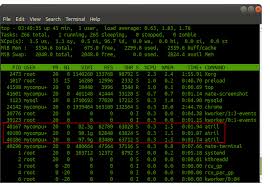
Method 4: Using The Top Command
The top command allows you to view which processes are consuming the most system resources (CPU and memory). This method can help you identify and terminate resource-hungry processes.
- Open the terminal on your Linux system.
- Type
topfollowed by pressing Enter. - Look for the processes that are consuming high amounts of CPU or memory.
- Note down the PIDs of these processes.
- Type
kill <PID>and press Enter, replacing<PID>with the actual ID.
Conclusion
Force-closing a process in Linux can be done through various methods. Whether you prefer using graphical tools like System Monitor, command-line tools like xkill or terminal commands, there’s an approach that suits your needs. Remember to always be cautious when terminating processes, as it may result in data loss or corruption if not handled properly.


