
How to Force Quit an Application on Mac: A Step-by-step Guide
Are you tired of struggling to close a stubborn application on your Mac? Do you want to know the easiest way to force quit an app without losing any unsaved data? Look no further! In this article, we will guide you through the simple process of forcing quitting an application on your Mac.
What is Force Quitting?
Force quitting is a feature in macOS that allows you to close an application that has frozen or become unresponsive. This can be useful when an app is stuck and won’t respond to usual closing methods. However, it’s essential to note that force quitting may result in the loss of unsaved data.
Method 1: Using The Force Quit Menu
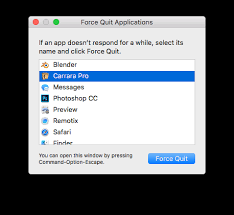
The easiest way to force quit an application on your Mac is by using the Force Quit menu. Here’s how:
- Click on the Apple logo located in the top left corner of the screen.
- Select “Force Quit” from the drop-down menu.
- A window will appear showing a list of all running applications.
- Select the app you want to force quit and click on the “Quit” button.
Method 2: Using Keyboard Shortcuts
If you’re comfortable with keyboard shortcuts, you can use this method to force quit an application:
- Press Command (⌘) + Option (⌥) + Esc.
- A window will appear showing a list of all running applications.
- Select the app you want to force quit and click on the “Quit” button.
Method 3: Using Activity Monitor
Activity Monitor is a built-in utility in macOS that allows you to see which processes are currently running. You can use this method to find and force quit an application:
- Click on the Spotlight icon located in the top right corner of the screen.
- Type “Activity Monitor” in the search bar.
- Open Activity Monitor.
- Select the process you want to force quit from the list.
- Click on the “Quit Process” button.
Method 4: Using Terminal
If you’re comfortable with using the Terminal, you can use this method to force quit an application:
- Open the Terminal app.
- Type “killall [application name]” and press Enter.
- Replace “[application name]” with the actual name of the application you want to force quit.
Important Note:
When force quitting an application, be aware that it may result in the loss of unsaved data. Always save your work before closing an app, especially if it’s a creative or word processing program.
Conclusion:
Force quitting an application on Mac can be done using various methods. The Force Quit menu, keyboard shortcuts, Activity Monitor, and Terminal are some of the ways to close a stubborn app without losing any data. Remember to always save your work before closing an app to avoid losing unsaved changes.
Frequently Asked Questions (FAQs):
Q: What happens when I force quit an application?
A: Force quitting an application may result in the loss of unsaved data.
Q: Can I recover lost data after force quitting an application?
A: Unfortunately, no. Once you’ve force quit an app, any unsaved changes are lost forever.
Q: How do I save my work before closing an app?
A: Always save your work before closing an app to avoid losing unsaved data.
Q: Can I use the Force Quit menu on macOS Mojave or later versions?
A: Yes. The Force Quit menu is still available in newer versions of macOS, including Mojave and later.
Q: Is it safe to force quit system processes?
A: No. Never attempt to force quit system processes as this can cause damage to your Mac’s operating system.
Q: Can I use the Terminal method on macOS High Sierra or earlier versions?
A: Yes. The Terminal method is available in older versions of macOS, including High Sierra and earlier.
Recommended Reading:
- How to Fix a Frozen Mac
- 10 Common Mac Problems and Solutions
- Essential Keyboard Shortcuts for Mac Users


