
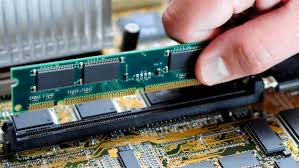
Understanding Your Pc’s Ram: A Comprehensive Guide
Are you wondering how much RAM your PC supports? Do you want to upgrade your computer’s memory but are unsure about the maximum capacity it can handle? Look no further! In this article, we’ll guide you through the process of determining how much RAM your PC supports, and provide you with the necessary information to make informed decisions.
What is Ram?
Before we dive into the details, let’s quickly cover what RAM (Random Access Memory) is. RAM is a type of computer memory that temporarily stores data and applications while they are being processed by the CPU. The more RAM your PC has, the more applications you can run simultaneously without experiencing slow performance.
Why Is It Important to Know How Much Ram My PC Supports?
Knowing how much RAM your PC supports is crucial for several reasons:
- Upgrading Your Ram: If you want to upgrade your PC’s memory, you’ll need to know the maximum capacity it can handle.
- Choosing The Right Components: When building or upgrading your PC, knowing how much RAM it supports will help you choose the right components.
- Troubleshooting Performance Issues: If you’re experiencing slow performance, knowing how much RAM your PC supports can help you identify the issue and take corrective action.
Methods to Check How Much Ram Your PC Supports
There are several methods to check how much RAM your PC supports:
Using Cpu-z on Windows
- Download and install CPU-Z from the official website.
- Run CPU-Z and click on the “SPD” tab.
- Look for the “Slots:” Field, which will display the number of RAM slots available.
- Check if any of the slots are occupied by clicking on the menu next to “Slots:” And selecting “Slot:”
Using Mactracker on Macos
- Download and install Mactracker from the Mac App Store.
- Launch Mactracker and click on the icon with the square in the top-right corner of the screen.
- Select your Mac and click on the “This Mac” tab.
- Scroll down to the “Memory & Graphics” section and look for the “Maximum Memory” field, which will display the maximum amount of RAM supported by your Mac.
Using Online Services
If you don’t want to use any software or utilities, there are online services that can help you determine how much RAM your PC supports:
- Kingston: The official website of Kingston, a well-known memory manufacturer, has a tool that allows you to enter your computer’s specifications and get information on the maximum amount of RAM supported.
- Everymac: This website provides detailed technical specifications for Apple computers, including the maximum amount of RAM supported by each model.
Checking Your Pc’s Documentation
Your PC’s documentation should have information on how much RAM it supports. Check your computer’s manual or manufacturer’s website for more details.
Conclusion
In conclusion, knowing how much RAM your PC supports is essential for upgrading, troubleshooting, and choosing the right components for your computer. By using CPU-Z, Mactracker, online services, or checking your PC’s documentation, you can determine the maximum capacity of RAM supported by your device.
Frequently Asked Questions
- What is The Maximum Amount of Ram my PC Supports?
- To find out the maximum amount of RAM your PC supports, use CPU-Z on Windows, Mactracker on macOS, or check online services like Kingston and Everymac.
- Can I Upgrade my Pc’s Memory to a Higher Capacity Than What it Currently Supports?
- Yes, you can upgrade your PC’s memory to a higher capacity than what it currently supports. However, make sure to purchase RAM that is compatible with your computer’s specifications.
- How do I Determine The Type of Ram my PC Uses (e.G., Ddr3, Ddr4, Etc.)?
- To determine the type of RAM your PC uses, check your PC’s documentation or use CPU-Z on Windows and Mactracker on macOS to look for information on the RAM specifications.
- Can I Mix Different Types of Ram (e.G., Ddr3 And Ddr4) in my Pc?
- No, it is not recommended to mix different types of RAM in your PC. Using incompatible RAM can cause system instability or crashes.
I hope this comprehensive guide has helped you understand how much RAM your PC supports!


