
Discovering Your Windows Edition: A Comprehensive Guide
As a computer user, have you ever found yourself wondering what version of Windows is running on your PC? Maybe you’re planning to install a new program, but aren’t sure which edition of Windows it requires. Or perhaps you simply want to know more about the operating system that powers your device.
In this article, we’ll explore various methods for discovering the exact edition of Windows installed on your computer, including the version, build, and architecture. We’ll also delve into the differences between 32-bit and 64-bit systems and provide guidance on updating your OS to ensure you’re running the most secure and feature-rich version.
Why Knowing Your Windows Edition Matters
Before we dive in, it’s essential to understand why knowing your Windows edition is crucial:
- System Compatibility: Certain programs or software may require a specific edition of Windows to function correctly. By identifying your Windows edition, you can ensure that the applications you want to install are compatible with your system.
- Security Updates: Knowing which version of Windows you’re running will help you stay informed about available security updates and patches.
- Performance Optimization: Understanding your Windows architecture (32-bit or 64-bit) can aid in optimizing system performance and memory usage.
Method 1: Using The Control Panel
The first method to discover your Windows edition is by using the Control Panel. Here’s a step-by-step guide:
- Click on the Start button located at the bottom left corner of the screen.
- Type “Control Panel” in the search bar and select it from the results.
- In the Control Panel window, click on “System and Security” or “System” (depending on your version).
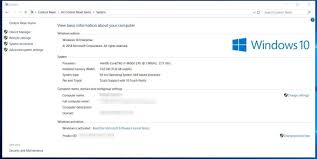
- On the following page, look for the “Edition” field under the “Windows edition” section. This will display the exact edition of Windows installed on your PC.
Method 2: Using File Explorer
Another method to find your Windows edition is by using File Explorer:
- Open File Explorer and navigate to the “This PC” or “Computer” section.
- Right-click on the device name (usually labeled as “This PC”) and select “Properties.”
- In the Properties window, look for the “Edition” field under the “Windows edition” section. This will display the exact edition of Windows installed on your PC.
Method 3: Using The Command Prompt
You can also use the Command Prompt to discover your Windows edition:
- Press the Windows key + R to open the Run dialog box.
- Type “cmd” in the search bar and select it from the results.
- In the Command Prompt window, type the command “winver” and press Enter.
- The system information will display your Windows edition, version, and build.
Method 4: Checking For Updates
If you’re running an older version of Windows (Windows 7 or earlier), it’s essential to check for updates:
- Click on the Start button located at the bottom left corner of the screen.
- Type “Settings” in the search bar and select it from the results.
- In the Settings window, click on “Update & Security.”
- Look for any available updates and follow the prompts to install them.
Conclusion
Discovering your Windows edition is a straightforward process that can be accomplished using various methods. By knowing which edition of Windows you’re running, you’ll be better equipped to ensure system compatibility, stay informed about security updates, and optimize performance.


