
How to Find Your IP Address: A Comprehensive Guide
Are you curious about your IP address? Do you want to know how to find it on various devices, including Windows, Mac, Linux, smartphones, and tablets? Look no further! In this article, we will guide you through the process of discovering your IP address in a clear and concise manner.
What is an IP Address?
Before we dive into the nitty-gritty, let’s first understand what an IP address is. An IP (Internet Protocol) address is a unique number assigned to each device connected to the internet or a local network. It serves as a virtual identifier, allowing data to be routed between devices and networks.
Types of IP Addresses
There are two types of IP addresses: Public and private. Public IP addresses are assigned by an Internet Service Provider (ISP) and identify your connection to the global internet. Private IP addresses, on the other hand, are used within a local network and do not connect directly to the internet.
How to Find Your Private IP Address
Here’s how you can find your private IP address:
Windows: Finding Your Private IP Address
- Click on the Start menu and type “Settings.”
- Open the Settings app and click on the “Network & Internet” option.
- Select the network connection (e.G., Ethernet or Wi-Fi) from the left-hand menu.
- Scroll down to the “Status” section and look for your private IP address.
Alternatively, you can use the Command Prompt:
- Press the Windows key + R to open the Run dialog box.
- Type “cmd” in the search bar and press Enter.
- Type “ipconfig” and press Enter.
- Look for the “IPv4 Address” section under the Ethernet or Wi-Fi connection.
Mac: Finding Your Private IP Address
- Click on the Apple menu and select “System Preferences.”
- Open the “Network” preferences pane.
- Select the network connection (e.G., Ethernet or Wi-Fi) from the left-hand menu.
- Scroll down to the “Status” section and look for your private IP address.
Alternatively, you can use the Terminal:
- Press Command + Space to open Spotlight.
- Type “Terminal” in the search bar and press Enter.
- Type “ipconfig getifaddr en1” (for Wi-Fi) or “ipconfig getifaddr en0” (for Ethernet) and press Enter.
Linux: Finding Your Private IP Address
- Open a terminal window.
- Type “ip addr show” and press Enter.
- Look for the “inet” address under the network interface you’re connected to.
Alternatively, you can use the command-line tool:
- Press Ctrl + Alt + T to open a terminal window.
- Type “hostname -i” and press Enter.
Smartphones And Tablets: Finding Your Private IP Address
For Android devices:
- Go to Settings > Wi-Fi.
- Tap on the three dots next to your network name.
- Select “Advanced options.”
- Look for the private IP address under the “IP settings” section.
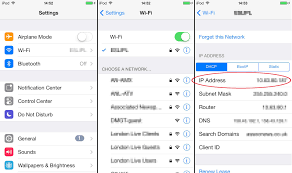
For iOS devices (iPhone or iPad):
- Go to Settings > Wi-Fi.
- Tap on the “i” icon next to your network name.
- Scroll down to the “Status” section and look for your private IP address.
Finding Your Public IP Address
To find your public IP address, you can use online services or command-line tools:
- Visit websites like WhatIsMyIP.Org or WhatIsMyIP.Com.
- Open a terminal window and type “curl ifconfig.Me” (for Windows, macOS, or Linux).
Conclusion: Finding Your IP Address
In conclusion, finding your private or public IP address is relatively straightforward on various devices. Remember to always use online services or command-line tools with caution, as they may be affected by network conditions or proxy servers.
Now that you know how to find your IP address, what’s next? Do you have any questions about the process or want more information about IP addresses?
Frequently Asked Questions:
-
What is my Private IP Address?
Your private IP address is a unique number assigned to your device on a local network. -
How do I Find my Public IP Address?
You can use online services like WhatIsMyIP.Org or WhatIsMyIP.Com, or type “curl ifconfig.Me” in the terminal. -
Why do I Need to Know my IP Address?
Knowing your IP address is useful for various purposes, such as troubleshooting network issues, configuring devices, and understanding internet connectivity. -
Can Someone Else See my Private IP Address?
No, your private IP address is not visible on the global internet; it’s only accessible within your local network. -
How Often Does my Public IP Address Change?
Your public IP address may change periodically due to network updates or changes in your Internet Service Provider (ISP). -
Can I Use Online Services to Find my Private IP Address?
No, online services can only provide you with your public IP address; they won’t be able to access your device’s private IP address. -
How do I Change my Private IP Address?
Changing your private IP address typically requires modifying network settings on your device or router. -
Why is it Essential to Use The Correct Command-line Tool For Finding my Private IP Address?
Using the incorrect command-line tool can result in displaying an invalid or outdated IP address, leading to confusion and potential issues.


