
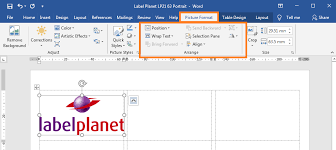
How to Layout a Document Like a Pro on Microsoft Word
Are you tired of struggling with document layouts in Microsoft Word? Do you want to create professional-looking documents that impress your colleagues or clients?
This guide will show you how to layout a document like a pro on Microsoft Word.
Why Layout Matters
A well-designed layout can make your document more readable, engaging, and effective. It can also save you time and reduce errors in the long run.
Getting Started With Microsoft Word
To get started, open Microsoft Word on your computer or tablet. Log in to your account if using the online version.
Modifying Fonts And Styles
Choose the right font and style for your document by selecting the Character section under the Home tab. Use headings, subheadings, and body text to create a clear hierarchy of information.
Alignment And Margins
Align your text by selecting one of the following options: Align to Left, Center, Align to Right, or Justify. Adjust margins as needed, leaving enough space between paragraphs for easy reading.
Using Styles
Styles are a powerful tool in Microsoft Word that allow you to create consistent formatting throughout your document. Choose from various pre-defined styles or create your own custom style under the Home tab.
Working With Headers And Footers
Use headers and footers to provide additional information on each page, such as the date, author, or company name. Select the Header or Footer option under the Insert tab.
Tips And Tricks
- Use headings and subheadings to create a clear hierarchy of information.
- Leave enough space between paragraphs for easy reading.
- Experiment with different styles and layouts to find what works best for you.
This guide provides a comprehensive overview of how to effectively layout documents using Microsoft Word.


