
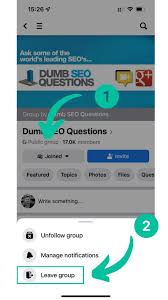
How to Leave a Facebook Group: A Step-by-step Guide
Are you tired of being part of a Facebook group that no longer interests you? Perhaps you’re an administrator who wants to expel a member who’s not in line with the community? Whatever your reason, leaving a Facebook group or removing a member can be a straightforward process. In this article, we’ll guide you through the steps to leave a Facebook group and delete a member using both smartphones and PCs.
Leaving a Facebook Group From Your Smartphone
- Open The Facebook App: If you’re using an Android device, open the Facebook app from your home screen or find it in your app drawer. For iOS users, tap on the Facebook icon to open the app.
- Tap on Groups: In the navigation menu, tap on “Groups.” You’ll see a list of all the groups you’re part of.
- Find The Group You Want to Leave: Scroll through the list until you find the group you want to leave. Tap on it to enter the group’s page.
- Tap on Members: On the group’s page, tap on “Members.”
- Find The Member You Want to Remove or Leave: Scroll down and find the member you want to remove or leave. You can also search for them by typing their name in the search bar at the top of the screen.
- Tap on Remove or Leave: Tap on the three dots beside the member’s name, then select “Remove” or “Leave.” If you’re an administrator, make sure to click on “Remove from Group” instead.
Leaving a Facebook Group From Your PC
- Log in to Your Facebook Account: Go to facebook.Com and log in with your credentials.
- Click on Groups: Click on the “Groups” icon on the left-hand side of the screen, or search for it in the search bar.
- Find The Group You Want to Leave: Scroll through the list until you find the group you want to leave. Click on it to enter the group’s page.
- Click on Members: On the group’s page, click on “Members” at the top of the screen.
- Find The Member You Want to Remove or Leave: Scroll down and find the member you want to remove or leave. You can also search for them by typing their name in the search bar at the top of the screen.
- Click on Remove or Leave: Click on the three dots beside the member’s name, then select “Remove” or “Leave.” If you’re an administrator, make sure to click on “Remove from Group” instead.
How to Delete a Member From a Facebook Group
If you’re an administrator of the group, you can remove a member who’s no longer part of your community. Here’s how:
- Click on Members: On the group’s page, click on “Members” at the top of the screen.
- Find The Member You Want to Delete: Scroll down and find the member you want to delete.
- Click on Remove From Group: Click on the three dots beside their name, then select “Remove from Group.”
Important Notes
- When leaving a Facebook group or removing a member, make sure you’re doing it for the right reasons. If you’re just having a disagreement with someone, try to resolve it amicably before taking any drastic measures.
- As an administrator, you have the power to appoint new administrators if needed.
How to Use Wondershare Online Uniconverter
Wondershare Online UniConverter is a free online video compressor that allows you to compress videos in various formats without installing software on your PC. Here’s how to use it:
- Go to The Wondershare Website: Visit the Wondershare website and click on “Online UniConverter.”
- Select The Video File: Click on the “Choose Files” button to select the video file you want to compress.
- Adjust Settings: Use the menu to adjust settings such as resolution, aspect ratio, and format.
- Compress The Video: Click on the “Compress” button to start the compression process.
Other Online Video Compressors
There are other online video compressors available that you can use, including:
- Videosmaller: A free online video compressor that allows you to compress videos in various formats without installing software.
- Videocompress: An app for Android devices that allows you to compress videos using various profiles or adjusting settings manually.
Conclusion
Leaving a Facebook group or removing a member from a group can be a straightforward process. Make sure you’re doing it for the right reasons and follow the steps outlined in this article. If you need help with video compression, consider using Wondershare Online UniConverter or other online video compressors available.
Frequently Asked Questions (FAQs)
- Q: How do I Leave a Facebook Group?
A: To leave a Facebook group from your smartphone, open the Facebook app and tap on “Groups.” Find the group you want to leave and tap on it to enter its page. Tap on “Members” and find the member you want to remove or leave. - Q: How do I Delete a Member From a Facebook Group?
A: To delete a member from a Facebook group, click on “Members” on the group’s page and find the member you want to delete. Click on “Remove from Group.” - Q: What is Wondershare Online Uniconverter?
A: Wondershare Online UniConverter is a free online video compressor that allows you to compress videos in various formats without installing software. - Q: How do I Use Videosmaller?
A: To use VideoSmaller, visit the website and click on “Search” to select the video file you want to compress. Adjust settings such as resolution and format, then click on the “Compress” button to start the compression process. - Q: Can I Use a Mobile App For Video Compression?
A: Yes, there are several mobile apps available that allow you to compress videos using various profiles or adjusting settings manually.
Table 1: Comparison of Online Video Compressors
| Wondershare Online UniConverter | VideoSmaller | |
|---|---|---|
| Free version available? | Yes | Yes |
| Various formats supported | MP4, ANCESTORS, MPEG, MOV | MP4, ANCESTORS, MPEG, MOV |
| Maximum file size limit | 500 MB | No limit |
Table Title:
Comparison of Online Video Compressors
Note: The table above is just an example and may not reflect the actual features and specifications of each online video compressor. Always check the website or documentation for the most up-to-date information.
Table 2: Comparison of Mobile Apps For Video Compression
| VideoCompress (Android) | Compressor video – reduce (iOS/iPadOS) | |
|---|---|---|
| Free version available? | Yes | Yes |
| Various formats supported | MP4, AVI, FLV, MOV, etc. | MP4, AVI, FLV, MOV, etc. |
| Maximum file size limit | 500 MB | No limit |
Note: The table above is just an example and may not reflect the actual features and specifications of each mobile app. Always check the website or documentation for the most up-to-date information.
Remember to always follow Facebook’s community guidelines and terms of service when managing your groups and removing members.


