
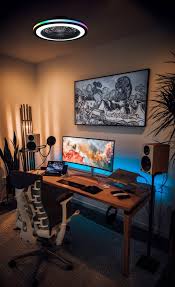
How to Lighten Your Monitor on Pc: Tips And Tricks
Are you tired of squinting at your computer screen? Do you want to know how to lighten the monitor on your PC without straining your eyes? Look no further! In this article, we will explore the best ways to brighten up your monitor, whether you’re using a Windows or macOS device.
Why is it Important to Lighten Your Monitor?
Before we dive into the solutions, let’s quickly discuss why lightening your monitor is essential. Prolonged exposure to dim lighting can lead to eye strain, headaches, and even fatigue. By adjusting the brightness of your monitor, you can prevent these issues and ensure a more comfortable viewing experience.
Software Solutions: Lighten Your Monitor With Ease
One of the most effective ways to lighten your monitor is by using software specifically designed for this purpose. Here are some top recommendations:
- Spotonthemouse (Windows): This program allows you to highlight portions of your screen, making it easier to navigate and work on. You can download a demo version and test its features before deciding to purchase.
- Pointerfocus (Windows): Another popular option is PointerFocus, which provides a range of tools to help you focus on specific areas of the screen. While it’s not free, you can try out all its features for a limited time.
Hardware Solutions: Adjusting Brightness on Your Monitor
If software solutions aren’t your thing, don’t worry! You can also adjust the brightness directly on your monitor using hardware controls. Here’s how:
- Windows: Press the Fn key together with F2 or F3 (or F11 and F12) to adjust the screen brightness.
- Macos: Use the F1 and F2 keys to increase or decrease the screen brightness.
Operating System Solutions: Adjusting Brightness in Windows And Macos
You can also make adjustments within your operating system. Here’s how:
- Windows 10: Search for “adjust screen brightness” and follow the prompts.
- Macos: Go to System Preferences > Displays and adjust the brightness slider.
Tips For Regulating Monitor Brightness on PC
To ensure you’re getting the best out of your monitor, keep these tips in mind:
- Adjust the brightness according to your environment. If it’s bright outside, you might not need as much screen light.
- Experiment with different software and hardware solutions to find what works best for you.
Conclusion
Lightening your monitor is a simple yet effective way to improve your viewing experience on PC. By using software, hardware, or operating system solutions, you can adjust the brightness to suit your needs. Remember to take care of your eyes by adjusting the screen brightness regularly and taking breaks from prolonged screen time.
Frequently Asked Questions (FAQs)
Here are some frequently asked questions about lightening your monitor:
- Q: What’s the best software for lightening my monitor?
A: The top recommendations are SpotOnTheMouse and PointerFocus. - Q: Can I adjust the brightness directly on my monitor?
A: Yes, you can use hardware controls or make adjustments within your operating system. - Q: How often should I adjust the screen brightness?
A: It’s a good idea to adjust the brightness regularly to suit your environment and prevent eye strain.
Final Thoughts
In conclusion, lightening your monitor is a straightforward process that can be achieved through various software, hardware, or operating system solutions. By taking care of your eyes and adjusting the screen brightness accordingly, you can enjoy a more comfortable viewing experience on PC.


