
How to Listen Vocal Messages on Whatsapp Without Visualizing
Are you tired of being “compelled” to answer messages on WhatsApp immediately? Do you want to listen to vocal messages without visualizing them? Well, you’re in luck! In this article, we’ll show you how to do just that.
What You Need to Know
Before we dive into the steps, it’s essential to understand how WhatsApp works. When you receive a message on WhatsApp, it turns blue if the other person has read it. This is where the problem lies – you want to listen to vocal messages without visualizing them, but you don’t want the other person to know that you’ve listened.
Step 1: Deactivate Read Confirmations
The first step is to deactivate read confirmations on WhatsApp. This will prevent the other person from knowing whether or not you’ve listened to the message. To do this:
- On Android devices, go to Settings > Account > Privacy and toggle off the “Read” confirmation switch.
- On iOS devices, go to Settings > Account > Privacy and toggle off the “Read” confirmation switch.
Step 2: Listen to Vocal Messages
Once you’ve deactivated read confirmations, you can listen to vocal messages without visualizing them. To do this:
- Open WhatsApp and navigate to the conversation where you received the vocal message.
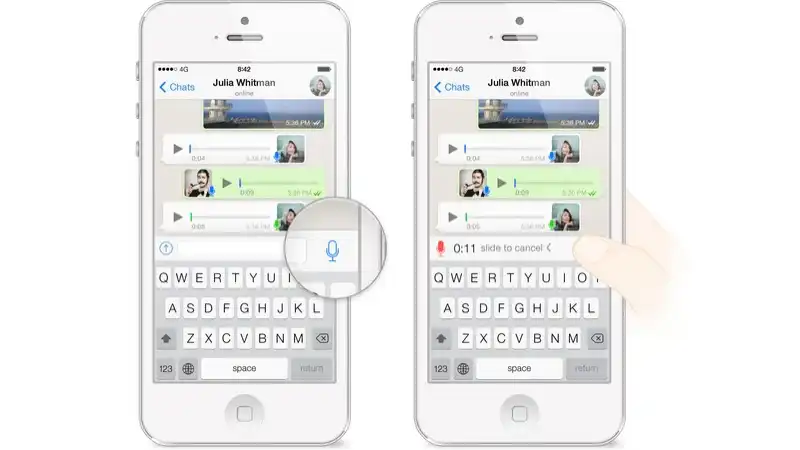
- Tap on the play button to start playing the message.
Step 3: Deactivate Internet Connection (Optional)
If you want to listen to vocal messages in complete tranquility, you can deactivate your internet connection. This will prevent the other person from knowing whether or not you’ve listened to the message.
- On Android devices, go to Settings > Wi-Fi and toggle off the switch.
- On iOS devices, go to Settings > Wi-Fi and toggle off the switch.
- On Windows computers, go to Settings > Network & Internet and toggle off the Wi-Fi switch.
- On macOS computers, go to System Preferences > Network and toggle off the Wi-Fi switch.
How to Listen to Vocal Messages on Whatsapp Without Visualizing (PC)
If you’re using a computer to listen to vocal messages on WhatsApp, the process is slightly different. Here’s how to do it:
- Open WhatsApp Web or the client application for Windows and macOS.
- Go to Settings > Privacy and toggle off the “Read” confirmation switch.
- Navigate to the conversation where you received the vocal message.
- Click on the play button to start playing the message.
Why You Shouldn’t Use Third-party Apps
You might be thinking, “Can I use a third-party app to listen to vocal messages without visualizing them?” Unfortunately, the answer is no. These apps are often malware or scams designed to steal your data and show you invasive ads.
Conclusion
Listening to vocal messages on WhatsApp without visualizing them is possible, but it requires some technical know-how. By deactivating read confirmations and listening to messages in tranquility, you can enjoy the benefits of WhatsApp without feeling compelled to answer immediately.
Frequently Asked Questions (FAQs)
Here are some frequently asked questions about listening to vocal messages on WhatsApp:
- Q: Can I Use a Third-party App to Listen to Vocal Messages?
A: No, these apps are often malware or scams designed to steal your data and show you invasive ads. - Q: How do I Deactivate Read Confirmations on Whatsapp?
A: Go to Settings > Account > Privacy and toggle off the “Read” confirmation switch. - Q: Can I Listen to Vocal Messages Without Visualizing Them?
A: Yes, once you’ve deactivated read confirmations, you can listen to vocal messages without visualizing them. - Q: How do I Deactivate my Internet Connection on Windows Computers?
A: Go to Settings > Network & Internet and toggle off the Wi-Fi switch. - Q: Can I Use Whatsapp Web or The Client Application For Windows And Macos to Listen to Vocal Messages?
A: Yes, you can use these applications to listen to vocal messages without visualizing them.
We hope this article has been helpful!


