
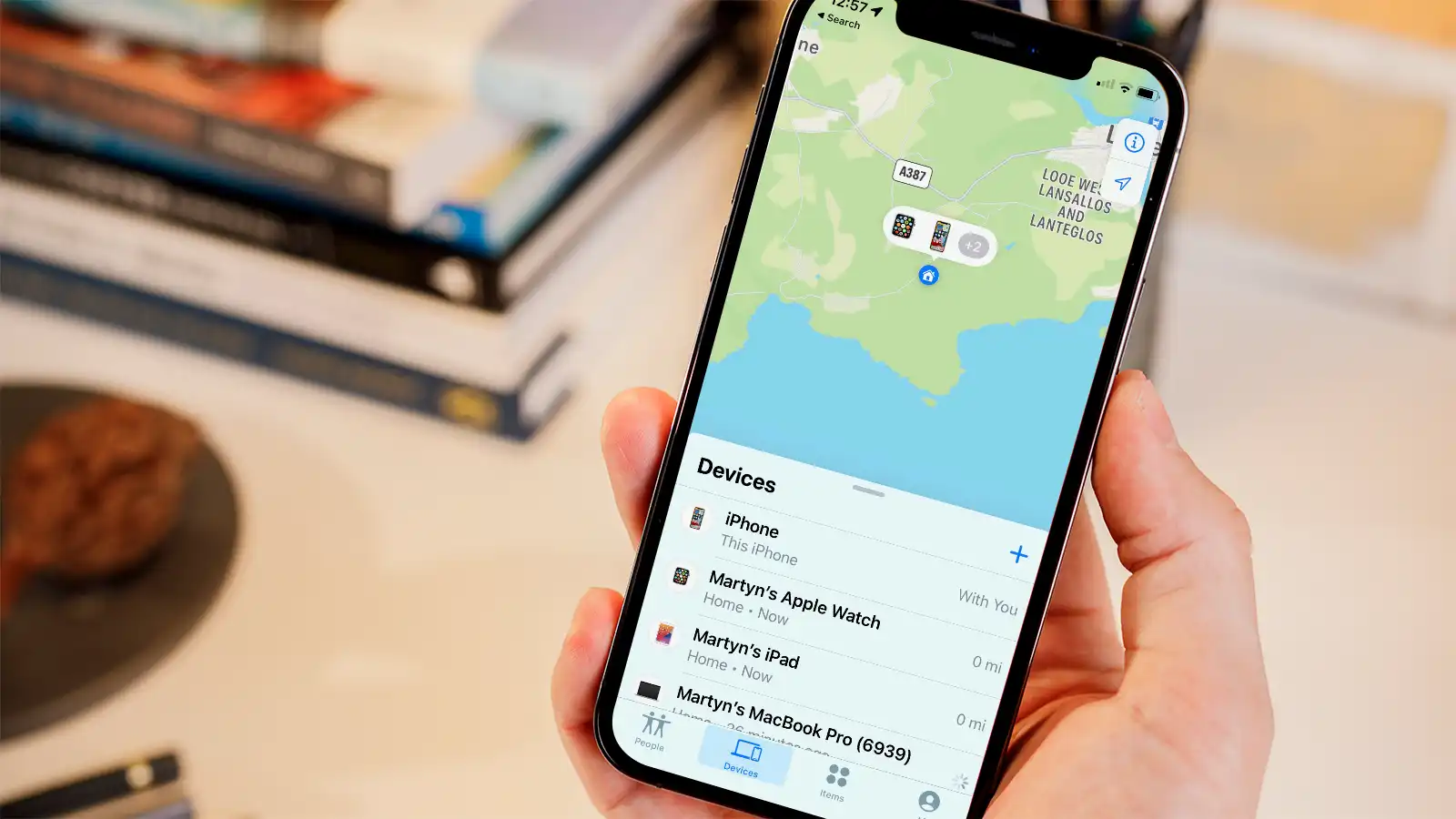
How to Locate Your Iphone: A Step-by-step Guide
Are you worried about losing your iPhone or having it stolen? You’re not alone. Apple has implemented a feature that allows you to remotely locate your devices, including iPhones, iPads, Macs, and more. This function is called “Find My” (formerly known as “Where’s My”). In this article, we’ll show you how to use Find My to locate your iPhone.
What You Need to Know
Before we dive into the step-by-step guide, here are a few things you should know:
- Find My is a free feature that comes with all Apple devices.
- It’s active by default on most Apple devices, except for those not associated with an iCloud account.
- To use Find My, your iPhone must be turned on and connected to the internet.
Locating Your Iphone: A Step-by-step Guide
Here’s how to locate your iPhone using Find My:
- Open The Settings App: On your iPhone, open the Settings app. You can find it on the Home screen or in the App Library.
- Tap on Your Name: Tap on your name at the top of the screen.
- Select “Find My”: Scroll down and select “Find My.”
- Tap on “Activate”: Make sure the toggle next to “Find My” is set to ON (green). If it’s not, tap on it to activate the feature.
Locating Your Iphone When It’s Lost or Stolen
If your iPhone is lost or stolen, here’s what you can do:
- Open Find My: Open the Find My app on another Apple device or access it through icloud.Com/find.
- Sign in With Your Apple ID: Sign in with your Apple ID to access your devices.
- Select “Find My Iphone”: Select “Find My iPhone” from the menu.
- Tap on The Device: Tap on the device you want to locate (in this case, your iPhone).
- View Location History: You’ll see a map showing where your iPhone has been. You can also view its current location.
Other Ways to Locate Your Iphone
If you’re not near an Apple device or can’t access Find My, here are some alternative ways to locate your iPhone:
- Use The Web: Go to icloud.Com/find on any web browser and sign in with your Apple ID.
- Ask Siri: If your iPhone is nearby, ask Siri “Where’s my iPhone?” to view its location.
Locating Your Iphone When It’s Turned Off
With iOS 15 and later, you can even locate your iPhone when it’s turned off. This feature uses the iPhone’s U1 chip to send a signal to other nearby Apple devices, making it easier to find your iPhone.
Sharing Location With Family Members
If you want to share location information with family members or friends, here’s how:
- Open Settings: Open the Settings app on your iPhone.
- Tap on Your Name: Tap on your name at the top of the screen.
- Select “In Family”: Select “In Family.”
- Create a Shared Location Session: Create a shared location session with family members by selecting “Share My Location” and choosing the people you want to share it with.
Faqs
Here are some frequently asked questions about Find My:
Q: Do I need to keep my iPhone connected to Wi-Fi or cellular data for Find My to work?
A: Yes, your iPhone must be turned on and connected to the internet for Find My to work.
Q: Can I locate an iPhone that’s been turned off or has a dead battery?
A: Yes, with iOS 15 and later, you can locate an iPhone that’s been turned off using its U1 chip.
Q: Can I share location information with family members or friends?
A: Yes, you can share location information with family members or friends by creating a shared location session.
Q: How do I activate Find My on my iPhone?
A: Open the Settings app, tap on your name, and select “Find My.” Make sure the toggle is set to ON (green).
Q: Can I use Find My to locate an iPad or Mac?
A: Yes, you can use Find My to locate an iPad or Mac.
Conclusion
Locating your iPhone using Find My is a straightforward process. By following these steps, you’ll be able to find your iPhone even when it’s lost or stolen. Remember to keep your iPhone connected to the internet and make sure Find My is activated on your device. If you have any further questions or concerns, feel free to ask!


