
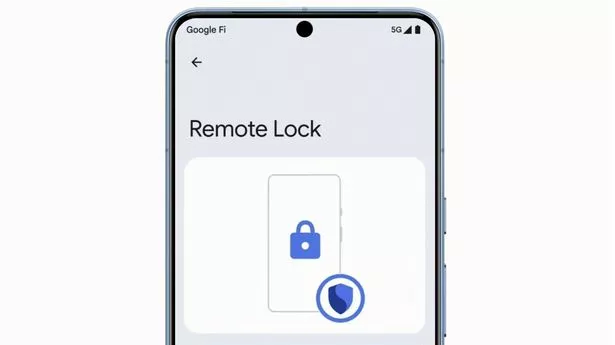
How to Block a Phone at Arm’s Length: A Step-by-step Guide
Are you tired of worrying about your phone being stolen or accessed by someone else? Do you want to take control of your personal data and ensure that it remains private? Look no further! In this article, we will guide you through the process of blocking a phone at arm’s length, using various methods for different types of phones.
The Risks of Not Blocking Your Phone
When you lose or misplace your phone, it can be a stressful experience. But did you know that if someone else gets their hands on your device, they may have access to all of your personal data? This includes sensitive information such as credit card numbers, passwords, and private messages.
Blocking a Phone: The Ultimate Solution
Blocking your phone is the best way to prevent unauthorized access to your personal data. By using one of the methods outlined below, you can ensure that even if someone else finds or steals your device, they won’t be able to use it.
Method 1: Using Google’s Find My Device Service (Android)
Google’s Find My Device service is a great way to locate and block your Android phone. Here’s how to do it:
- Log in to your Google account on the website.
- Click on the “Find my device” tab.
- Select the device you want to block from the list of available devices.
- Click on the “Block this device” button.
Method 2: Using Samsung’s Find My Device Service (Android)
If you have a Samsung phone, you can use their own Find My Device service to locate and block your device. Here’s how:
- Log in to your Samsung account on the website.
- Click on the “Find my device” tab.
- Select the device you want to block from the list of available devices.
- Click on the “Block this device” button.
Method 3: Using Huawei’s Find Device Service (Android)
Huawei also offers a Find Device service that allows you to locate and block your Android phone. Here’s how:
- Log in to your Huawei account on the website.
- Click on the “Find device” tab.
- Select the device you want to block from the list of available devices.
- Click on the “Block this device” button.
Method 4: Using Icloud to Block an Iphone
If you have an iPhone, you can use Apple’s iCloud service to locate and block your device. Here’s how:
- Log in to your Apple ID account on the website.
- Click on the “Find My” tab.
- Select the device you want to block from the list of available devices.
- Click on the “Block this device” button.
Tips For Blocking a Phone
Here are some additional tips to keep in mind when blocking your phone:
- Make sure you have a backup of all your important data before blocking your phone.
- Use a strong password or PIN code to secure your phone and prevent unauthorized access.
- Consider using a VPN (Virtual Private Network) to protect your online activity.
Conclusion
Blocking a phone at arm’s length is an essential step in protecting your personal data and preventing unauthorized access. By following the steps outlined above, you can ensure that even if someone else finds or steals your device, they won’t be able to use it. Don’t wait until it’s too late – take control of your data today!
Faqs
Here are some frequently asked questions about blocking a phone:
- Q: How do I Block my Phone if I’ve Already Lost It?
A: If you’ve already lost your phone, try to locate it using the methods outlined above. If you can’t find it, contact your carrier or manufacturer for assistance. - Q: Will Blocking my Phone Delete All of my Data?
A: No, blocking your phone will not delete any of your data. However, if someone else accesses your device without permission, they may be able to access and steal your personal information. - Q: Can I Unblock my Phone Later if Needed?
A: Yes, you can unblock your phone at a later time by following the same steps outlined above.


