
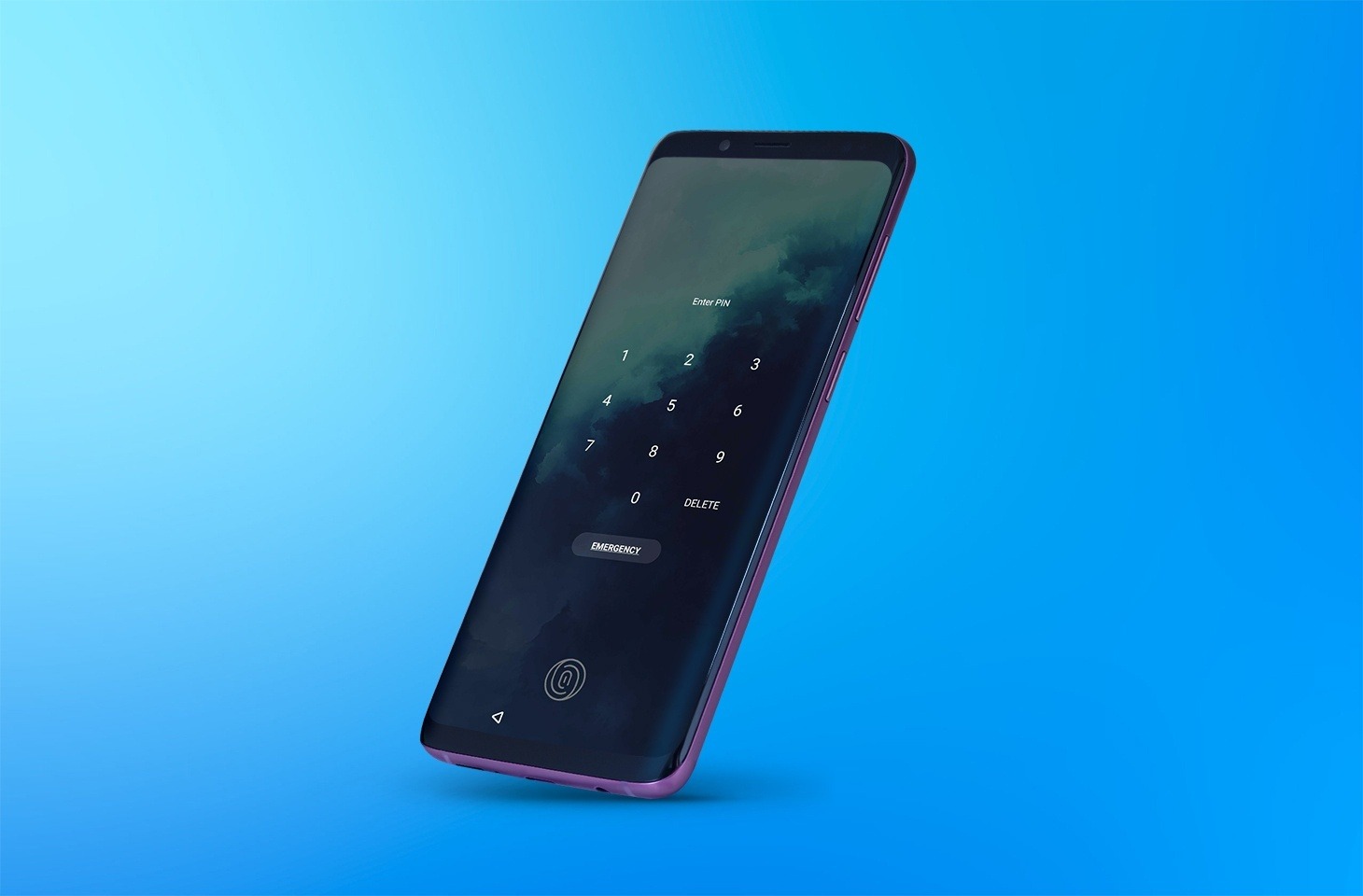
Blocking a Stolen or Lost Samsung Phone: A Comprehensive Guide
Are you worried that your Samsung phone has been stolen or lost? Do you want to block it remotely to prevent unauthorized access to your data? You’ve come to the right place! In this article, we’ll guide you through the steps to block a stolen or lost Samsung phone using various methods.
Understanding The Risks
If someone gets their hands on your phone, they can easily access your personal data, including photos, messages, emails, and more. Additionally, they might be able to use your phone’s services, such as making calls, sending texts, and accessing the internet. This is why it’s essential to block your phone remotely as soon as possible.
Method 1: Blocking Using Samsung’s “Find My Device” Service
Samsung offers a service called “Find My Device” that allows you to locate, lock, or erase your device remotely. To use this feature:
- Ensure Your Phone is Connected to The Internet: Make sure your phone is turned on and connected to Wi-Fi or cellular data.
- Go to Settings > Advanced Features > Find My Mobile: On your Samsung phone, navigate to the “Settings” app, then select “Advanced Features,” followed by “Find My Mobile.”
- Sign in With Your Samsung Account: Enter your Samsung account credentials to access the feature.
- Select The Device You Want to Block: Choose the device you want to block from the list of available devices linked to your Samsung account.
- Lock or Erase The Device: Select the “Lock” or “Erase” option, depending on what you prefer.
Method 2: Blocking Using Google’s “Find My Device” Service
If you don’t have a Samsung account or want to use an alternative method, you can use Google’s “Find My Device” service. To do this:
- Go to The Google Find My Device Website: Open a web browser and navigate to the Google Find My Device website.
- Sign in With Your Google Account: Enter your Google account credentials to access the feature.
- Select The Device You Want to Block: Choose the device you want to block from the list of available devices linked to your Google account.
- Lock or Erase The Device: Select the “Lock” or “Erase” option, depending on what you prefer.
Method 3: Blocking Using Imei
In some cases, you might need to use the IMEI (International Mobile Equipment Identity) method to block your phone. To do this:
- Gather Your Imei Number: You can find your IMEI number on the packaging of your phone or by contacting Samsung.
- Contact The Authorities: Report the theft of your phone to the local authorities, providing them with your IMEI number.
- Block The Device Using The Imei Method: Once the authorities have confirmed the theft, they will block the device using the IMEI method.
Additional Tips And Considerations
- Make sure your phone is locked with a PIN or password to prevent unauthorized access.
- Use a secure messaging app like Signal or WhatsApp to protect your conversations.
- Regularly back up your data to a secure location, such as Google Drive or Dropbox.
- Consider using a phone security service like Lookout or Avast to monitor your device for potential threats.
Conclusion
Blocking a stolen or lost Samsung phone is crucial to prevent unauthorized access to your personal data. By following the methods outlined in this article, you can remotely lock or erase your device and protect yourself from potential harm. Remember to stay vigilant and take necessary precautions to safeguard your digital life.
Frequently Asked Questions (FAQs)
- Q: Can I Block my Phone if It’s Offline?
A: No, the phone must be connected to the internet for you to block it remotely. - Q: Will Blocking my Phone Erase All my Data?
A: Yes, if you choose to erase your device using the “Find My Device” service or IMEI method, all data on the device will be deleted. - Q: Can I Still Access my Data After Blocking my Phone?
A: No, once you block your phone, it will not be possible to access any data on the device without first entering the correct PIN or password. - Q: How Long Does it Take For a Blocked Phone to be Unusable?
A: A blocked phone will become unusable immediately after being locked or erased using the “Find My Device” service or IMEI method. - Q: Can I Still Use my Phone’s Services, Such as Making Calls And Sending Texts, if It’s Blocked?
A: No, once your phone is blocked, you will not be able to use its services until you unblock the device using the correct PIN or password. - Q: Is There a Way to Recover my Data After Blocking my Phone?
A: Unfortunately, no, all data on the device will be deleted if you choose to erase your device using the “Find My Device” service or IMEI method. - Q: Can I Use Another Sim Card in my Blocked Phone?
A: No, a blocked phone will not be able to connect to any cellular network until it’s unblocked using the correct PIN or password. - Q: How do I Know if my Phone Has Been Successfully Blocked?
A: You can verify that your phone has been blocked by trying to make calls, send texts, or access the internet; if it doesn’t work, it means your phone is successfully blocked.
We hope this article has provided you with a comprehensive guide on how to block a stolen or lost Samsung phone. If you have any further questions or concerns, please don’t hesitate to ask!


