
Blocking a Monitor on Your Phone or Computer: A Step-by-step Guide
Are you tired of your phone or computer monitor turning off when it’s not in use? Do you want to keep the screen lit even when you’re not actively using it? Look no further! In this article, we’ll guide you through the process of blocking a monitor on both Android and iOS devices, as well as Windows and macOS computers.
Why Block a Monitor?
While it might seem convenient to have your phone or computer screen turn off automatically, there are some benefits to keeping it lit. For example:
- You can leave notes or reminders for yourself that you won’t miss.
- It’s easier to glance at the time or date without having to press any buttons.
- If you’re working on a project or watching a video, it’s nice to have the screen stay lit even when you’re not actively interacting with it.
Blocking a Monitor on Android Devices
If you’re using an Android device, here’s how to block the monitor:
- Go to your phone’s settings.
- Select “Display” and then “Always-On Display.”
- Toggle the switch to turn it on.
- Customize the display settings as desired.
Blocking a Monitor on Ios Devices
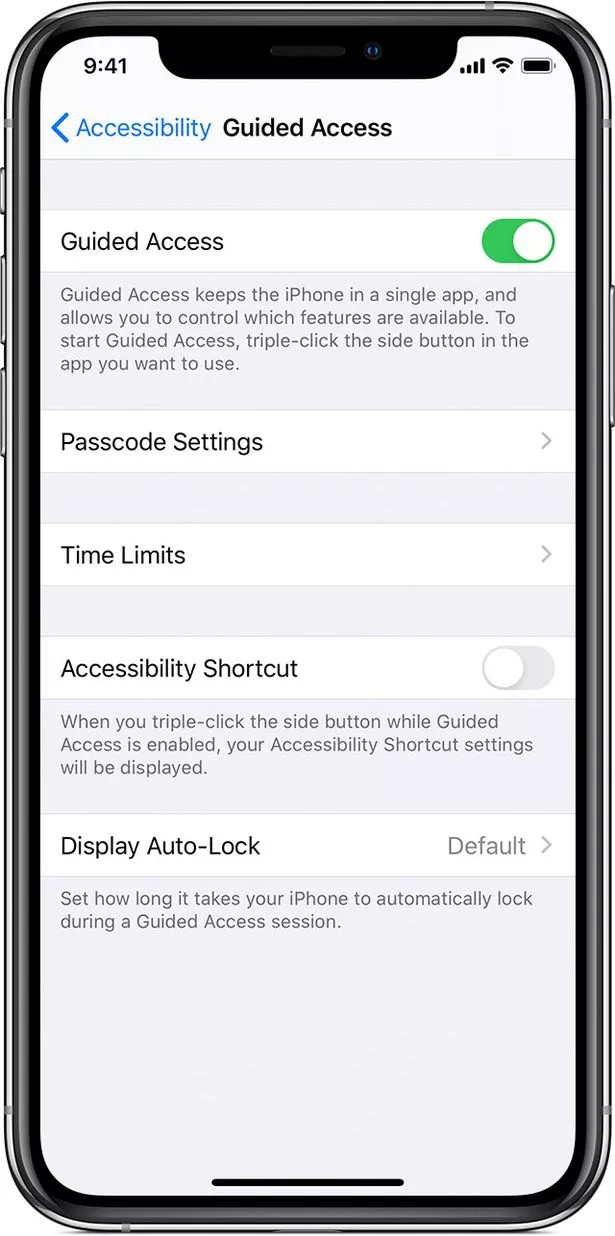
If you’re using an iOS device, here’s how to block the monitor:
- Go to your phone’s settings.
- Select “Display & Brightness” and then “Auto-Lock.”
- Set it to “Never” or choose a time period that works for you.
Blocking a Monitor on Windows Computers
If you’re using a Windows computer, here’s how to block the monitor:
- Go to your computer’s settings.
- Select “Display” and then “Power options.”
- Set it to “Never” or choose a time period that works for you.
Blocking a Monitor on Macos Computers
If you’re using a macOS computer, here’s how to block the monitor:
- Go to your computer’s settings.
- Select “System Preferences” and then “Display.”
- Set it to “Never” or choose a time period that works for you.
Conclusion
Blocking a monitor on your phone or computer is a simple process that can be customized to fit your needs. Whether you want to keep the screen lit for reminders, convenience, or other reasons, we hope this guide has been helpful in showing you how to do it.
Frequently Asked Questions (FAQs)
Q: Why would I want to block a monitor on my phone or computer?
A: There are several reasons why you might want to keep the screen lit. For example, you can leave notes or reminders for yourself that you won’t miss, or it’s easier to glance at the time or date without having to press any buttons.
Q: Will blocking a monitor drain my battery faster?
A: Yes, keeping the screen lit will consume more battery life, especially if your device has an OLED display. However, most modern devices have efficient power management systems that minimize this impact.
Q: Can I customize the settings for blocking a monitor on my phone or computer?
A: Yes, you can adjust the settings to suit your needs. For example, you might want to keep the screen lit for a certain amount of time before it turns off, or set specific times when it should stay lit.
Q: Will blocking a monitor affect any apps or features that require the screen to be turned off?
A: Some apps or features might not work properly if the screen is kept lit. In these cases, you’ll need to adjust your settings accordingly.
Q: Is there a way to automatically turn off my phone or computer after a certain amount of time if I’m not using it?
A: Yes, most devices have built-in power management systems that can do this for you. Check your device’s settings to see how to enable it.
Q: What are the risks of keeping a monitor lit on an OLED display?
A: If you have an OLED display, there is a risk of burn-in if you keep the same image displayed for too long. To avoid this, try to change the content on your screen regularly or use a screensaver that moves around.
Q: Can I still turn off my phone or computer when I’m not using it?
A: Yes, you can still manually turn off your device even if you’ve set it to block the monitor. Just press the power button as usual.
Note: Always keep an eye on battery consumption and follow manufacturer guidelines for optimal performance.


