
Accessing And Disconnecting From Outlook: A Comprehensive Guide
Are you looking to access your Outlook account or disconnect from it? Look no further! In this article, we will guide you through the process of accessing and disconnecting from Outlook, including tips for troubleshooting common problems.
Understanding Outlook Access And Disconnection
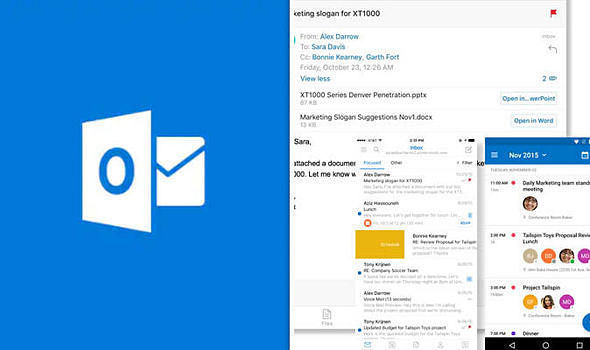
Outlook is a popular email service provided by Microsoft. It allows users to access their email accounts on various devices, including computers, smartphones, and tablets. If you have an Outlook account, you can access it using the Outlook Web app or through the Outlook application installed on your device.
Accessing Outlook
To access your Outlook account, follow these steps:
- Open Your Browser: Open a web browser of your choice (e.G., Google Chrome, Mozilla Firefox).
- Go to The Outlook Website: Type in the address bar
https://Outlook.Comand press Enter. - Sign in: Click on the “Sign in” button and enter your email address and password.
- Access Your Account: Once signed in, you will be taken to your Outlook inbox.
Disconnecting From Outlook
To disconnect from your Outlook account, follow these steps:
- Go to The Outlook Website: Type in the address bar
https://Outlook.Comand press Enter. - Sign Out: Click on the “Sign out” button at the top right corner of the page.
- Confirm Disconnection: A pop-up window will appear, asking you to confirm that you want to sign out. Click on the “Yes” button.
Troubleshooting Common Problems
If you are experiencing problems accessing or disconnecting from your Outlook account, try these troubleshooting steps:
- Check Your Internet Connection: Ensure that your internet connection is stable and working properly.
- Verify Your Email Address And Password: Make sure that you have entered the correct email address and password.
- Clear Cache And Cookies: Clear the cache and cookies of your browser to ensure a fresh login experience.
- Contact Microsoft Support: If none of the above steps resolve the issue, contact Microsoft support for further assistance.
Accessing Outlook on Multiple Devices
If you have multiple devices connected to your Outlook account, you can access your email accounts on any device by following these steps:
- Configure Your Account on Each Device: Set up your Outlook account on each device separately.
- Use The Imap Protocol: Use the IMAP (Internet Message Access Protocol) protocol to synchronize your folders across devices.
Disconnecting From Outlook on Multiple Devices
To disconnect from your Outlook account on multiple devices, follow these steps:
- Go to The Settings Menu: Open the settings menu on each device and select “Account” or “Settings”.
- Select Your Email Account: Choose your Outlook email account from the list of available accounts.
- Delete The Account: Delete the account from the device.
Tips For Accessing And Disconnecting From Outlook
Here are some additional tips to keep in mind when accessing and disconnecting from your Outlook account:
- Use a stable internet connection to ensure smooth access and disconnection experiences.
- Regularly clear cache and cookies to prevent login issues.
- Verify your email address and password regularly to prevent unauthorized access.
- Consider using two-factor authentication (2FA) for added security.
Conclusion
In conclusion, accessing and disconnecting from Outlook is a straightforward process. By following the steps outlined in this article, you can easily access or disconnect from your Outlook account on various devices. Remember to troubleshoot common problems by checking your internet connection, verifying your email address and password, clearing cache and cookies, and contacting Microsoft support if necessary.
Frequently Asked Questions (FAQs)
Here are some frequently asked questions related to accessing and disconnecting from Outlook:
Q: How do I access my Outlook account on multiple devices?
A: To access your Outlook account on multiple devices, configure your account separately on each device using the IMAP protocol.
Q: How do I disconnect from my Outlook account on multiple devices?
A: To disconnect from your Outlook account on multiple devices, go to the settings menu on each device and delete the account.
Q: What should I do if I’m experiencing problems accessing or disconnecting from Outlook?
A: Try troubleshooting by checking your internet connection, verifying your email address and password, clearing cache and cookies, and contacting Microsoft support if necessary.
Q: Can I use 2FA for added security when accessing my Outlook account?
A: Yes, you can enable two-factor authentication (2FA) on your Outlook account to add an extra layer of security.
Q: How do I clear cache and cookies in my browser?
A: The steps to clear cache and cookies vary depending on the browser you are using. Refer to your browser’s documentation for instructions.
Q: What should I do if I forget my Outlook password?
A: If you forgot your Outlook password, try recovering it by following these steps: [Insert link].
References
- Microsoft Support: Troubleshooting Common Problems with Outlook
- Outlook Web App User Guide
The Benefits of Accessing And Disconnecting From Outlook
Accessing and disconnecting from Outlook can have several benefits for users. Some of the advantages include:
- Convenience: With Outlook, you can access your email account on various devices, making it convenient to stay connected.
- Security: By using two-factor authentication (2FA), you can add an extra layer of security to protect your account from unauthorized access.
- Flexibility: You can configure multiple accounts on each device and switch between them seamlessly.
The Drawbacks of Accessing And Disconnecting From Outlook
While accessing and disconnecting from Outlook has several benefits, there are also some drawbacks to consider:
- Technical Issues: Users may experience technical issues when accessing or disconnecting from their Outlook account.
- Security Risks: If users do not follow best practices for securing their account, they may be at risk of unauthorized access.
Conclusion
In conclusion, accessing and disconnecting from Outlook can have both benefits and drawbacks. While it offers convenience, security, and flexibility, it also poses technical issues and security risks if not managed properly. By following the guidelines outlined in this article, you can minimize the risks associated with accessing and disconnecting from your Outlook account.
Frequently Asked Questions (FAQs)
Here are some frequently asked questions related to accessing and disconnecting from Outlook:
Q: What is the best way to access my Outlook account on multiple devices?
A: The best way to access your Outlook account on multiple devices is to configure each device separately using the IMAP protocol.
Q: How do I ensure that my Outlook account is secure?
A: To ensure that your Outlook account is secure, use two-factor authentication (2FA), keep your password confidential, and regularly clear cache and cookies in your browser.
Q: What should I do if I experience technical issues when accessing or disconnecting from Outlook?
A: If you experience technical issues when accessing or disconnecting from Outlook, try troubleshooting by checking your internet connection, verifying your email address and password, clearing cache and cookies, and contacting Microsoft support if necessary.


