
How to Access Your Google Account: A Step-by-step Guide
Are you looking to create a new Google account or access an existing one? Look no further! In this article, we will guide you through the process of accessing your Google account on various devices and platforms.
Why Create a Google Account?
Creating a Google account is essential for utilizing Google’s vast array of services, including Gmail, Google Drive, and more. With a Google account, you can access these services seamlessly across multiple devices.
How to Create a Google Account
If you haven’t already created a Google account, follow these steps:
- Open Your Preferred Browser: Go to the initial page of Google.
- Click on The “Create a Account” Button: Located at the top right corner of the page.
- Fill Out The Registration Form: Enter your name, surname, and password.
- Choose a Recovery Option: Select either a phone number or email address for recovery purposes.
- Enter Your Birthdate And Sex: Fill in these details to complete the registration process.
How to Access Your Google Account on PC
If you already have a Google account but want to access it from your PC, follow these steps:
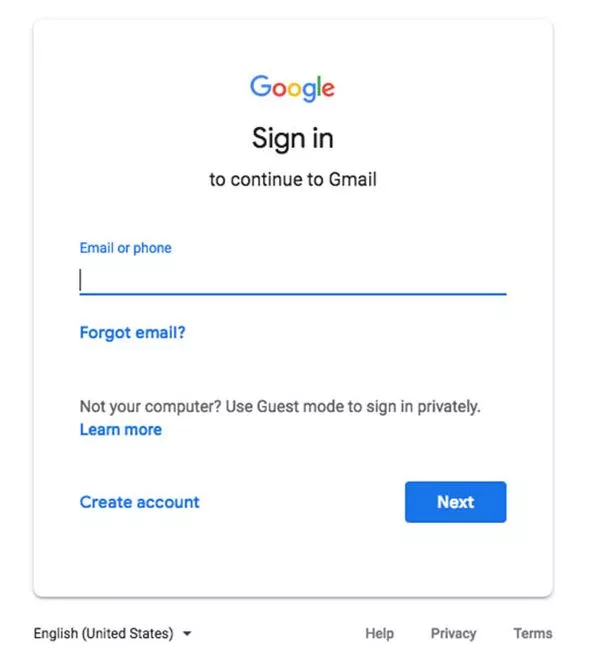
- Open Your Browser: Go to the initial page of Google.
- Click on The “Sign In” Button: Located at the top right corner of the page.
- Enter Your Gmail Address And Password: Fill in your credentials to access your account.
How to Access Your Google Account on Android
If you have an Android device, follow these steps:
- Go to Settings: Open the settings menu on your device.
- Select “Account”: Tap on the “Account” option.
- Tap on “Add Account”: Select the “Add account” option.
- Choose Google: Select Google as the service you want to add.
How to Access Your Google Account on Ios/ipados
If you have an iPhone or iPad, follow these steps:
- Go to Settings: Open the settings menu on your device.
- Select “Mail”: Tap on the “Mail” option.
- Tap on “Add Account”: Select the “Add account” option.
- Choose Google: Select Google as the service you want to add.
How to Access Your Google Account on Chrome
If you use Chrome as your browser, follow these steps:
- Open Chrome: Go to the initial page of Chrome.
- Click on The Three Vertical Dots: Located at the top right corner of the page.
- Select “Settings”: Tap on the “Settings” option.
- Scroll Down And Select “Google Account”: Tap on the “Google account” option.
How to Access Your Google Account Without Password
If you’ve forgotten your password, follow these steps:
- Open Chrome or Any Other Browser: Go to the initial page of Chrome.
- Click on The Three Vertical Dots: Located at the top right corner of the page.
- Select “Settings”: Tap on the “Settings” option.
- Scroll Down And Select “Google Account”: Tap on the “Google account” option.
How to Access Your Google Account Without Phone
If you’ve qualified for two-factor authentication, follow these steps:
- Open Chrome or Any Other Browser: Go to the initial page of Chrome.
- Click on The Three Vertical Dots: Located at the top right corner of the page.
- Select “Settings”: Tap on the “Settings” option.
- Scroll Down And Select “Google Account”: Tap on the “Google account” option.
How to Add a Secondary Google Account
If you want to add a secondary Google account, follow these steps:
- Open Chrome or Any Other Browser: Go to the initial page of Chrome.
- Click on The Three Vertical Dots: Located at the top right corner of the page.
- Select “Settings”: Tap on the “Settings” option.
- Scroll Down And Select “Google Account”: Tap on the “Google account” option.
How to Switch Between Google Accounts
If you have multiple Google accounts, follow these steps:
- Open Chrome or Any Other Browser: Go to the initial page of Chrome.
- Click on The Three Vertical Dots: Located at the top right corner of the page.
- Select “Settings”: Tap on the “Settings” option.
- Scroll Down And Select “Google Account”: Tap on the “Google account” option.
Conclusion
Accessing your Google account is a straightforward process that can be completed on various devices and platforms. Whether you’re creating a new account or accessing an existing one, this guide has provided you with step-by-step instructions to ensure a smooth experience.
Frequently Asked Questions (FAQs)
- How do I Create a Google Account?
To create a Google account, follow the steps outlined in this article.
- How do I Access my Google Account on Pc?
To access your Google account on PC, follow the steps outlined in this article.
- How do I Access my Google Account on Android?
To access your Google account on Android, follow the steps outlined in this article.
- How do I Add a Secondary Google Account?
To add a secondary Google account, follow the steps outlined in this article.
- How do I Switch Between Google Accounts?
To switch between Google accounts, follow the steps outlined in this article.
- How do I Access my Google Account Without Password?
If you’ve forgotten your password, follow the steps outlined in this article.
- How do I Access my Google Account Without Phone?
If you’ve qualified for two-factor authentication, follow the steps outlined in this article.
- Can I Use Multiple Google Accounts on a Single Device?
Yes, you can use multiple Google accounts on a single device by following the steps outlined in this article.


