
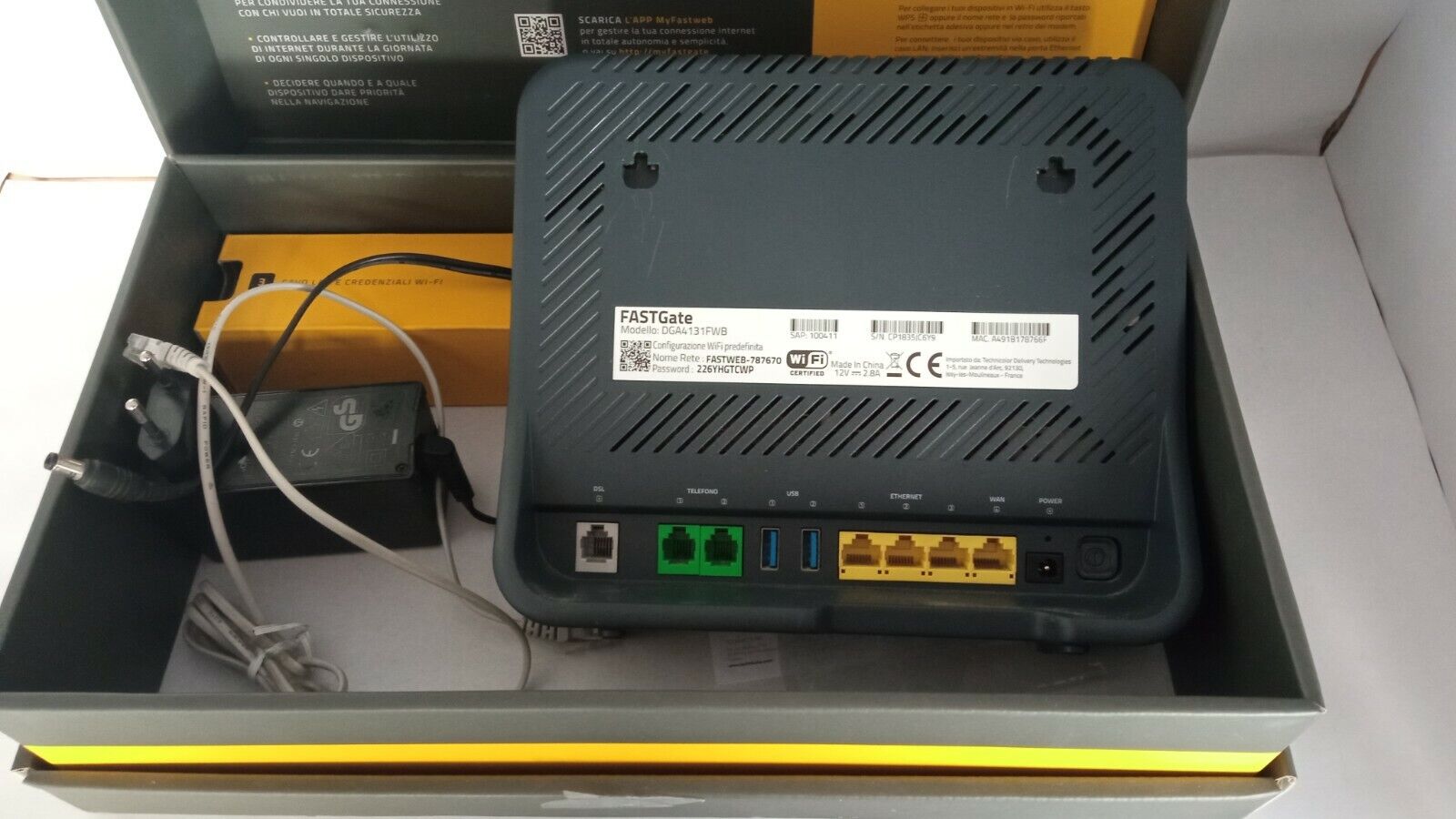
Accessing Your Fastweb Router: A Step-by-step Guide
Are you tired of struggling to access your Fastweb router? Look no further! In this article, we’ll guide you through the process of accessing your router using various methods.
Understanding Your Fastweb Router
Before we dive into the step-by-step instructions, it’s essential to understand that there are different types of Fastweb routers. The most common ones are NeXXt, FASTGate, and Technicolor. Each type has its unique features and settings.
Method 1: Accessing Your Router Using Myfastweb
The easiest way to access your router is by using the MyFastweb app or website. Here’s how:
- Download And Install The Myfastweb App: If you haven’t already, download and install the MyFastweb app on your smartphone or tablet.
- Log In to Your Account: Enter your username and password to log in to your account.
- Access The Router Configuration Panel: Tap on the “Configure” button to access the router configuration panel.
Method 2: Accessing Your Router Using a Browser
If you prefer using a browser, here’s how:
- Open a Web Browser: Open a web browser on your PC or mobile device.
- Type in The Router’s IP Address: Type in the router’s IP address (usually 192.168.1.254) Into the browser’s address bar.
- Log In to Your Account: Enter your username and password to log in to your account.
Method 3: Accessing Your Router Using a Smart Device
If you have a smart device, such as an Amazon Echo or Google Home, here’s how:
- Enable The Myfastweb App on Your Device: Enable the MyFastweb app on your smart device.
- Log In to Your Account: Enter your username and password to log in to your account.
- Access The Router Configuration Panel: Tap on the “Configure” button to access the router configuration panel.
Method 4: Accessing Your Technicolor Router
If you have a Technicolor router, here’s how:
- Open a Web Browser: Open a web browser on your PC or mobile device.
- Type in The Router’s IP Address: Type in the router’s IP address (usually 192.168.1.1) Into the browser’s address bar.
- Log In to Your Account: Enter your username and password to log in to your account.
Troubleshooting Tips
If you’re experiencing difficulties accessing your router, here are some troubleshooting tips:
- Check Your Internet Connection: Ensure that your internet connection is stable and working correctly.
- Restart Your Router: Restart your router to see if it resolves the issue.
- Contact Fastweb Support: If none of the above solutions work, contact Fastweb support for further assistance.
Conclusion
Accessing your Fastweb router can be a straightforward process once you understand the different methods available. Remember to save your changes and restart your router after making any modifications.
Frequently Asked Questions (FAQs)
- Q: How do I Access my Fastweb Router?
A: You can access your Fastweb router using the MyFastweb app, website, or a browser. - Q: What is The IP Address of my Fastweb Router?
A: The IP address of your Fastweb router varies depending on the type of router you have (usually 192.168.1.254). - Q: Can I Access my Fastweb Router Using a Smart Device?
A: Yes, you can access your Fastweb router using a smart device with the MyFastweb app enabled. - Q: What Should I do if I’m Experiencing Difficulties Accessing my Router?
A: Try restarting your router, checking your internet connection, or contacting Fastweb support for further assistance.
We hope this article has been helpful in resolving any issues you may have had accessing your Fastweb router!


