
Unlocking Remote Access: A Comprehensive Guide
Are you tired of being stuck without access to your computer? Do you need help connecting remotely? Look no further! This guide will walk you through the process of remote access, providing you with a step-by-step tutorial on how to connect and control another computer from anywhere in the world.
What is Remote Access?
Remote access allows you to access and control another computer from a different location, using an internet connection. This can be especially useful for individuals who need to work remotely or provide technical support to others.
Why Choose Teamviewer?
TeamViewer is one of the most popular and user-friendly remote access software available. It offers a range of features, including:
- Remote control: Take control of another computer’s desktop, keyboard, and mouse.
- File transfer: Transfer files between computers with ease.
- Chat and voice: Communicate with others in real-time using chat and voice functionality.
- Screen sharing: Share your screen with others, allowing them to view your desktop.
Getting Started With Teamviewer
To get started with TeamViewer, follow these simple steps:
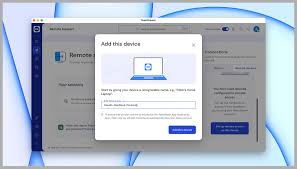
- Download And Install: Download the TeamViewer software from the official website and install it on both computers (the one you want to access and the one that will be used for remote access).
- Generate Ids: Generate a unique ID and password for each computer.
- Connect: Open TeamViewer on the computer that needs remote access, enter the ID and password of the computer you want to access, and click “Connect.”
- Access: Once connected, you will have full control over the accessed computer’s desktop, keyboard, and mouse.
Alternative Solutions For Remote Access
If TeamViewer is not your preferred solution, there are other alternatives available:
- Dwservice: An open-source platform that allows remote access to computers.
- Anydesk: A simple and flexible remote access software.
- Chrome Remote Desktop: A Chrome extension that enables remote access and control.
Accessing a Computer From a Mobile Device
If you need to access a computer from your mobile device, consider the following options:
- Teamviewer (Android/iOS/iPadOS): Download the TeamViewer app on your mobile device and follow the instructions to connect remotely.
- Chrome Remote Desktop (Android/iOS/iPadOS): Use the Chrome extension on your mobile device to access a computer remotely.
- Splashtop: A remote access service that allows you to control a computer from your mobile device.
Accessing a Computer Without a Password
If you’ve forgotten your password or need to unblock someone else’s computer, follow these steps:
- Check Your Account: Try using your account credentials to login.
- Use The Recovery Process: If you’ve forgotten your password, use the recovery process to reset it.
- Contact a Professional: If none of the above options work, contact a professional for assistance.
Conclusion
Remote access is an incredibly powerful tool that can help you overcome connectivity issues and provide technical support to others. By following this guide, you’ll be able to unlock remote access and enjoy a seamless experience.
Frequently Asked Questions (FAQs)
Q: What is remote access?
A: Remote access allows you to access and control another computer from a different location using an internet connection.
Q: Why choose TeamViewer?
A: TeamViewer offers a range of features, including remote control, file transfer, chat and voice, and screen sharing.
Q: How do I get started with TeamViewer?
A: Download and install the software on both computers, generate IDs and passwords, and follow the instructions to connect remotely.
Q: Are there alternative solutions for remote access?
A: Yes, DWService, AnyDesk, Chrome Remote Desktop, and Splashtop are just a few examples of alternative solutions.
Q: How do I access a computer from my mobile device?
A: Use TeamViewer (Android/iOS/iPadOS), Chrome Remote Desktop (Android/iOS/iPadOS), or Splashtop to connect remotely.
Q: Can I access a computer without a password?
A: Yes, try using your account credentials, use the recovery process, or contact a professional for assistance.
Q: What is the cost of TeamViewer?
A: TeamViewer offers both free and paid versions.


