
Disconnecting All Devices From Google Account: A Comprehensive Tutorial
How to Disconnect Google Account From All Devices?
If you have used your Google account on multiple devices and want to disconnect it from all of them, here is a comprehensive tutorial to help you achieve this goal. Disconnecting Google Account From All Devices Can be Quite a Simple Process, especially if you use the right method.
Preliminary Information
Before we begin, it’s essential to know that there are two ways to disconnect your Google account from all devices: Individually and simultaneously. Disconnecting Google Account From One Device at a Time May be Slightly More Complicated Than Doing it All Together, but both options are valid.
How to Disconnect Google Account From All Devices Individually
To disconnect the Google account from one device, follow these steps:
- Sign in to Your Google Account: Ensure you’re signed in to the Google account on which you want to disconnect the device.
- Click on Your Profile Icon: Click on the icon of your profile at the top right corner of the Google page.
- Select “Manage Account”: Select the option “Manage Account” from the dropdown menu.
- Select “Security”: Select the option “Security” from the left-hand sidebar.
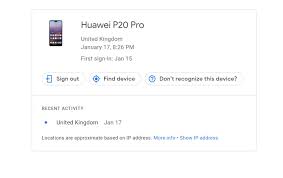
- View Devices: Click on the “View Devices” button to display a list of connected devices.
- Click on a Device: Choose the device you want to disconnect and click on it.
- Click on “Sign Out” Twice: Click on the “Sign out” button twice consecutively to confirm the disconnection of the device.
How to Disconnect Google Account From All Devices Simultaneously
To disconnect your Google account from all devices simultaneously, follow these steps:
- Set a New Password: Set a new password for your Google account.
- Sign in to Your Google Account: Ensure you’re signed in to your Google account with the new password.
How to Disconnect Google Account From Smartphone or Tablet
To disconnect your Google account from a smartphone or tablet, follow these steps:
- Open Settings: Open the settings app on your device.
- Search For “Google”: Search for the Google icon and click on it.
- Select “Manage Account”: Select the option “Manage account”.
- View Devices: Click on the “View Devices” button to display a list of connected devices.
- Click on a Device: Choose the device you want to disconnect and click on it.
- Click on “Sign Out” Twice: Click on the “Sign out” button twice consecutively to confirm the disconnection of the device.
Conclusion
Disconnecting your Google account from all devices can be quite simple, especially if you use the right method. I hope this tutorial has been helpful in achieving this goal. If You Have Any Further Questions or Need Additional Help, don’t hesitate to ask.
Frequently Asked Questions
- Why Should I Disconnect my Google Account From All Devices?
The answer is that, if you’re using a device connected to your Google account and someone gains access to your device, they might also gain access to your Google account. Disconnecting the device ensures the security of your account. - What Happens if I Disconnect my Google Account From All Devices?
When you disconnect your Google account from all devices, it’s no longer possible to access the account with any device. If you want to re-enable access, you can do so only by entering your password.


