
How to Leave a Facebook Page as an Administrator: A Step-by-step Guide
Are you tired of being an administrator of a Facebook page but still want to use the platform with your personal profile? Look no further! In this article, we will guide you through the process of leaving a Facebook page as an administrator on both smartphones and computers.
Why Would You Want to Leave a Facebook Page as an Administrator?
As an administrator of a Facebook page, you have access to various features that allow you to manage the page’s settings, content, and users. However, being an administrator can be overwhelming, especially if you’re managing multiple pages or have other responsibilities. By leaving the role of administrator, you can focus on using Facebook with your personal profile without any administrative duties.
Leaving a Facebook Page as an Administrator on Android And Ios
To leave a Facebook page as an administrator on Android and iOS devices:
- Initiate The Facebook App: Open the Facebook app and log in to your account.
- Access The Menu: Tap on the menu icon (represented by three horizontal lines) and select “Your Page” from the list of options.
- Select The Page: If you don’t see the page listed, go back to the main menu and click on “Pages.” Select the page you want to leave as an administrator.
- Access Settings: Tap on the three dots at the top-right corner of the screen and select “Settings.”
- Leave The Role: Scroll down to the section that says “Who can see what?” and tap on the name of your profile. Then, tap on the three dots and select “Remove as administrator.”
Leaving a Facebook Page as an Administrator on Computer
To leave a Facebook page as an administrator on a computer:
- Log in to Facebook: Go to the official Facebook website or log in to the Facebook app for Windows.
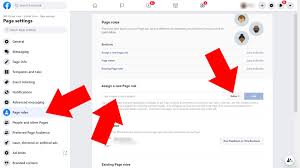
- Access The Page Settings: Click on the three dots at the top-right corner of the screen and select “Settings.”
- Select The Page: In the “Page Settings” window, click on the name of your profile.
- Leave The Role: Click on the three dots next to your name and select “Remove as administrator.”
Tips For Leaving a Facebook Page as an Administrator
- If you’re not sure which page to leave as an administrator, try checking the page’s settings by clicking on the three dots at the top-right corner of the screen.
- If you’re unable to leave the role of administrator due to technical issues or errors, contact Facebook support for assistance.
- Remember that leaving a Facebook page as an administrator will not delete your personal profile or any content associated with it.
Common Questions And Answers
Q: What Happens When I Leave a Facebook Page as an Administrator?
A: When you leave the role of administrator, you will no longer have access to the page’s settings and features. However, you can still use Facebook with your personal profile without any administrative duties.
Q: Will Leaving a Facebook Page as an Administrator Delete my Content or Profile?
A: No, leaving a Facebook page as an administrator will not delete your content or profile associated with the page.
Q: Can I Re-join a Facebook Page as an Administrator After Leaving It?
A: Yes, you can re-join a Facebook page as an administrator by following the same steps outlined in this article.


