
How to Get Out of Messenger: A Step-by-step Guide
Are you tired of receiving notifications from Messenger and want to disconnect yourself from the app? Look no further! In this article, we will guide you through the process of logging out of Messenger on your smartphone, tablet, or PC.
Why Would You Want to Log Out of Messenger?
Before we dive into the steps, let’s talk about why you might want to log out of Messenger. Maybe you’re getting tired of receiving notifications and want some peace and quiet. Or perhaps you’re trying to disconnect yourself from social media altogether. Whatever your reason, logging out of Messenger is a simple process that can be completed in just a few minutes.
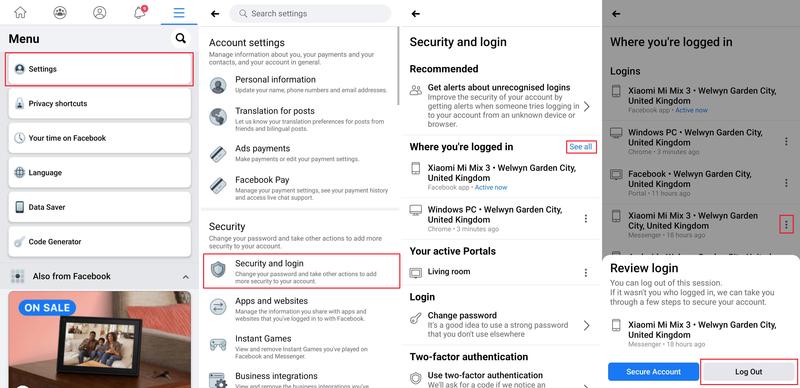
How to Log Out of Messenger on Android
If you have an Android device, follow these steps:
- Open Settings: Go to the settings app on your phone and select “Apps” or “Application Manager.”
- Find Messenger: Scroll through the list of apps until you find Messenger.
- Erase Login Data: Select “Messenger” and then tap on “Erase” to remove all login data associated with the app.
- Log Out: Once you’ve erased the login data, you’ll be logged out of Messenger.
Alternative Method: Closing The Session
If erasing the login data doesn’t work for you, try closing the session instead:
- Open Facebook App: Open the Facebook app on your phone and select the “Messenger” icon.
- Tap on Menu: Tap on the three horizontal lines in the top right corner of the screen to open the menu.
- Select Settings: Select “Settings” from the menu.
- Go Out: Tap on the “Go out” option at the bottom of the screen.
How to Log Out of Messenger on Iphone
If you have an iPhone or iPad, follow these steps:
- Open Facebook App: Open the Facebook app and select the “Messenger” icon.
- Tap on Menu: Tap on the three horizontal lines in the top right corner of the screen to open the menu.
- Select Settings: Select “Settings” from the menu.
- Go Out: Tap on the “Go out” option at the bottom of the screen.
How to Log Out of Messenger on PC
If you’re using a PC, follow these steps:
- Open Browser: Open your web browser and go to Messenger.Com.
- Log Out: Click on the three horizontal lines in the top right corner of the screen to open the menu. Select “Settings” from the menu and click on “Go out.”
How to Log Out of a Cluster
If you’re part of a cluster (a group chat with multiple people), follow these steps:
- Open Messenger: Open the Messenger app on your phone or tablet.
- Select Cluster: Select the cluster you want to log out of.
- Tap on Three Dots: Tap on the three dots in the top right corner of the screen.
- Select Go Out: Select “Go out” from the menu.
Conclusion
Logging out of Messenger is a simple process that can be completed in just a few minutes. Whether you’re trying to disconnect yourself from social media or just want some peace and quiet, logging out of Messenger is a great solution. Remember to follow these steps carefully, and you’ll be logged out in no time!
Frequently Asked Questions
- Q: Why Would I Want to Log Out of Messenger?
A: You might want to log out of Messenger if you’re getting tired of receiving notifications or just want to disconnect yourself from social media. - Q: How do I Log Out of Messenger on Android?
A: To log out of Messenger on Android, go to Settings > Apps > Messenger and select “Erase” to remove all login data associated with the app. - Q: Can I Still Use Facebook if I Log Out of Messenger?
A: Yes, you can still use Facebook even after logging out of Messenger. - Q: What Happens When I Log Out of a Cluster?
A: When you log out of a cluster, you’ll be removed from the group chat and won’t receive any further notifications. - Q: How do I Log Out of Messenger on Pc?
A: To log out of Messenger on PC, go to Messenger.Com > Settings > Go out.


