
Reproducing Videos: A Step-by-step Guide
Are you looking for a way to reproduce videos on your computer, smartphone, or tablet? Look no further! In this article, we will guide you through the process of reproducing videos on various devices and platforms.
Understanding Reproduction
Before we dive into the specifics, let’s understand what reproduction means. Reproduction refers to the ability to play a video multiple times without having to manually start it again. This can be useful for presentations, tutorials, or simply enjoying your favorite videos.
Reproducing Videos on Youtube
You can reproduce videos on YouTube using various methods:
From Computer
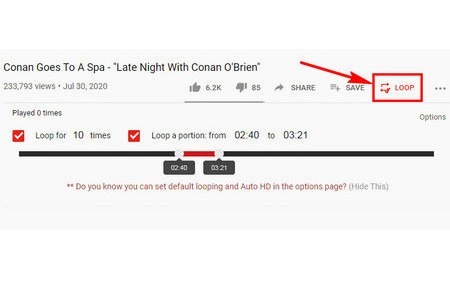
To reproduce a video on YouTube from your computer, follow these steps:
- Open the YouTube website and sign in to your account.
- Find the video you want to reproduce and click on it.
- Click on the three dots next to the video title and select “Loop” from the menu.
From Smartphone or Tablet
To reproduce a video on YouTube from your smartphone or tablet, follow these steps:
- Open the YouTube app and sign in to your account.
- Find the video you want to reproduce and tap on it.
- Tap on the three dots next to the video title and select “Loop” from the menu.
Reproducing Videos on Android, Iphone, or Ipad
You can also reproduce videos on Android, iPhone, or iPad using various apps:
Vlc (Android/iOS/iPadOS)
To use VLC for reproducing videos on your device, follow these steps:
- Download and install the VLC app from the Google Play Store or Apple App Store.
- Open the app and select “Video” from the menu.
- Choose the video you want to reproduce and tap on it.
- Tap on the three dots next to the video title and select “Repeat” from the menu.
Loopideo-video *loop (iOS/iPadOS)
To use Loopideo-video *loop for reproducing videos on your device, follow these steps:
- Download and install the app from the Apple App Store.
- Open the app and select “Add Videos” to choose the video you want to reproduce.
- Select the video and tap on the “Play” button to start reproduction.
Reproducing Videos With Other Apps
There are other apps available for reproducing videos, including:
- Film And TV (Windows 10 And Successive): This app allows you to reproduce videos and acquire or rent movies and TV shows.
- Vlc (Windows/macOS): This app is a free media player that can reproduce videos with the option to loop them.
- Quicktime Player (macOS): This app can reproduce videos in various formats, including MP4, M4V, and MOV.
Reproducing Videos on TV
To reproduce videos on your TV, follow these steps:
- Transfer the video you want to reproduce onto a USB drive or external hard disk.
- Connect the device to your TV’s USB port.
- Open the menu on your TV and select “Video” from the options.
- Choose the video you want to reproduce and press the “OK” button.
Reproducing Videos on Instagram
Yes, you can also reproduce videos on Instagram! Follow these steps:
- Open the Instagram app and navigate to the post, Reel, or story you want to reproduce.
- Tap on the three dots next to the video title and select “Loop” from the menu.
Conclusion
Reproducing videos is a straightforward process that can be done on various devices and platforms. Whether you’re using YouTube, VLC, Loopideo-video *loop, or other apps, the steps are similar. Remember to always follow the specific instructions for each app or platform to ensure smooth reproduction.
Frequently Asked Questions (FAQs)
- Q: Can I Reproduce Videos on Any Device?
A: Yes, you can reproduce videos on most devices, including computers, smartphones, tablets, and TVs. - Q: How do I Reproduce a Video on Youtube?
A: To reproduce a video on YouTube from your computer, sign in to your account, find the video, click on it, and select “Loop” from the menu. On your smartphone or tablet, open the app, find the video, tap on it, and select “Loop” from the menu. - Q: What Apps Can I Use to Reproduce Videos?
A: Some popular apps for reproducing videos include VLC (Android/iOS/iPadOS), Loopideo-video *loop (iOS/iPadOS), Film and TV (Windows 10 and successive), VLC (Windows/macOS), QuickTime Player (macOS), and more. - Q: Can I Reproduce Videos on my Tv?
A: Yes, you can reproduce videos on your TV by transferring the video onto a USB drive or external hard disk and connecting it to your TV’s USB port. - Q: How do I Reproduce a Video on Instagram?
A: To reproduce a video on Instagram, open the app, navigate to the post, Reel, or story you want to reproduce, tap on the three dots next to the video title, and select “Loop” from the menu. - Q: What is The Purpose of Reproducing Videos?
A: Reproducing videos allows you to play a video multiple times without having to manually start it again, which can be useful for presentations, tutorials, or simply enjoying your favorite videos. - Q: Can I Reproduce Videos With Music?
A: Yes, some apps, like VLC and Loopideo-video *loop, allow you to reproduce videos with music by selecting the “Loop” option. - Q: How do I Stop Reproducing a Video?
A: To stop reproducing a video, simply click or tap on the “Stop” button or press the power button on your device.


