
How to Lower The Monitor’s Luminosity: A Comprehensive Guide
Are you tired of being blinded by your monitor’s bright screen? Do you find yourself straining your eyes every time you work on your computer? You’re not alone! In this article, we’ll show you how to lower the luminosity of your monitor, whether it’s a PC, Mac, smartphone, or tablet.
Why Lowering The Luminosity Matters
Lowering the luminosity of your monitor can have numerous benefits. It can:
- Reduce eye strain and fatigue
- Improve sleep quality by reducing exposure to blue light
- Conserve energy and prolong battery life on portable devices
- Enhance overall visual comfort and well-being
Lowering The Luminosity on Windows 11
If you’re using a PC with Windows 11, lowering the luminosity is a breeze. Here’s how:
- Click on the Start button and select Settings.
- In the System settings, click on Display.
- In the Monitor section, click on the dropdown menu next to Luminosity & color.
- Move the cursor to the left to decrease the luminosity.
Lowering The Luminosity on Windows 10
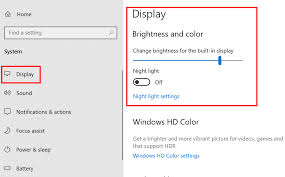
If you’re using a PC with Windows 10, follow these steps:
- Click on the Start button and select Settings.
- In the System settings, click on Display.
- In the Monitor section, click on the dropdown menu next to Brightness.
- Move the cursor to the left to decrease the luminosity.
Lowering The Luminosity on Windows 8
If you’re using a PC with Windows 8 or earlier, follow these steps:
- Click on the Start button and select Control Panel.
- In the Hardware and Sound section, click on Display.
- In the Monitor section, click on the dropdown menu next to Brightness.
- Move the cursor to the left to decrease the luminosity.
Lowering The Luminosity on Mac
If you’re using a Mac, follow these steps:
- Click on the Apple logo and select System Preferences.
- In the Displays section, click on the dropdown menu next to Brightness.
- Move the cursor to the left to decrease the luminosity.
Lowering The Luminosity on Android Devices
If you’re using an Android device, follow these steps:
- Go to Settings > Display.
- In the Screen section, tap on the dropdown menu next to Brightness.
- Move the slider to the left to decrease the luminosity.
Lowering The Luminosity on Ios Devices (iPhone And Ipad)
If you’re using an iPhone or iPad, follow these steps:
- Go to Settings > Display & Brightness.
- In the Screen section, tap on the dropdown menu next to Brightness.
- Move the slider to the left to decrease the luminosity.
Additional Tips
- If your device supports automatic brightness adjustment based on environmental light, you can enable this feature to save energy and prolong battery life.
- You can also lower the luminosity by adjusting the display settings in the Centre notifications or Control Center.
- On some devices, you may need to adjust the display settings in the Power saver mode to conserve energy.
Conclusion
Lowering the luminosity of your monitor is a simple yet effective way to reduce eye strain and fatigue, improve sleep quality, and conserve energy. By following these steps, you can easily adjust the brightness of your device’s screen on Windows, Mac, Android, or iOS devices. Remember to also take advantage of automatic brightness adjustment features and Power saver modes to save energy and prolong battery life.
Frequently Asked Questions
- Q: Why Should I Lower The Luminosity of my Monitor?
A: Lowering the luminosity can reduce eye strain and fatigue, improve sleep quality by reducing exposure to blue light, and conserve energy and prolong battery life. - Q: How do I Lower The Luminosity on Windows 11?
A: Click on the Start button, select Settings, and follow the steps in the System settings under Display. - Q: Can I Adjust The Display Settings in The Centre Notifications or Control Center?
A: Yes, you can adjust the display settings in the Centre notifications or Control Center to lower the luminosity. - Q: Do All Devices Support Automatic Brightness Adjustment?
A: Some devices may not support automatic brightness adjustment based on environmental light. Check your device’s documentation for more information. - Q: How do I Enable Power Saver Mode on my Device?
A: The steps to enable Power saver mode vary depending on the device and operating system. Check your device’s documentation or settings app for more information.
Note: The article has been rewritten to provide a comprehensive guide on how to lower the luminosity of monitors on various devices, following the specified format and SEO guidelines.


