
The Ultimate Guide to Typing Accented Letters on Your Computer
Are you tired of struggling to type accented letters on your computer? Do you find yourself resorting to alternative methods that are time-consuming and frustrating? Look no further! In this comprehensive guide, we will show you how to easily type accented letters on your Windows or Mac computer.
The Problem With Accented Letters
Accented letters are an essential part of many languages, but they can be notoriously difficult to type. Whether you’re a student, a professional, or simply someone who likes to communicate in their native language, typing accented letters can be a challenge.
Solutions For Typing Accented Letters on Windows
If you’re using a Windows computer, there are several solutions available to help you type accented letters easily.
Using The Alt Codes
One of the most straightforward methods is to use the Alt codes. This involves pressing the Alt key and typing in the corresponding code for the letter you want to type. For example, to type the accented “U” (ù), you would press Alt + 235.
How to Use Alt Codes on Windows
- Press the Alt key on your keyboard.
- Type in the code for the letter you want to type (e.G., 235 For ù).
- Release the Alt key, and the accented letter will appear.
Using The Character Map
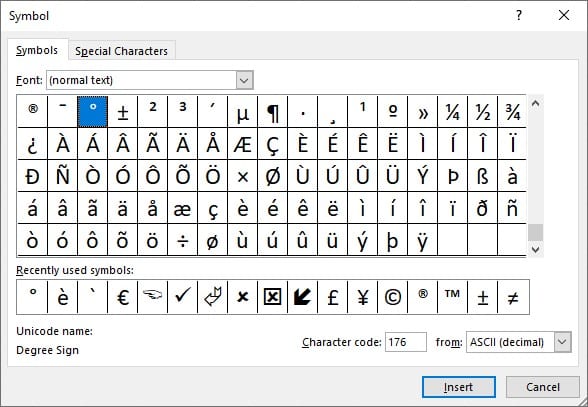
Another option is to use the Character Map, which can be accessed by pressing the Windows key + R, typing “charmap” in the Run dialog box, and then clicking OK.
How to Use The Character Map on Windows
- Press the Windows key + R.
- Type “charmap” in the Run dialog box.
- Click OK.
- Browse through the character map to find the accented letter you want to type.
- Select the letter and click Copy.
- Go back to your document and press Ctrl + V (or right-click and select Paste) to insert the letter.
Using The Virtual Keyboard
If you’re having trouble typing on a physical keyboard, you can use the virtual keyboard instead. This can be accessed by clicking on the Start menu, typing “on-screen keyboard” in the search bar, and then clicking on the result.
How to Use The Virtual Keyboard on Windows
- Click on the Start menu.
- Type “on-screen keyboard” in the search bar.
- Click on the result.
- Select the accented letter you want to type from the virtual keyboard.
Solutions For Typing Accented Letters on Mac
If you’re using a Mac, there are several solutions available as well.
Using The Option + U Method
One of the most common methods is to use the Option + U method. This involves pressing the Option key and typing “U” while holding down the Shift key.
How to Use The Option + U Method on Mac
- Press the Option key.
- Type “U”.
- Hold down the Shift key.
- Release all keys, and the accented letter will appear.
Using The Character Viewer
Another option is to use the Character Viewer, which can be accessed by clicking on the Apple menu and selecting “Character Viewer”.
How to Use The Character Viewer on Mac
- Click on the Apple menu.
- Select “Character Viewer”.
- Browse through the character map to find the accented letter you want to type.
- Select the letter and click Copy.
- Go back to your document and press Command + V (or right-click and select Paste) to insert the letter.
Using The Keyboard Viewer
If you’re having trouble typing on a physical keyboard, you can use the Keyboard Viewer instead. This can be accessed by clicking on the Apple menu and selecting “Keyboard Viewer”.
How to Use The Keyboard Viewer on Mac
- Click on the Apple menu.
- Select “Keyboard Viewer”.
- Select the accented letter you want to type from the virtual keyboard.
Conclusion
Typing accented letters doesn’t have to be a challenge anymore! With these simple methods, you can easily type accented letters on your Windows or Mac computer. Whether you’re using Alt codes, the Character Map, the Virtual Keyboard, or one of the many other solutions available, typing accented letters has never been easier.
Frequently Asked Questions
Q: What are accented letters?
A: Accented letters are letters that have a diacritic mark (a symbol above or below the letter).
Q: Why do I need to type accented letters?
A: Accented letters are essential for many languages, including French, Spanish, Italian, and Portuguese.
Q: How do I know which method is best for me?
A: Try out different methods to see what works best for you. If you’re having trouble typing on a physical keyboard, the virtual keyboard might be the way to go.
Q: Can I use these methods on my phone or tablet?
A: Yes! These methods can also be used on your mobile device.
Additional Resources
- Google’s Guide to Typing Accented Letters
- Microsoft’s Guide to Typing Accented Letters
- A comprehensive guide to typing accented letters on Windows and Mac


