
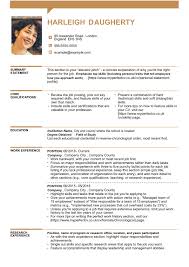
How to Create a Professional Curriculum Vitae (CV) With Microsoft Word
Are you looking to create a professional CV that will help you stand out from the competition? Look no further than Microsoft Word, one of the most popular word processing software programs available. In this article, we’ll show you how to create a well-structured and visually appealing CV using Microsoft Word.
Why is a Good CV Important?
A good CV is essential for anyone looking to secure a new job or promotion. It’s often the first impression that potential employers have of you, so it’s crucial to get it right. A well-written CV will help you to showcase your skills, experience, and achievements in a clear and concise manner.
The Benefits of Using Microsoft Word
Microsoft Word is a powerful tool that offers a range of benefits when it comes to creating a CV. Some of the key advantages include:
- Professional Templates: Microsoft Word comes with a range of professional templates that you can use as a starting point for your CV.
- Easy-to-use Interface: The software has an intuitive interface that makes it easy to navigate and create a CV.
- Customizable Design: You can customize the design of your CV using a range of fonts, colors, and layouts.
How to Create a Curriculum Vitae With Microsoft Word
To create a CV using Microsoft Word, follow these simple steps:
- Open Microsoft Word on your computer.
- Click on the “File” menu and select “New” to create a new document.
- Choose a template from the available options or start from scratch.
- Type in your name, address, phone number, and email address at the top of the page.
- Use bullet points or numbered lists to break up the text and make it easier to read.
- Include relevant work experience, education, skills, and achievements.
- Use headings and subheadings to organize the content and make it easy to scan.
Tips For Writing a Great CV
Here are some additional tips for writing a great CV:
- Keep it Concise: Keep your CV concise and focused on the most important information.
- Use Keywords: Use keywords related to the job you’re applying for to help your CV pass through applicant tracking systems (ATS).
- Proofread: Proofread your CV multiple times to catch any spelling or grammar errors.
Common Mistakes to Avoid
Here are some common mistakes to avoid when creating a CV:
- Typos And Spelling Errors: Typos and spelling errors can make a negative impression on potential employers.
- Lack of Relevant Experience: Make sure you include relevant work experience, education, skills, and achievements in your CV.
- Poor Formatting: Poor formatting can make your CV difficult to read and understand.
Conclusion
Creating a professional CV using Microsoft Word is easier than you might think. By following the steps outlined above and avoiding common mistakes, you can create a well-written and visually appealing CV that will help you stand out from the competition.
Frequently Asked Questions (FAQs)
Here are some frequently asked questions about creating a CV with Microsoft Word:
- Q: What is The Best Format For a Cv?
A: The best format for a CV is one that is easy to read and understand, with clear headings and bullet points. - Q: How do I Include Relevant Work Experience in my Cv?
A: Include relevant work experience by using bullet points or numbered lists to break up the text and make it easier to read. - Q: What Are Some Common Mistakes to Avoid When Creating a Cv?
A: Some common mistakes to avoid when creating a CV include typos and spelling errors, lack of relevant experience, and poor formatting.
Additional Resources
If you’re looking for additional resources on how to create a CV with Microsoft Word, check out the following websites:
- Microsoft Word Tutorials: Find step-by-step tutorials and guides on how to use Microsoft Word to create a CV.
- CV Templates: Browse a range of free CV templates that you can use as a starting point for your own CV.
- Resume Writing Guides: Get tips and advice from experts on how to write a great resume.
By following the steps outlined above and avoiding common mistakes, you can create a well-written and visually appealing CV using Microsoft Word. Remember to keep it concise, use keywords, and proofread multiple times to catch any errors.


