
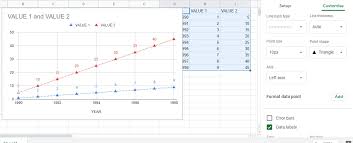
How to Create a Chart on Google Sheets: A Step-by-step Guide
Are you tired of manually calculating data in Google Sheets? Do you want to visualize your information in a clear and concise manner? Look no further! In this article, we will show you how to create a chart on Google Sheets like a pro.
Understanding The Basics
Before we dive into the step-by-step guide, let’s understand the basics of creating a chart on Google Sheets. A chart is a visual representation of data that helps to identify trends, patterns, and correlations. To create a chart, you need to select the cells containing your data and choose a chart type.
Step 1: Selecting Data
To start creating a chart, you need to select the cells containing your data. You can do this by clicking on the cells or typing in the cell references (e.G., A1:B5). Make sure to include all the necessary columns and rows.
Step 2: Creating a New Chart
Once you have selected the data, click on the “Insert” menu and select “Chart.” This will open a new chart with default settings. You can customize the chart as needed.
Step 3: Choosing a Chart Type
Google Sheets offers various chart types, including line, area, column, bar, and more. Choose a type that suits your data best. For example, if you have sales data for each quarter of the year, a line chart might be perfect.
Step 4: Configuring The Chart
After choosing a chart type, configure it by selecting options such as:
- Data range
- Axis labels
- Titles and subtitles
- Colors and styles
You can also customize the chart further by selecting additional options in the “Chart” menu.
Step 5: Personalizing The Chart
To make your chart stand out, personalize it with colors, fonts, and shapes. You can choose from a variety of options to match your brand or style.
Using Google Sheets on Mobile Devices
If you’re using Google Sheets on mobile devices (Android, iPhone, iPad), creating a chart is just as easy. Follow the same steps as above, but use touch-friendly gestures instead.
Tips And Tricks
Here are some additional tips and tricks to keep in mind:
- Use consistent formatting throughout your spreadsheet.
- Label your axes and provide clear titles for each chart.
- Experiment with different chart types to find what works best for you.
- Customize colors and styles to match your brand or style.
Conclusion
Creating a chart on Google Sheets is an easy way to visualize your data and make it more engaging. By following these steps, you can create professional-looking charts that will impress your audience. Remember to keep it simple, consistent, and visually appealing.
Frequently Asked Questions (FAQs)
- What Are The Different Types of Charts Available in Google Sheets?
Google Sheets offers various chart types, including line, area, column, bar, cake, and more.
- How do I Customize a Chart on Google Sheets?
You can customize a chart by selecting options such as data range, axis labels, titles, colors, and styles in the “Chart” menu.
- Can I Create a Chart on Mobile Devices?
Yes, you can create a chart on mobile devices (Android, iPhone, iPad) using touch-friendly gestures.
- How do I Share my Chart With Others?
You can share your chart by copying the link or embedding it in a website or presentation.
- Can I Animate a Chart on Google Sheets?
Yes, you can animate a chart by selecting the “Animation” option in the “Chart” menu.
- How do I Delete a Chart on Google Sheets?
You can delete a chart by selecting the chart and clicking on the “Delete” button in the “Edit” menu.
- Can I Create Multiple Charts on One Sheet?
Yes, you can create multiple charts on one sheet by duplicating a chart or creating a new one using different data ranges.
- How do I Export a Chart to an Image File?
You can export a chart as an image file (PNG, JPEG, GIF) by selecting the “Download” option in the “Chart” menu.


