
How to Do a Video Conference of Cluster: A Comprehensive Guide
Are you looking for ways to connect with your friends, family, or colleagues remotely? Have you considered doing a video conference of cluster? In this article, we will explore the different platforms and methods available for conducting video conferences with multiple participants.
What is a Video Conference of Cluster?
A video conference of cluster refers to a group video call that allows multiple people to participate simultaneously. This can be particularly useful for business meetings, team discussions, or social gatherings where you want to include multiple people in the conversation.
Skype: A Popular Platform For Video Conferences
One popular platform for video conferences is Skype. With its user-friendly interface and robust features, Skype makes it easy to connect with others remotely. Here’s how to use Skype for a video conference of cluster:
- Smartphone And Tablet: To initiate a video conference on your smartphone or tablet, open the Skype app and tap on the call button. Select the contacts you want to include in the call, and then tap on the video camera icon to start the video conference.
- Computer: On your computer, open the Skype app and click on the “New Call” button. Select the contacts you want to include in the call, and then click on the video camera icon to start the video conference.
Messenger: Another Popular Platform For Video Conferences
Another popular platform for video conferences is Messenger. With its user-friendly interface and robust features, Messenger makes it easy to connect with others remotely. Here’s how to use Messenger for a video conference of cluster:
- Smartphone And Tablet: To initiate a video conference on your smartphone or tablet, open the Messenger app and tap on the “Create a Room” button. Select the contacts you want to include in the call, and then tap on the video camera icon to start the video conference.
- Computer: On your computer, open the Messenger app and click on the “Create a Room” button. Select the contacts you want to include in the call, and then click on the video camera icon to start the video conference.
Whatsapp: A Popular Messaging App For Video Conferences
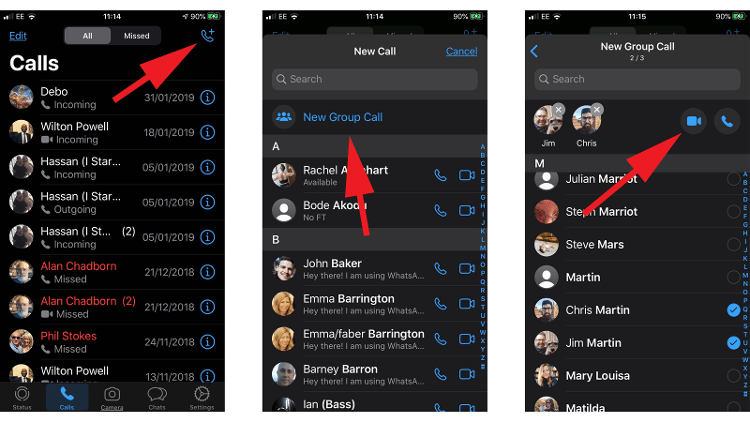
A popular messaging app for video conferences is WhatsApp. With its user-friendly interface and robust features, WhatsApp makes it easy to connect with others remotely. Here’s how to use WhatsApp for a video conference of cluster:
- Smartphone And Tablet: To initiate a video conference on your smartphone or tablet, open the WhatsApp app and tap on the “New Voice Call” button. Select the contacts you want to include in the call, and then tap on the video camera icon to start the video conference.
- Computer: On your computer, open the WhatsApp web app and click on the “New Voice Call” button. Select the contacts you want to include in the call, and then click on the video camera icon to start the video conference.
Instagram: A Popular Social Media Platform For Video Conferences
A popular social media platform for video conferences is Instagram. With its user-friendly interface and robust features, Instagram makes it easy to connect with others remotely. Here’s how to use Instagram for a video conference of cluster:
- Smartphone And Tablet: To initiate a video conference on your smartphone or tablet, open the Instagram app and tap on the “Direct” button. Select the contacts you want to include in the call, and then tap on the video camera icon to start the video conference.
- Computer: On your computer, open the Instagram web app and click on the “Direct” button. Select the contacts you want to include in the call, and then click on the video camera icon to start the video conference.
Duo: A Popular Video Conferencing App For Video Conferences
A popular video conferencing app for video conferences is Duo. With its user-friendly interface and robust features, Duo makes it easy to connect with others remotely. Here’s how to use Duo for a video conference of cluster:
- Smartphone And Tablet: To initiate a video conference on your smartphone or tablet, open the Duo app and tap on the “New Call” button. Select the contacts you want to include in the call, and then tap on the video camera icon to start the video conference.
- Computer: On your computer, open the Duo web app and click on the “New Call” button. Select the contacts you want to include in the call, and then click on the video camera icon to start the video conference.
Zoom: A Popular Video Conferencing App For Video Conferences
A popular video conferencing app for video conferences is Zoom. With its user-friendly interface and robust features, Zoom makes it easy to connect with others remotely. Here’s how to use Zoom for a video conference of cluster:
- Smartphone And Tablet: To initiate a video conference on your smartphone or tablet, open the Zoom app and tap on the “New Meeting” button. Select the contacts you want to include in the call, and then tap on the video camera icon to start the video conference.
- Computer: On your computer, open the Zoom app and click on the “New Meeting” button. Select the contacts you want to include in the call, and then click on the video camera icon to start the video conference.
Facetime: A Popular Video Conferencing App For Video Conferences
A popular video conferencing app for video conferences is FaceTime. With its user-friendly interface and robust features, FaceTime makes it easy to connect with others remotely. Here’s how to use FaceTime for a video conference of cluster:
- Smartphone And Tablet: To initiate a video conference on your smartphone or tablet, open the FaceTime app and tap on the “New Call” button. Select the contacts you want to include in the call, and then tap on the video camera icon to start the video conference.
- Computer: On your computer, open the FaceTime web app and click on the “New Call” button. Select the contacts you want to include in the call, and then click on the video camera icon to start the video conference.
In conclusion, there are many platforms and methods available for conducting video conferences of cluster. Whether you choose Skype, Messenger, WhatsApp, Instagram, Duo, Zoom, or FaceTime, these apps make it easy to connect with others remotely.


