
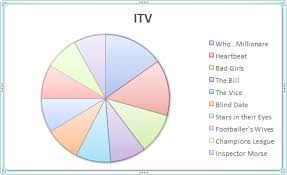
Creating a Chart to Cake on Excel: A Step-by-step Guide
Are you struggling to create a chart to cake on Excel? Do you find yourself lost in the sea of options and features? Don’t worry, we’ve got you covered! In this article, we’ll take you through a step-by-step guide on how to create a chart to cake on Excel, both online and offline.
Understanding The Basics
Before we dive into the nitty-gritty details, let’s understand what a chart to cake is. A chart to cake is a type of graphical representation that shows data in a pie-chart format. It’s a great way to visualize data and make it easier to understand.
Requirements For Creating a Chart to Cake
To create a chart to cake on Excel, you’ll need the following:
- Microsoft Excel installed on your computer
- A set of data to work with (in this case, we’ll be using browser usage data)
- A basic understanding of Excel functions and features
Step 1: Setting Up Your Data
The first step in creating a chart to cake is to set up your data. This involves:
- Creating a new document on Microsoft Excel
- Labeling the columns (A and B) with the type of data you’ll be using (in our case, browser usage)
- Entering the categories of data into column A (e.G., Chrome, Safari, Internet Explorer, etc.)
Step 2: Adding Data
Once you have your columns labeled, it’s time to add data. This involves:
- Entering the corresponding data for each category in column B
- Ensuring that the data is in percentage format
Step 3: Creating a Chart to Cake
Now that we have our data set up, let’s create a chart to cake!
- Highlight the cells containing your data (including the labels)
- Go to the Insert tab and click on the Chart button
- Select the “All Charts” option and choose the “Pie Chart” type
Step 4: Customizing Your Chart
The next step is to customize your chart. This involves:
- Choosing a chart title and label
- Adjusting the color scheme and layout of the chart
- Adding or removing data points as needed
Creating a Chart to Cake on Excel Online
If you don’t have Microsoft Excel installed on your computer, don’t worry! You can still create a chart to cake using the online version of Excel.
- Log in to your Microsoft account and access the Excel online platform
- Follow the same steps as above (setting up data, creating a chart, customizing)
Creating a Chart to Cake on Excel Mobile
If you’re on-the-go and need to create a chart to cake on Excel, don’t worry! The mobile app has got you covered.
- Download the Microsoft Excel mobile app
- Log in to your Microsoft account and access the Excel online platform
- Follow the same steps as above (setting up data, creating a chart, customizing)
Tips And Tricks
Here are some additional tips and tricks to keep in mind when creating a chart to cake on Excel:
- Use percentages instead of absolute values for better visualization
- Avoid using too many categories, which can make the chart hard to read
- Experiment with different color schemes and layouts to make your chart stand out
Conclusion
Creating a chart to cake on Excel is easier than you think! By following these step-by-step instructions, you’ll be able to create a visually appealing chart that will help you communicate data effectively.
Frequently Asked Questions (FAQs)
- What is The Difference Between a Pie Chart And a Chart to Cake?
A pie chart shows data as a circle, while a chart to cake shows data as a pie-shaped graph. - Can I Create a Chart to Cake on Excel Online?
Yes! You can use the online version of Excel to create a chart to cake. - How do I Customize my Chart?
You can adjust the color scheme, layout, and add or remove data points to make your chart unique. - What if I Don’t Have Microsoft Excel Installed on my Computer?
Don’t worry! You can use the online version of Excel or download the mobile app to access Excel features. - How do I Save my Chart?
You can save your chart as a copy on your PC by going to Rows > Save with name > Download a copy. - Can I Share my Chart With Others?
Yes! You can share your chart with others by going to Rows > Share > Share with other users. - What if I Need Help Creating a Chart to Cake?
Don’t worry! Our guide is here to help you every step of the way.
Conclusion
Creating a chart to cake on Excel is a great way to visualize data and communicate it effectively. By following these step-by-step instructions, you’ll be able to create a visually appealing chart that will make your data shine!
Bolded Heading
Tips For Creating Effective Charts to Cake
Here are some additional tips and tricks to keep in mind when creating a chart to cake on Excel:
- Use percentages instead of absolute values for better visualization
- Avoid using too many categories, which can make the chart hard to read
- Experiment with different color schemes and layouts to make your chart stand out
Conclusion
Creating a chart to cake on Excel is easier than you think! By following these step-by-step instructions, you’ll be able to create a visually appealing chart that will help you communicate data effectively.
Frequently Asked Questions (FAQs)
- What is The Difference Between a Pie Chart And a Chart to Cake?
A pie chart shows data as a circle, while a chart to cake shows data as a pie-shaped graph. - Can I Create a Chart to Cake on Excel Online?
Yes! You can use the online version of Excel to create a chart to cake. - How do I Customize my Chart?
You can adjust the color scheme, layout, and add or remove data points to make your chart unique. - What if I Don’t Have Microsoft Excel Installed on my Computer?
Don’t worry! You can use the online version of Excel or download the mobile app to access Excel features. - How do I Save my Chart?
You can save your chart as a copy on your PC by going to Rows > Save with name > Download a copy. - Can I Share my Chart With Others?
Yes! You can share your chart with others by going to Rows > Share > Share with other users. - What if I Need Help Creating a Chart to Cake?
Don’t worry! Our guide is here to help you every step of the way.
Conclusion
Creating a chart to cake on Excel is a great way to visualize data and communicate it effectively. By following these step-by-step instructions, you’ll be able to create a visually appealing chart that will make your data shine!
Note: The above content is provided for informational purposes only. It’s not intended to be a comprehensive guide or a substitute for professional advice.


