
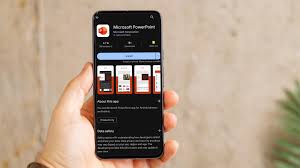
How to Do a Powerpoint Presentation on Your Phone: A Step-by-step Guide
Are you in a pinch and need to create a presentation, but don’t have access to a computer? Or perhaps you’re looking for a way to present ideas on the go? Look no further! With the right apps and a little bit of know-how, you can create a professional-looking PowerPoint presentation directly from your phone.
The Benefits of Creating a Presentation on Your Phone
While creating a presentation on your phone may not be as comfortable as doing so on a computer, it’s still a viable option. In fact, there are several benefits to consider:
- Convenience: With a smartphone, you can create and present a presentation anywhere, at any time.
- Portability: A phone is much more portable than a laptop or tablet, making it easy to take with you wherever you go.
- Accessibility: Many people have smartphones, so you may already have the tools you need to create a presentation.
Powerpoint on Your Phone
If you’re familiar with PowerPoint on your computer, you’ll be happy to know that you can use the same app on your phone. Here’s how:
- Download And Install Powerpoint: If you don’t already have PowerPoint installed on your phone, download it from the App Store (for iOS devices) or Google Play Store (for Android devices).
- Log In: Log in to your Microsoft account to access all of your PowerPoint files.
- Create a New Presentation: Tap on the “+” icon to create a new presentation from scratch.
- Choose a Template: Select a template to get started quickly, or start from a blank slate.
- Add Slides And Content: Add text, images, videos, and other media to your slides as needed.
- Customize Your Presentation: Use the app’s built-in tools to customize the layout, design, and overall look of your presentation.
Alternative Apps For Creating Presentations on Your Phone
If you’re not a fan of PowerPoint or prefer a different interface, there are plenty of other apps available that can help you create presentations on your phone. Some popular options include:
- Presentations Google: A free app from Google that allows you to create and present presentations directly from your phone.
- Androopen Office: A mobile version of the popular office suite, which includes a presentation creator.
- Wps Office: A feature-rich app that offers a range of tools for creating presentations, including templates, transitions, and more.
- Keynote: A powerful presentation creator from Apple, available exclusively on iOS devices.
Tips And Tricks
Here are some additional tips to keep in mind when creating a presentation on your phone:
- Use The App’s Built-in Tools: Take advantage of the app’s built-in tools and features to customize your presentation and make it look professional.
- Keep It Simple: Don’t overcomplicate your presentation with too much text or media. Keep it simple and focused on the key points you want to convey.
- Practice Your Presentation: Before presenting, practice your presentation several times to ensure you’re comfortable with the material and can deliver it confidently.
Conclusion
Creating a PowerPoint presentation on your phone is easier than you might think! With the right apps and a little bit of know-how, you can create professional-looking presentations directly from your device. Remember to take advantage of the app’s built-in tools, keep it simple, and practice your presentation before presenting.
Frequently Asked Questions
Here are some additional questions and answers related to creating presentations on your phone:
Q: What if I Don’t Have Powerpoint Installed on my Phone?
A: You can download and install PowerPoint from the App Store or Google Play Store.
Q: Can I Use Other Apps to Create Presentations on my Phone?
A: Yes, there are many other apps available that allow you to create presentations on your phone, including Presentations Google, AndroOpen Office, WPS Office, and Keynote.
Q: How do I Customize my Presentation Using The App’s Built-in Tools?
A: Check out the app’s user manual or online tutorials for instructions on how to use the app’s built-in tools to customize your presentation.
Q: What if I’m Not Comfortable Presenting From my Phone?
A: You can always practice presenting from your phone before doing so in a real-world setting. Additionally, you can consider using a laptop or tablet instead of your phone for presentations.


