
How to Create a Powerpoint Presentation: A Step-by-step Guide
Are you struggling to create a presentation in PowerPoint? Don’t worry, you’re not alone! With this step-by-step guide, you’ll learn how to create a professional-looking presentation in no time.
What is Powerpoint?
PowerPoint is a popular presentation software developed by Microsoft. It’s used by businesses, students, and individuals to create presentations for various purposes, such as business meetings, educational lectures, and personal projects.
Choosing The Right Version of Powerpoint
If you’re using a Windows or macOS computer, you can download the free version of PowerPoint from Microsoft’s website. If you have a mobile device, you can download the PowerPoint app from the App Store (for iOS devices) or Google Play Store (for Android devices).
Creating a Presentation in Powerpoint
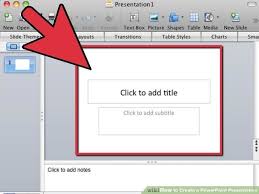
To create a presentation in PowerPoint:
- Open PowerPoint on your computer or mobile device.
- Choose a blank presentation or select a pre-designed template.
- Click on the “File” tab and select “New Presentation.”
- Choose a theme for your presentation, such as a business or educational theme.
- Add slides to your presentation by clicking on the “+” button at the top of the screen.
- Type text into each slide using the text box tool.
- Insert images, charts, and other multimedia elements to enhance your presentation.
Using Libreoffice to Create Presentations
If you’re not a fan of PowerPoint or prefer an alternative solution, you can use LibreOffice to create presentations. LibreOffice is a free and open-source office suite that includes a presentation software called Impress.
To create a presentation in LibreOffice:
- Open LibreOffice on your computer.
- Choose the “Impress” application from the menu bar.
- Select a blank presentation or choose a pre-designed template.
- Add slides to your presentation by clicking on the “+” button at the top of the screen.
- Type text into each slide using the text box tool.
- Insert images, charts, and other multimedia elements to enhance your presentation.
Using Google Presentations
If you’re looking for a cloud-based solution to create presentations, you can use Google Presentations. This service is free and accessible from any device with an internet connection.
To create a presentation in Google Presentations:
- Sign in to your Google account.
- Click on the “New” button at the top of the screen.
- Choose a blank presentation or select a pre-designed template.
- Add slides to your presentation by clicking on the “+” button at the top of the screen.
- Type text into each slide using the text box tool.
- Insert images, charts, and other multimedia elements to enhance your presentation.
Converting Powerpoint Presentations to Pdf
If you need to print or share your presentation in a PDF format, you can use the built-in “Save as” feature in PowerPoint.
To convert a PowerPoint presentation to PDF:
- Open the presentation in PowerPoint.
- Click on the “File” tab and select “Save As.”
- Choose the “PDF” file type from the dropdown menu.
- Select a location to save your presentation.
- Click on the “Save” button.
Tips For Creating Effective Presentations
Here are some tips to keep in mind when creating presentations:
- Use clear and concise language.
- Avoid cluttering slides with too much information.
- Use images, charts, and other multimedia elements to enhance your presentation.
- Keep your presentation concise and focused on the main message.
- Practice your presentation before presenting it to an audience.
Frequently Asked Questions (FAQs)
-
What is The Best Version of Powerpoint to Use?
The best version of PowerPoint to use depends on your specific needs. If you’re using a Windows or macOS computer, the free version from Microsoft’s website is a good option. If you have a mobile device, the PowerPoint app from the App Store (for iOS devices) or Google Play Store (for Android devices) is also available. -
Can I Use Libreoffice to Create Presentations?
Yes, you can use LibreOffice to create presentations. This free and open-source office suite includes an application called Impress that allows you to create presentations. -
How do I Convert a Powerpoint Presentation to Pdf?
To convert a PowerPoint presentation to PDF, open the presentation in PowerPoint, click on the “File” tab, select “Save As,” choose the “PDF” file type from the dropdown menu, and select a location to save your presentation. -
What Are Some Tips For Creating Effective Presentations?
Some tips for creating effective presentations include using clear and concise language, avoiding cluttering slides with too much information, using images, charts, and other multimedia elements to enhance your presentation, keeping your presentation concise and focused on the main message, and practicing your presentation before presenting it to an audience.
- Can I Use Google Presentations to Create Presentations?
Yes, you can use Google Presentations to create presentations. This cloud-based service allows you to create presentations from any device with an internet connection.
-
How do I Save a Powerpoint Presentation?
To save a PowerPoint presentation, click on the “File” tab and select “Save As.” Choose a location to save your presentation and select a file type (such as .Pptx or .Pdf). -
Can I Use Powerpoint on a Mobile Device?
Yes, you can use PowerPoint on a mobile device. The PowerPoint app is available for iOS devices from the App Store and for Android devices from the Google Play Store.
- How do I Add Animations to a Presentation in Libreoffice?
To add animations to a presentation in LibreOffice, click on the “Animazioni” button at the top of the screen, select the animation you want to use, and choose the effect and duration of the animation.
I hope this guide has been helpful! If you have any further questions or need additional assistance, feel free to ask.


