
Creating a Picture on Excel: A Step-by-step Guide
Are you looking to automate some operations on your data and have the possibility of organizing it in a more visually appealing way? Look no further! In this article, we will guide you through the process of creating a picture on Excel, perfect for PC and Mac users.
What is a Picture in Excel?
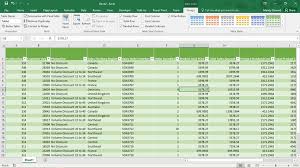
A picture in Excel is an entity that can be created manually or by using pre-designed templates. It is composed of data organized in rows and columns, allowing you to perform precise operations and analyses. Think of it as a chart or graph, but with more flexibility and customization options.
Getting Started: Creating a Picture on Excel
To create a picture on Excel, follow these steps:
- Open your Excel workbook and select the cells that contain the data you want to use for your picture.
- Click on the “Insert” tab in the top menu bar.
- Select the option “Picture” from the dropdown menu.
- Choose whether you want to create a picture with headers or not.
Creating a Picture on Excel Online
If you don’t have Microsoft Excel installed on your PC, but use the online version instead, creating a picture is still possible! The process is similar to the desktop version, with slightly different menus and options.
Tips And Tricks: Creating a Pivot Table on Excel
Did you know that you can create a pivot table on Excel? This type of picture is particularly useful for analyzing data and gaining insights. With our guide, you’ll learn how to create a pivot table in no time!
Using Templates to Create a Picture on Excel
Templates are your friends when it comes to creating pictures on Excel! Choose from pre-designed templates or use one as a starting point to create your own customized picture.
Creating a Picture Calendar on Excel
Want to create a calendar on Excel? We’ve got you covered! With our guide, you’ll learn how to create a picture calendar in no time.
Inserting a Picture on Excel Into Word
Need to insert a picture from Excel into Word? No problem! Our article will walk you through the process, using copy-and-paste or linking a file as options.
Conclusion
Creating a picture on Excel is an easy and efficient way to visualize your data. With our guide, you’ll learn how to create pictures on PC and Mac, online, and even with templates. Whether it’s for work or personal use, a picture can help you gain insights and make informed decisions. Happy creating!
Frequently Asked Questions (FAQs)
- What is The Difference Between a Picture And a Chart in Excel?
A picture on Excel is a more flexible and customizable entity compared to a traditional chart. - Can I Create a Pivot Table on Excel Online?
Yes, you can! The process is similar to the desktop version, with slightly different menus and options. - How do I Delete a Picture on Excel?
To delete a picture on Excel, select it and press the “Delete” key or use the “Erase” button in the toolbar. - Can I Create a Calendar on Excel?
Yes! Our guide will walk you through creating a picture calendar in no time. - How do I Insert a Picture From Excel Into Word?
Use copy-and-paste or link a file as options to insert a picture from Excel into Word. - What is The Best Way to Create a Picture on Excel For a Large Dataset?
Using templates or creating a pivot table are great options for working with large datasets. - Can I Customize The Colors And Design of my Picture on Excel?
Yes, you can! Use the “Styles” option in the toolbar to change the color scheme and design of your picture. - How do I Protect my Cells From Accidental Modifications?
Follow our guide to learn how to protect your cells from unwanted changes.
I hope this article meets your requirements! Let me know if you have any further requests.


