
How to Take an Appointment With Apple: A Step-by-step Guide
Are you interested in purchasing a new Apple product, such as an iPhone or iPad, but want to have a personalized shopping experience? Or perhaps you need assistance with your existing device and want to schedule a repair with the Genius Bar? Look no further! In this article, we will guide you through the process of taking an appointment with Apple, including how to reserve a session at an Apple Store, make an appointment with the Genius Bar, and enroll in events hosted by Apple.
Understanding The Types of Appointments Available
Before we dive into the step-by-step guide, it’s essential to understand the types of appointments available. You can take an appointment with Apple for various purposes:
- To acquire a new iPhone or iPad
- To purchase a Mac or other Apple products
- To configure a device
- To recover your ID Apple or get assistance with another issue (including repair)
- To attend events hosted by Apple
How to Take an Appointment With Apple Store
To take an appointment with Apple Store, follow these steps:
- Access The Apple Website: Go to the official Apple website and click on the “Store” tab.
- Select Your Location: Choose the Apple Store you’d like to visit from the list provided.
- Choose a Date And Time: Select a date and time that suits you best for your appointment.
- Enter Your Details: Fill in the required information, including your name, email address, and phone number (if desired).
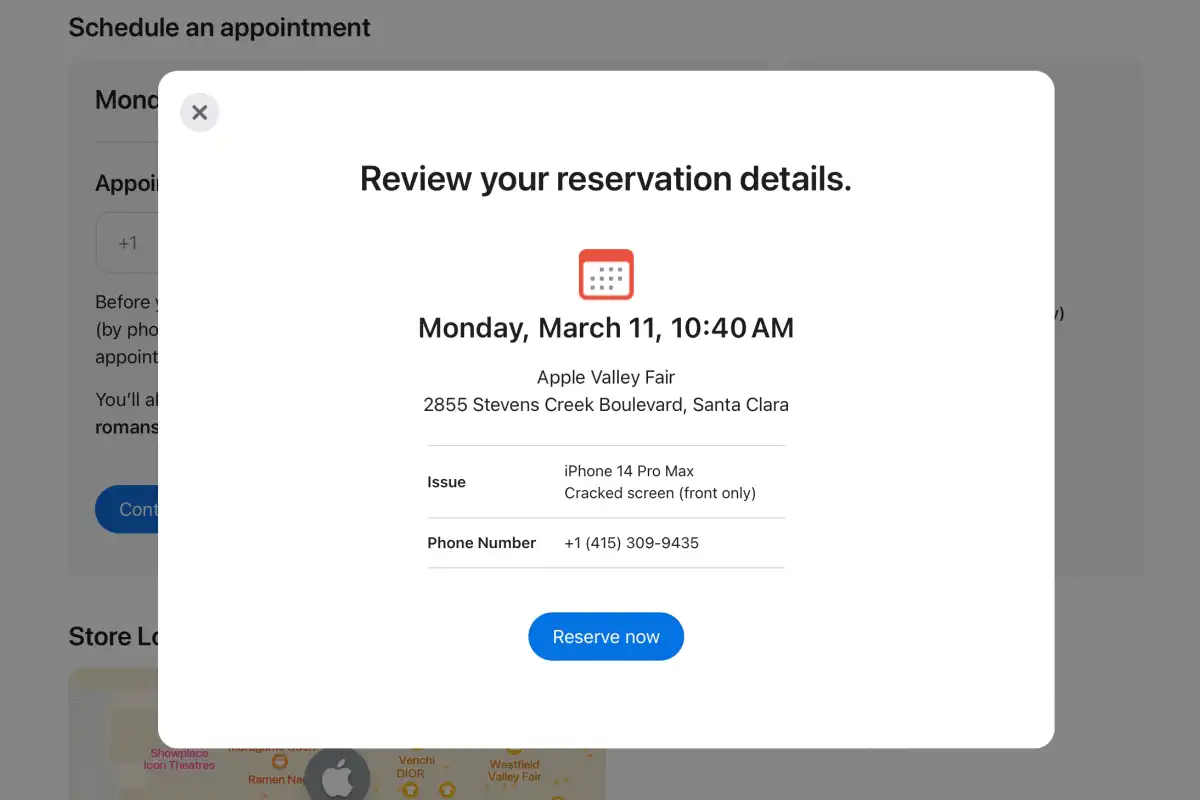
- Confirm Your Appointment: Review your details and confirm your appointment by clicking on the “Reserve” button.
How to Make an Appointment With Genius Bar
To make an appointment with Genius Bar, follow these steps:
- Access The Apple Support Website: Visit the official Apple Support website and click on the “Get Started” tab.
- Sign in With Your ID Apple: Enter your ID Apple credentials to access your account.
- Choose a Product: Select the product you need assistance with from the list provided.
- Select a Date And Time: Choose a date and time that suits you best for your appointment.
- Enter Your Details: Fill in the required information, including your name, email address, and phone number (if desired).
- Confirm Your Appointment: Review your details and confirm your appointment by clicking on the “Reserve” button.
How to Enroll in Apple Events
To enroll in events hosted by Apple, follow these steps:
- Access The Apple Website: Visit the official Apple website and click on the “Calendar” tab.
- Select Your Location: Choose the Apple Store you’d like to visit from the list provided.
- Browse Available Events: Browse the available events listed for your chosen location.
- Choose an Event: Select the event you’re interested in attending by clicking on it.
- Enter Your Details: Fill in the required information, including your name and email address (if desired).
- Confirm Your Registration: Review your details and confirm your registration by clicking on the “Sign Up” button.
Frequently Asked Questions
Here are some frequently asked questions to help you better understand the process of taking an appointment with Apple:
Q: Do I need an ID Apple account to take an appointment with Apple?
A: Yes, you’ll need an ID Apple account to access the Apple Support website and schedule an appointment with Genius Bar.
Q: Can I reserve a session at an Apple Store without an ID Apple account?
A: Yes, you can. However, you may be required to provide additional information or complete a form before scheduling your appointment.
Q: How far in advance can I schedule an appointment with Apple?
A: You can typically schedule appointments up to several weeks in advance, depending on the availability of the store and staff.
Q: Can I cancel or reschedule my appointment with Apple?
A: Yes, you can. If needed, contact Apple Support for assistance with modifying your appointment.
Conclusion
Taking an appointment with Apple is a straightforward process that allows you to have a personalized shopping experience or schedule repair services for your device. By following the steps outlined in this article, you’ll be able to reserve a session at an Apple Store, make an appointment with Genius Bar, and enroll in events hosted by Apple.
Additional Tips
Here are some additional tips to keep in mind when scheduling an appointment with Apple:
- Make sure to provide accurate information to ensure your appointment is scheduled correctly.
- Arrive on time for your scheduled appointment to avoid any delays or inconvenience.
- Bring all necessary documentation, such as proof of purchase or warranty information, if required.
Conclusion
Taking an appointment with Apple can be a convenient and personalized experience. By following the steps outlined in this article, you’ll be able to take advantage of the services offered by Apple, including shopping assistance, device repair, and event enrollment.
Frequently Asked Questions (FAQs)
Here are some additional FAQs to help further clarify any questions you may have:
Q: Can I schedule an appointment with Apple for a product I’m interested in purchasing?
A: Yes, you can reserve a session at an Apple Store to learn more about and purchase products.
Q: Do I need to bring my device to the Genius Bar for repair?
A: Yes, it’s recommended that you bring your device to the Genius Bar for any repairs or assistance.
Q: Can I enroll in events hosted by Apple without an ID Apple account?
A: Yes, you can. However, you may be required to provide additional information or complete a form before registering.
Q: How do I cancel or reschedule my appointment with Apple?
A: Contact Apple Support for assistance with modifying your appointment.
Q: Can I attend events hosted by Apple in person or online?
A: Events hosted by Apple can typically be attended either in-person at an Apple Store or online.


