
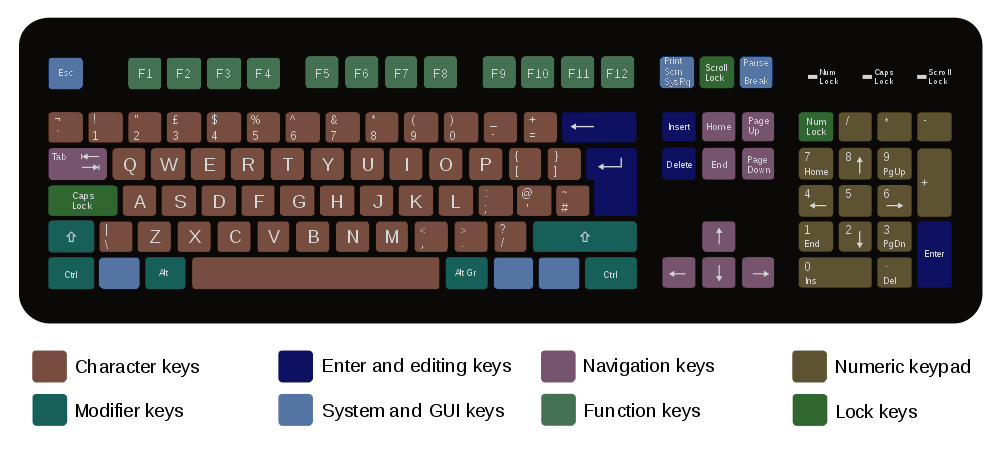
How to Type Asterisk With Keyboard: A Comprehensive Guide
As a computer user, you might have encountered situations where you need to type an asterisk (*) symbol on your keyboard. This can be a bit tricky, especially if you’re not familiar with the shortcuts or keyboard layouts. In this article, we’ll guide you through the process of typing an asterisk with your keyboard on various devices, including PC, Mac, Android, and iOS/iPadOS.
Why Type Asterisk?
Before we dive into the how-to section, let’s briefly discuss why you might need to type an asterisk in the first place. An asterisk is a symbol used in various contexts, such as:
- In math, it represents multiplication
- In computing, it’s used for wildcard characters or to represent a missing character
- In formatting, it can be used to create emphasis or indicate a change in font style
Typing Asterisk on PC
To type an asterisk on your Windows PC, follow these steps:
- Open The Document or Window Where You Want to Type The Asterisk
- Click on The Keyboard Icon in The Taskbar or Press The “Windows Key + K” Shortcut
- Type “keyboard on Monitor” in The Search Bar And Select The Relevant Result
- Click on The Virtual Keyboard That Appears on Your Screen
- Press The “Shift” Key And The Asterisk Symbol (*) on Your Physical Keyboard
Alternatively, you can use the following shortcuts:
- Windows + E to open the virtual keyboard
- Ctrl + Shift + * (asterisk) to type the asterisk symbol
Typing Asterisk on Mac
To type an asterisk on your Mac, follow these steps:
- Open The Document or Window Where You Want to Type The Asterisk
- Click on The “Edit” Menu And Select “Emoji & Symbols”
- Select The “Math Symbols” Category And Choose The Asterisk Symbol (*)
- Double-click on The Asterisk Symbol to Insert it Into Your Document
Alternatively, you can use the following shortcut:
- ⌘ (Command Key) + Shift + * (asterisk)
Typing Asterisk on Android
To type an asterisk on your Android device, follow these steps:
- Open The Keyboard on Your Screen
- Swipe to The Left or Right to Access The Special Characters Section
- Tap on The “123” Symbol And Then Tap on The “+” Symbol
- Select The Asterisk Symbol (*) From The List of Special Characters
Alternatively, you can use the following shortcut:
- Use The Virtual Keyboard’s Number Row to Type The Asterisk Symbol Directly
Typing Asterisk on Ios/ipados
To type an asterisk on your iPhone or iPad, follow these steps:
- Open The Keyboard on Your Screen
- Tap And Hold on The “1” Key to Access The Special Characters Section
- Select The “+” Symbol From The List of Special Characters
- Choose The Asterisk Symbol (*) From The Menu
Alternatively, you can use the following shortcut:
- Use The “123” Symbol Row to Type The Asterisk Symbol Directly
Conclusion
Typing an asterisk with your keyboard might seem daunting at first, but it’s a simple process once you know the shortcuts and keyboard layouts. Whether you’re using a PC, Mac, Android, or iOS/iPadOS device, we hope this article has provided you with the necessary guidance to type that pesky asterisk symbol.
Frequently Asked Questions (FAQs)
- Q: How do I Type an Asterisk on my Keyboard?
A: The method of typing an asterisk varies depending on your device and operating system. Refer to the sections above for specific instructions. - Q: Can I Use a Different Keyboard Layout to Type an Asterisk?
A: Yes, you can use alternative keyboard layouts or virtual keyboards to type an asterisk. However, the shortcuts may differ from those mentioned in this article. - Q: How do I Insert Special Characters on my Android Device?
A: Swipe left or right to access the special characters section on your Android keyboard and select the desired symbol. - Q: Can I Use a Shortcut to Type an Asterisk on my Mac?
A: Yes, you can use the ⌘ (Command key) + Shift + * (asterisk) shortcut to insert an asterisk symbol directly into your document.
Table 1: Asterisk Typing Methods by Device
| Device | Method |
|---|---|
| PC (Windows) | ⇧ (Shift) + * (asterisk) or Ctrl + Shift + * (asterisk) |
| Mac | ⌘ (Command key) + Shift + * (asterisk) or Emoji & Symbols > Math Symbols > Asterisk (*) |
| Android | Virtual keyboard special characters section or number row “123” symbol and “+” symbol |
| IOS/iPadOS | Tap and hold on the “1” key, select “+”, choose asterisk symbol (*) |
Table 2: Asterisk Symbol Representations
| Device | Asterisk Representation |
|---|---|
| Math | Multiplication operator (×) |
| Computing | Wildcard character or missing character placeholder |
| Formatting | Emphasis marker or font style indicator |


