
How to Do a Back-to-front Photocopy: A Step-by-step Guide
Are you tired of printing documents on plain paper? Do you want to add some flair to your presentations or reports? Look no further! In this article, we will guide you through the process of doing a back-to-front photocopy, also known as a front-to-back or reverse print.
What is a Back-to-front Photocopy?
A back-to-front photocopy is a type of printing where the two sides of a document are printed on one sheet of paper, with the original document’s backside facing forward. This can be useful for presentations, reports, or any other type of document where you want to add visual interest.
Why Do You Need to Do a Back-to-front Photocopy?
There are several reasons why you might need to do a back-to-front photocopy:
- To create visually appealing documents, such as presentations or reports
- To save paper and reduce waste
- To make it easier to read and understand complex documents
What You Need to Do a Back-to-front Photocopy
To do a back-to-front photocopy, you will need the following:
- A printer that can print on both sides of the paper (also known as a duplex printer)
- A document or text that you want to print
- A computer or other device with printing capabilities
How to Do a Back-to-front Photocopy
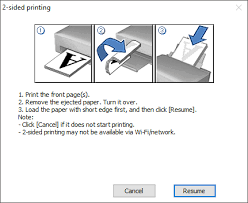
Here’s a step-by-step guide to doing a back-to-front photocopy:
Using a Printer And Scan Separately
- Acquire The Pages of Photocopying: Use your printer to scan the pages you want to print.
- Open The Document: Open the scanned document on your computer using software such as Adobe Acrobat or Microsoft Word.
- Print The Document: Print the document, selecting the “front-to-back” option if available.
Using a Printer And Scan Together
- Insert The Two Documents of “joining”: Insert the two pages of the original document into the printer’s tray for automatic loading (ADF).
- Choose The Front-to-back Option: Select the front-to-back option from the printer settings.
- Print The Document: Print the document, and the printer will automatically print both sides.
Using a Multifunctional Printer
- Position The Blade of Copying on The Glass of Exhibition: Place the original document face down on the scanner bed.
- Select The Front-to-back Option: Choose the front-to-back option from the printer settings.
- Print The Document: Print the document, and the printer will automatically print both sides.
Tips And Tricks
- Make sure your printer is set to the correct orientation (landscape or portrait) before printing.
- If you’re using a multifunctional printer, ensure that it’s in the correct mode for front-to-back printing.
- Use high-quality paper to ensure crisp prints.
Conclusion
Doing a back-to-front photocopy can be a useful technique for creating visually appealing documents. With these steps and tips, you should be able to do a back-to-front photocopy using a printer and scan separately or together. Happy printing!
Faqs
- What is The Purpose of a Back-to-front Photocopy?
A back-to-front photocopy is used to create visually appealing documents where two sides of a document are printed on one sheet of paper, with the original document’s backside facing forward.
- Do I Need a Special Printer to do a Back-to-front Photocopy?
No, you can use any printer that has front-to-back printing capabilities. Some multifunctional printers may also be able to do this.
- Can I Print on Both Sides of The Paper Using my Smartphone or Tablet?
Yes, some apps allow you to scan and print documents directly from your smartphone or tablet.
- How do I Save The Document After Scanning It?
Save the scanned document as a PDF file for easy printing and sharing.
- Can I Print on Both Sides of The Paper Using my Computer?
Yes, most modern printers can be configured to print on both sides of the paper, but you may need to adjust your printer settings accordingly.
- Do I Need Any Special Software to do a Back-to-front Photocopy?
No, most computers come with built-in printing software that allows for front-to-back printing.
- Can I Use a Multifunctional Printer to do a Back-to-front Photocopy?
Yes, many multifunctional printers have the capability to print on both sides of the paper, but you may need to check your printer’s settings first.
- How Long Does it Take to Complete The Process of Doing a Back-to-front Photocopy?
The time required for this process can vary depending on the complexity of the document and the speed of your printer.


