
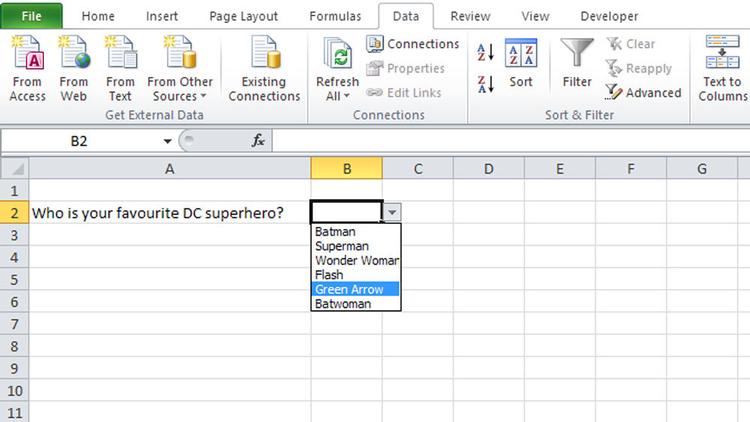
How to Create a Dynamic Menu in Excel: A Step-by-step Guide
Are you tired of using static menus in Excel? Do you want to create a dynamic menu that can be updated automatically? Look no further! In this article, we will show you how to create a dynamic menu in Excel, step by step.
What is a Dynamic Menu?
A dynamic menu is a type of menu that can be updated automatically based on the data present in your spreadsheet. Unlike static menus, which are predefined and cannot be changed, dynamic menus can be customized to fit your needs.
Why Use a Dynamic Menu?
Using a dynamic menu has several advantages over using a static menu:
- Flexibility: A dynamic menu can be updated automatically based on the data present in your spreadsheet.
- Customization: You can customize the menu to fit your specific needs.
- Time-saving: A dynamic menu saves you time and effort, as it updates automatically.
How to Create a Dynamic Menu in Excel
To create a dynamic menu in Excel, follow these steps:
Step 1: Select The Cells
First, select the cells that contain the data you want to use for your dynamic menu. This can be a range of cells or an entire column or row.
Step 2: Create a List
Next, create a list of the data present in the selected cells. You can do this by highlighting the cells and going to the “Home” tab in Excel. Then, click on the “Formulas” button and select “Define Name”. In the dialog box that appears, enter a name for your list and select the range of cells that contain the data.
Step 3: Create a Menu
Now, create a menu by going to the “Home” tab in Excel. Then, click on the “Insert” button and select “Picture”. In the dialog box that appears, choose a style for your picture and select the range of cells that you want to use as the data source.
Step 4: Customize Your Menu
Finally, customize your menu by selecting the cells that contain the data you want to display. Then, go to the “Home” tab in Excel and click on the “Formulas” button. Select “Define Name” and enter a name for your list. In the dialog box that appears, select the range of cells that contains the data.
Tips And Variations
- Using Multiple Columns: You can use multiple columns to create a dynamic menu. Simply select the cells from each column and follow the steps above.
- Updating Your Menu Automatically: To update your menu automatically, go to the “Home” tab in Excel and click on the “Formulas” button. Select “Define Name” and enter a name for your list. In the dialog box that appears, select the range of cells that contains the data.
- Using a Formula: You can use a formula to update your menu automatically. For example, you can use the formula
=A1:A10to update your menu based on the values in column A.
Conclusion
Creating a dynamic menu in Excel is easy and straightforward. By following these steps, you can create a menu that can be updated automatically based on the data present in your spreadsheet. This saves you time and effort, and gives you more flexibility when working with large datasets.
Faqs
Q: What is a dynamic menu?
A: A dynamic menu is a type of menu that can be updated automatically based on the data present in your spreadsheet.
Q: Why use a dynamic menu?
A: Using a dynamic menu has several advantages over using a static menu, including flexibility, customization, and time-saving.
Q: How do I create a dynamic menu in Excel?
A: To create a dynamic menu in Excel, select the cells that contain the data you want to use, create a list of the data present in the selected cells, create a menu by going to the “Home” tab in Excel and clicking on the “Insert” button, customize your menu by selecting the cells that contain the data you want to display.
Q: Can I update my menu automatically?
A: Yes, you can update your menu automatically by using a formula or by using the “Define Name” feature in Excel.
Q: What are some tips and variations for creating a dynamic menu?
A: Some tips and variations for creating a dynamic menu include using multiple columns, updating your menu automatically, and using a formula to update your menu.


