
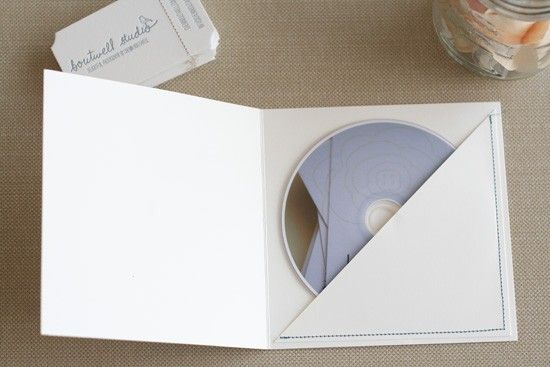
How to Create a Dvd Cover: A Step-by-step Guide
Are you looking for a unique and personalized way to gift your loved ones? Creating a custom DVD cover is an excellent idea! Not only does it add a personal touch, but it also makes the gift more special and memorable. In this article, we will guide you through the process of creating a beautiful DVD cover using various software and online tools.
Understanding The Basics
Before we dive into the step-by-step guide, let’s understand the basics of creating a DVD cover. A DVD cover is essentially a digital image that contains information about the DVD, such as its title, content, and artwork. The cover can be designed to fit specific dimensions and aspect ratios, depending on the type of DVD you are creating.
Software For Creating Dvd Covers
There are several software programs available that can help you create stunning DVD covers. Here are some popular options:
- Undercover10 (Windows): This is a free software that allows you to design custom DVD covers using various templates and design tools.
- Swift Publisher (macOS): This is a professional-grade desktop publishing software that can be used to create DVD covers, among other things.
Online Tools For Creating Dvd Covers
If you don’t have the time or expertise to use software programs, there are several online tools available that can help you create custom DVD covers. Here are some popular options:
- Bighugelabs: This is a free online tool that allows you to transform your photos into fantastic DVD covers.
- Artwork Creator: This is another online tool that enables you to design and customize DVD covers using various templates and design tools.
- Canva: This is a popular graphic design platform that offers a wide range of templates and design tools for creating custom DVD covers.
Step-by-step Guide
Now that we have covered the basics and introduced some software and online tools, let’s dive into the step-by-step guide for creating a DVD cover using each of these options.
Using Undercover10 (Windows)
- Download and install UnderCover10 on your Windows PC.
- Launch the program and select the template you want to use for your DVD cover.
- Choose an image from your computer or add one from online sources.
- Use the design tools provided by UnderCover10 to customize your DVD cover.
- Save and print your custom DVD cover.
Using Swift Publisher (macOS)
- Download and install Swift Publisher on your macOS device.
- Launch the program and select the template you want to use for your DVD cover.
- Choose an image from your computer or add one from online sources.
- Use the design tools provided by Swift Publisher to customize your DVD cover.
- Save and print your custom DVD cover.
Using Bighugelabs
- Go to the Bighugelabs website and select the template you want to use for your DVD cover.
- Choose an image from your computer or add one from online sources.
- Use the design tools provided by Bighugelabs to customize your DVD cover.
- Save and print your custom DVD cover.
Using Artwork Creator
- Go to the Artwork Creator website and select the template you want to use for your DVD cover.
- Choose an image from your computer or add one from online sources.
- Use the design tools provided by Artwork Creator to customize your DVD cover.
- Save and print your custom DVD cover.
Using Canva
- Go to the Canva website and select the template you want to use for your DVD cover.
- Choose an image from your computer or add one from online sources.
- Use the design tools provided by Canva to customize your DVD cover.
- Save and print your custom DVD cover.
Tips And Tricks
Here are some tips and tricks to keep in mind when creating a DVD cover:
- Use high-quality images that are relevant to the content of the DVD.
- Keep the design simple and uncluttered, especially if you’re using a small image size.
- Experiment with different templates and design tools to find what works best for your project.
- Don’t be afraid to add text or other elements to make your DVD cover more personalized.
Conclusion
Creating a custom DVD cover is a fun and creative way to personalize your gifts. With the software and online tools introduced in this article, you can create stunning DVD covers that are sure to impress. Remember to follow the step-by-step guides provided for each software and online tool, and don’t hesitate to experiment with different templates and design tools until you find what works best for your project.
Frequently Asked Questions (FAQs)
Here are some frequently asked questions about creating DVD covers:
Q: What is the best software for creating DVD covers?
A: The best software for creating DVD covers depends on your personal preference and skill level. UnderCover10, Swift Publisher, and Canva are popular options.
Q: How do I design a custom DVD cover using online tools?
A: To design a custom DVD cover using online tools, go to the website of the tool you prefer (e.G., Bighugelabs, Artwork Creator, or Canva) and follow the step-by-step guide provided.
Q: What images should I use for my DVD cover?
A: Use high-quality images that are relevant to the content of the DVD. Experiment with different templates and design tools to find what works best for your project.
Q: How do I save and print my custom DVD cover?
A: Save and print your custom DVD cover using the software or online tool you prefer. Make sure to follow any specific instructions provided by the tool regarding image size, resolution, and printing requirements.
Additional Resources
If you want to learn more about creating DVD covers or need additional resources, here are some recommended websites and guides:
- Canva’s Guide to Creating a Custom DVD Cover
- Bighugelabs’ Tutorial on Creating a DVD Cover
- Artwork Creator’s Guide to Designing a Custom DVD Cover


