
How to Create a Gif With Your Iphone: A Step-by-step Guide
Are you tired of sending boring messages to your friends and family? Do you want to add some personality to your digital communications? Creating a GIF with your iPhone is a great way to do just that! In this article, we’ll show you how to create a GIF using your iPhone, and share some other helpful solutions for doing so.
Why Create a Gif With Your Iphone?
Creating a GIF with your iPhone can be a fun and creative way to express yourself. You can use it to add some humor or personality to your messages, or simply to share a memorable moment with others. Plus, it’s a great way to showcase your creativity and sense of humor!
Giphy: The Official App For Creating Gifs
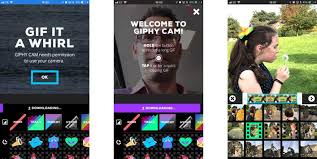
One of the best apps for creating GIFs with your iPhone is GIPHY. This official app allows you to create GIFs using photos or videos from your device, and even offers some fun filters and effects to make it more interesting.
To use GIPHY, simply download and install the app from the App Store. Once you’ve done that, follow these steps:
- Launch the app and tap on the “Create” button.
- Choose whether you want to create a GIF using a photo or video from your device.
- Select the image or video you want to use.
- Use the filters and effects to customize your GIF as desired.
- Tap on the “Next” button to proceed.
- Trim your GIF to the perfect length, and add any additional effects or filters if desired.
- Finally, tap on the “Share” button to share your GIF with others.
Gif Maker: Another Great Option For Creating Gifs
Another great app for creating GIFs with your iPhone is GIF Maker. This app allows you to create GIFs using photos or videos from your device, and even offers some advanced features like text overlays and filters.
To use GIF Maker, simply download and install the app from the App Store. Once you’ve done that, follow these steps:
- Launch the app and tap on the “Create” button.
- Choose whether you want to create a GIF using a photo or video from your device.
- Select the image or video you want to use.
- Use the filters and effects to customize your GIF as desired.
- Tap on the “Next” button to proceed.
- Trim your GIF to the perfect length, and add any additional effects or filters if desired.
- Finally, tap on the “Share” button to share your GIF with others.
Other Solutions For Creating Gifs With Your Iphone
If you’re not interested in using GIPHY or GIF Maker, there are other solutions available. Some of these include:
- Motion Stills: A free app developed by Google that allows you to create GIFs using photos or videos from your device.
- Gif Me!: A free app that allows you to create GIFs using video recorded on the fly or previously recorded video.
- Imgplay: An app that allows you to create GIFs using photo, live photo, and video from your iPhone.
How to Create a Gif With a Live Photo
If you’ve taken a live photo with your iPhone and want to transform it into a GIF, there’s a simple way to do so. You can use the “Live Photos” shortcut in iOS to create a GIF directly from the photo.
To do this, follow these steps:
- Go to Settings > Face ID & Passcode (or Touch ID & Passcode).
- Scroll down and tap on “Live Photos”.
- Tap on the toggle next to “Live Photos” to enable it.
- Take a live photo as you normally would.
- Open the Photos app and select the live photo you just took.
- Tap on the “Share” icon (the box with an arrow coming out of it).
- Select the “Save Image” option.
- The GIF will be saved to your camera roll.
How to Create a Gif on Whatsapp
If you want to share a GIF with someone on WhatsApp, there’s a simple way to do so directly within the app. Here’s how:
- Open WhatsApp and select the conversation you want to share the GIF with.
- Tap on the “+” icon in the bottom left corner of the screen.
- Select “Camera” from the menu.
- Choose whether you want to create a GIF using a video recorded on the fly or previously recorded video.
- Trim your GIF to the perfect length, and add any additional effects or filters if desired.
- Tap on the “Share” button to share your GIF with others.
Conclusion
Creating a GIF with your iPhone is easier than ever! With apps like GIPHY and GIF Maker, you can create stunning GIFs using photos or videos from your device. Plus, there are other solutions available for creating GIFs, such as Motion Stills, Gif Me!, ImgPlay, and more.
Whether you’re looking to add some personality to your messages or simply want to share a memorable moment with others, creating a GIF is a great way to do so. So why not give it a try? Grab your iPhone and start creating today!
Frequently Asked Questions
- Q: How long can my GIF be?
A: Your GIF can be up to 6 seconds long. - Q: Can I add text or filters to my GIF?
A: Yes, you can add text and filters to your GIF using apps like GIPHY and GIF Maker. - Q: Can I share my GIF on other platforms besides WhatsApp?
A: Yes, you can share your GIF on any platform that supports image sharing.


