
The Ultimate Guide to Creating Gifs on Whatsapp
Are you tired of using boring static images on WhatsApp? Do you want to add some excitement and humor to your conversations? Look no further! In this article, we will show you how to create and share GIFs on WhatsApp like a pro.
Why Use Gifs on Whatsapp?
GIFs have become an integral part of online communication. They are fun, engaging, and easy to create. With the rise of social media platforms, GIFs have become a popular way to express oneself and add some personality to messages. Whether you’re sending a funny meme or a cute animation, GIFs can make your conversations stand out.
How to Create Gifs on Whatsapp
Creating GIFs on WhatsApp is easy and straightforward. Here’s a step-by-step guide:
For Android Users
If you have an Android device, you can create GIFs using the WhatsApp app itself. To do this:
- Open the WhatsApp app and navigate to the chat where you want to share the GIF.
- Tap on the + icon at the top right corner of the screen.
- Select the Gallery or Camera option to choose a video from your device or record a new one.
- Trim the video to 6 seconds or less using the yellow indicators on the screen.
- Tap on the GIF button at the bottom right corner of the screen to convert the video into a GIF.
- Add a caption and tap on the arrow icon to share the GIF in the chat.
For Iphone Users
If you have an iPhone, creating GIFs is just as easy:
- Open the WhatsApp app and navigate to the chat where you want to share the GIF.
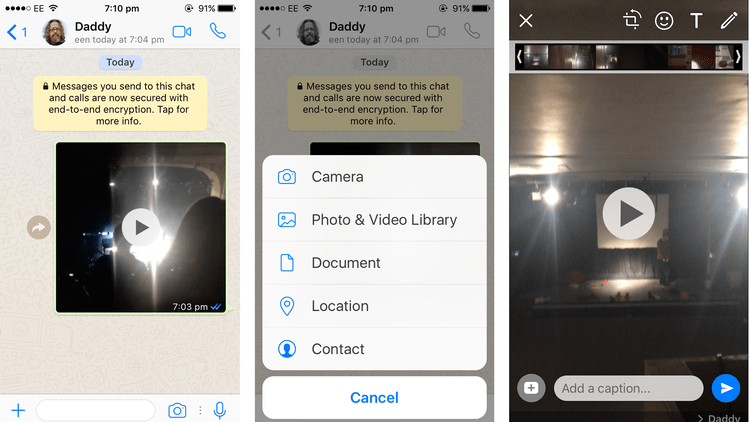
- Tap on the + icon at the top right corner of the screen.
- Select the Photo or Video option to choose a video from your device or record a new one.
- Trim the video to 6 seconds or less using the yellow indicators on the screen.
- Tap on the GIF button to convert the video into a GIF.
- Add a caption and tap on the arrow icon to share the GIF in the chat.
For PC Users
If you’re using WhatsApp Web or the desktop client, creating GIFs is slightly different:
- Log in to your WhatsApp account on the web or desktop app.
- Navigate to the conversation where you want to share the GIF.
- Click on the smiley face icon and select the GIF option.
- Choose a video from your device or record a new one.
- Trim the video to 6 seconds or less using the yellow indicators on the screen.
- Add a caption and click on the arrow icon to share the GIF in the chat.
Other Solutions For Creating Gifs
While WhatsApp provides an easy way to create GIFs, there are other apps available that offer more advanced features. Here are some alternatives:
- Giphy: A popular app that offers a vast library of pre-made GIFs and allows you to create custom ones using various tools.
- Gif Me!: Another app that lets you create GIFs from videos or record new ones, with additional features like filters and stickers.
- Gif Maker: An app that provides an easy way to create GIFs from scratch or use pre-made templates.
Conclusion
Creating and sharing GIFs on WhatsApp is a fun and engaging way to express yourself in conversations. Whether you’re using the WhatsApp app itself or third-party apps, there are plenty of options available to help you create custom GIFs that showcase your personality. So go ahead, get creative, and share those GIFs with your friends and family!
Frequently Asked Questions
- Q: Can I create GIFs on WhatsApp Web?
A: Yes, creating GIFs is possible on WhatsApp Web, but the process is slightly different. - Q: How long can my GIF be?
A: Your GIF should be 6 seconds or less to ensure it plays correctly in WhatsApp. - Q: Can I use GIFs from other apps?
A: Yes, you can import GIFs from other apps and share them on WhatsApp.


