
The Ultimate Guide to Video Calls on Whatsapp
Are you tired of attending physical gatherings due to bad weather or other unforeseen circumstances? Do you want to stay connected with your friends and family without the hassle of traveling? Look no further! In this article, we will guide you through the process of making video calls on WhatsApp, a feature that allows you to communicate with multiple people simultaneously.
What Are Video Calls on Whatsapp?
Video calls on WhatsApp are a fantastic way to stay in touch with loved ones who live far away or are unable to meet in person. With this feature, you can make voice and video calls to multiple contacts at once, making it an ideal option for group conversations.
How to Make a Group Video Call on Whatsapp With Android
To initiate a group video call on WhatsApp using your Android device, follow these simple steps:
- Open WhatsApp and navigate to the “Chats” section.
- Tap on the contact you want to call.
- Select the “Video Call” option.
- Add more participants by tapping on the “+” icon in the top right corner of the screen.
- Wait for all contacts to join the call.
How to Make a Group Video Call on Whatsapp With Iphone
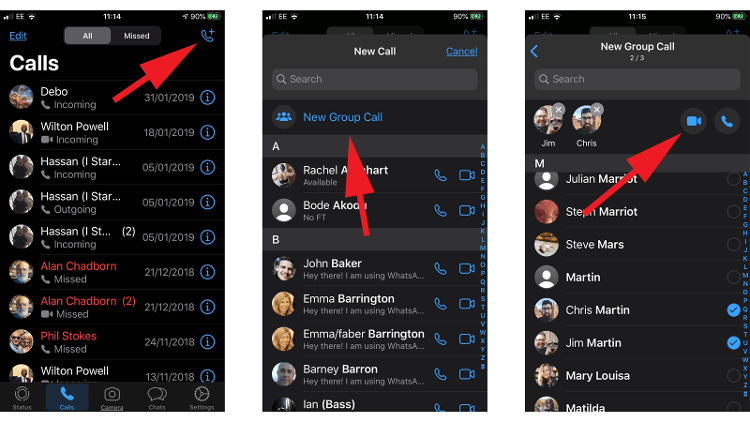
Making a group video call on WhatsApp using your iPhone is just as straightforward:
- Open WhatsApp and navigate to the “Chats” section.
- Tap on the contact you want to call.
- Select the “Video Call” option.
- Add more participants by tapping on the “+” icon in the top right corner of the screen.
- Wait for all contacts to join the call.
How to Make a Group Video Call on Whatsapp With PC
While WhatsApp doesn’t support group video calls directly on its web platform, you can use the desktop client to make voice and video calls to multiple contacts at once:
- Open the WhatsApp desktop client.
- Navigate to the “Chats” section.
- Select the contact you want to call.
- Tap on the “Video Call” option.
- Add more participants by tapping on the “+” icon in the top right corner of the screen.
How to Accept a Group Video Call on Whatsapp
Accepting a group video call on WhatsApp is easy:
- When someone initiates a group video call, you’ll receive an invitation notification.
- Tap on the “Join” button to join the call.
Tips And Tricks For Making Group Video Calls on Whatsapp
Here are some additional tips to keep in mind when making group video calls on WhatsApp:
- Make Sure All Participants Have a Stable Internet Connection to avoid dropped calls or poor quality audio/video.
- Use a High-quality Microphone And Camera to ensure clear audio and video.
- Be Mindful of Screen Sharing And Other Features that might be distracting during the call.
Conclusion
Making group video calls on WhatsApp is a convenient way to stay connected with friends, family, or colleagues. By following these simple steps, you can initiate and join group video calls using your Android device, iPhone, or even PC. Whether you’re celebrating a special occasion or simply catching up with loved ones, group video calls on WhatsApp make it easy to connect with multiple people at once.
Frequently Asked Questions (FAQs)
- How Many Participants Can I Add to a Group Video Call?
You can add up to 8 participants to a group video call. - Can I Add More Participants During The Call?
Yes, you can add more participants during the call by tapping on the “+” icon in the top right corner of the screen. - How do I End a Group Video Call?
You can end a group video call by tapping on the “End Call” button or hanging up your phone. - Can I Make a Group Video Call on Whatsapp Web?
No, you cannot make a group video call directly on WhatsApp Web. However, you can use the desktop client to make voice and video calls to multiple contacts at once. - How do I Know if Someone Else is Joining The Call?
You’ll receive an invitation notification when someone initiates a group video call, and you’ll see their name appear in the participants list during the call. - Can I Use Screen Sharing or Other Features During a Group Video Call?
Yes, you can use screen sharing and other features during a group video call, but be mindful of distracting others with these features. - How do I Know if Someone is Experiencing Poor Internet Connection?
You might notice poor audio/video quality or dropped calls when someone’s internet connection is unstable.
Stay connected with loved ones using the power of WhatsApp group video calls!


