
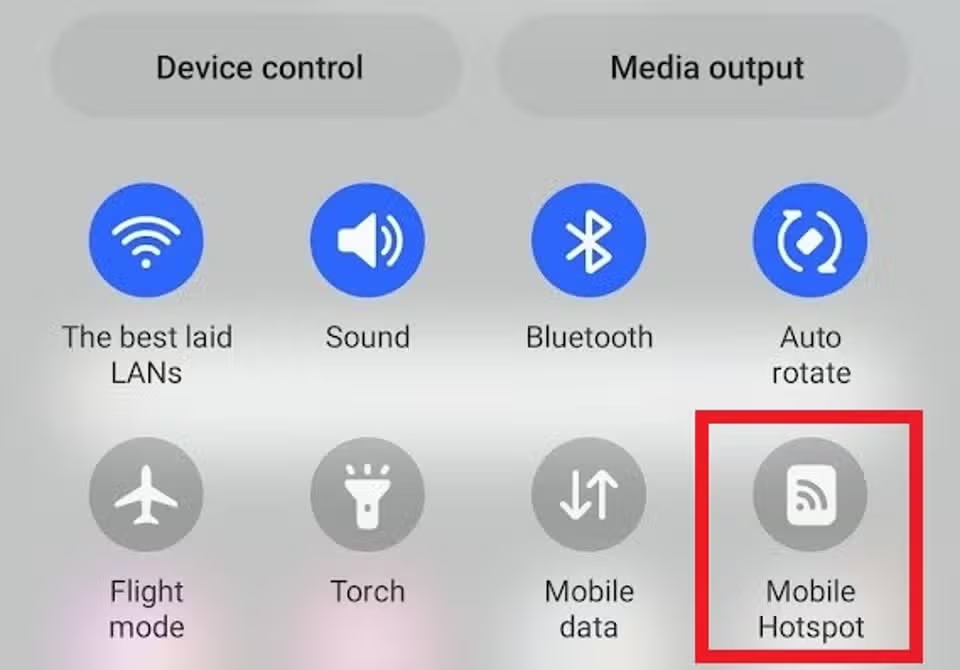
Creating a Hotspot With Samsung: A Step-by-step Guide
As a busy professional or entrepreneur, staying connected on the go is essential. But what happens when you’re in an area with no internet access? That’s where creating a hotspot with your Samsung device comes in handy. In this article, we’ll show you how to set up and use a hotspot on your Samsung smartphone or tablet.
Understanding Hotspots
Before we dive into the steps, let’s quickly cover what a hotspot is. A hotspot is essentially a portable Wi-Fi network that allows other devices to connect to the internet using your device as a modem. This can be useful in areas with no internet access, such as remote work locations or when traveling.
Prerequisites
Before you start, make sure you have:
- A Samsung smartphone or tablet with cellular connectivity
- An active SIM card with a data plan
- The necessary permissions to use your device’s hotspot feature
Method 1: Creating a Hotspot Using Wi-fi Tethering
To create a hotspot using Wi-Fi tethering on your Samsung device, follow these steps:
Step 1: Enable The Hotspot Feature
Go to Settings > Connections > Mobile Hotspot and Tethering. Toggle the switch next to “Mobile Hotspot” to enable it.
Step 2: Configure The Hotspot Settings
Tap on the three-dot menu icon in the top-right corner of the screen and select “Configure Mobile Hotspot.” Here, you can set up your hotspot’s name, password, and other settings as desired.
Step 3: Connect Devices to The Hotspot
Other devices can now connect to your hotspot by searching for it on their Wi-Fi networks. You can find the hotspot’s name in the list of available networks.
Method 2: Creating a Hotspot Using Bluetooth Tethering
To create a hotspot using Bluetooth tethering, follow these steps:
Step 1: Enable Bluetooth on Your Device
Go to Settings > Connections > Bluetooth and toggle the switch next to “Bluetooth” to enable it.
Step 2: Connect Devices to The Hotspot Using Bluetooth
Other devices can now connect to your hotspot by pairing with your device via Bluetooth. You’ll find the hotspot’s name in the list of available Bluetooth devices.
Method 3: Creating a Hotspot Using Usb Tethering
To create a hotspot using USB tethering, follow these steps:
Step 1: Connect Your Device to a PC Using a Usb Cable
Connect your Samsung device to a PC or laptop using a USB cable. This will allow your device to share its internet connection with the connected device.
Step 2: Enable Usb Tethering on Your Device
Go to Settings > Connections > Mobile Hotspot and Tethering. Toggle the switch next to “USB Tethering” to enable it.
Method 4: Creating a Hotspot Using Ethernet Tethering
To create a hotspot using Ethernet tethering, follow these steps:
Step 1: Purchase an Ethernet Adapter
Purchase an Ethernet adapter that supports USB-to-Ethernet connectivity. This will allow your device to share its internet connection with other devices via Ethernet.
Step 2: Connect The Ethernet Adapter to Your Device And Another Device
Connect the Ethernet adapter to both your Samsung device and another device (such as a PC or laptop). The other device can now connect to the internet using your device’s hotspot.
Tips And Variations
- You can also use a USB-to-Ethernet adapter for creating a hotspot.
- Make sure you have enough data allowance on your SIM card plan before using your hotspot extensively.
- Keep an eye on your hotspot usage, as it may affect your device’s battery life.
Troubleshooting Common Issues
If you encounter any issues while setting up or using your hotspot, try the following:
- Restart your device and the connected devices.
- Check that all necessary permissions are enabled for your hotspot feature.
- Consult Samsung’s official documentation or contact their support team for further assistance.
Conclusion
Creating a hotspot with your Samsung device is a simple process that can be completed in just a few steps. Whether you’re using Wi-Fi tethering, Bluetooth tethering, USB tethering, or Ethernet tethering, our guide has shown you how to set up and use your hotspot effectively. Remember to follow the necessary steps for each method, and don’t hesitate to reach out if you encounter any issues.
Frequently Asked Questions
- What is a Hotspot?
A hotspot is a portable Wi-Fi network that allows other devices to connect to the internet using your device as a modem. - Can I Use my Hotspot With Multiple Devices at Once?
Yes, most hotspots can support multiple connections simultaneously. - How do I Connect Devices to my Hotspot?
Devices can connect to your hotspot by searching for it on their Wi-Fi networks (for Wi-Fi tethering) or pairing with your device via Bluetooth (for Bluetooth tethering). - Can I Use my Hotspot in Areas Without Cellular Connectivity?
No, hotspots require a stable cellular connection to function. - Is Using my Hotspot Secure?
Yes, when properly configured and used, hotspots are relatively secure. However, it’s essential to follow best practices for securing your device and connected devices. - How do I Troubleshoot Issues With my Hotspot?
Try restarting your device and the connected devices, checking necessary permissions, or consulting Samsung’s official documentation or support team.
Setting Up a Hotspot Using Wi-fi Tethering (Detailed Steps)
Step 1: Enable The Hotspot Feature
Go to Settings > Connections > Mobile Hotspot and Tethering. Toggle the switch next to “Mobile Hotspot” to enable it.
Step 2: Configure The Hotspot Settings
Tap on the three-dot menu icon in the top-right corner of the screen and select “Configure Mobile Hotspot.” Here, you can set up your hotspot’s name, password, and other settings as desired.
Step 3: Connect Devices to The Hotspot
Other devices can now connect to your hotspot by searching for it on their Wi-Fi networks. You can find the hotspot’s name in the list of available networks.
Setting Up a Hotspot Using Bluetooth Tethering (Detailed Steps)
Step 1: Enable Bluetooth on Your Device
Go to Settings > Connections > Bluetooth and toggle the switch next to “Bluetooth” to enable it.
Step 2: Connect Devices to The Hotspot Using Bluetooth
Other devices can now connect to your hotspot by pairing with your device via Bluetooth. You’ll find the hotspot’s name in the list of available Bluetooth devices.
Setting Up a Hotspot Using Usb Tethering (Detailed Steps)
Step 1: Connect Your Device to a PC Using a Usb Cable
Connect your Samsung device to a PC or laptop using a USB cable. This will allow your device to share its internet connection with the connected device.
Step 2: Enable Usb Tethering on Your Device
Go to Settings > Connections > Mobile Hotspot and Tethering. Toggle the switch next to “USB Tethering” to enable it.
Setting Up a Hotspot Using Ethernet Tethering (Detailed Steps)
Step 1: Purchase an Ethernet Adapter
Purchase an Ethernet adapter that supports USB-to-Ethernet connectivity. This will allow your device to share its internet connection with other devices via Ethernet.
Step 2: Connect The Ethernet Adapter to Your Device And Another Device
Connect the Ethernet adapter to both your Samsung device and another device (such as a PC or laptop). The other device can now connect to the internet using your device’s hotspot.


