
How to Create a Password-protected Pdf File: A Step-by-step Guide
Are you looking for ways to protect your sensitive documents from unauthorized access? Look no further! In this article, we will guide you through the process of creating a password-protected PDF file using various software and online services.
What is a Password-protected Pdf File?
A password-protected PDF file is a type of digital document that requires a password to open, view, or edit. This feature ensures that only authorized individuals can access the content of the PDF file, making it an ideal solution for sharing confidential information.
Software Solutions For Creating Password-protected Pdf Files on Computer
There are several software solutions available for creating password-protected PDF files on computers running Windows, macOS, and Linux.
1. Libreoffice (Windows/macOS/Linux)
LibreOffice is a free and open-source productivity suite that allows you to create, edit, and protect PDF files. To create a password-protected PDF file using LibreOffice:
- Download and install LibreOffice on your computer.
- Open the document you want to convert to PDF and click on the “Export” option.
- Select “PDF” as the export format and choose the desired settings.
- Click on the “Properties” button and select the “Security” tab.
- Choose the password protection options and enter a password in the corresponding fields.
2. Adobe Acrobat (Windows/macOS)
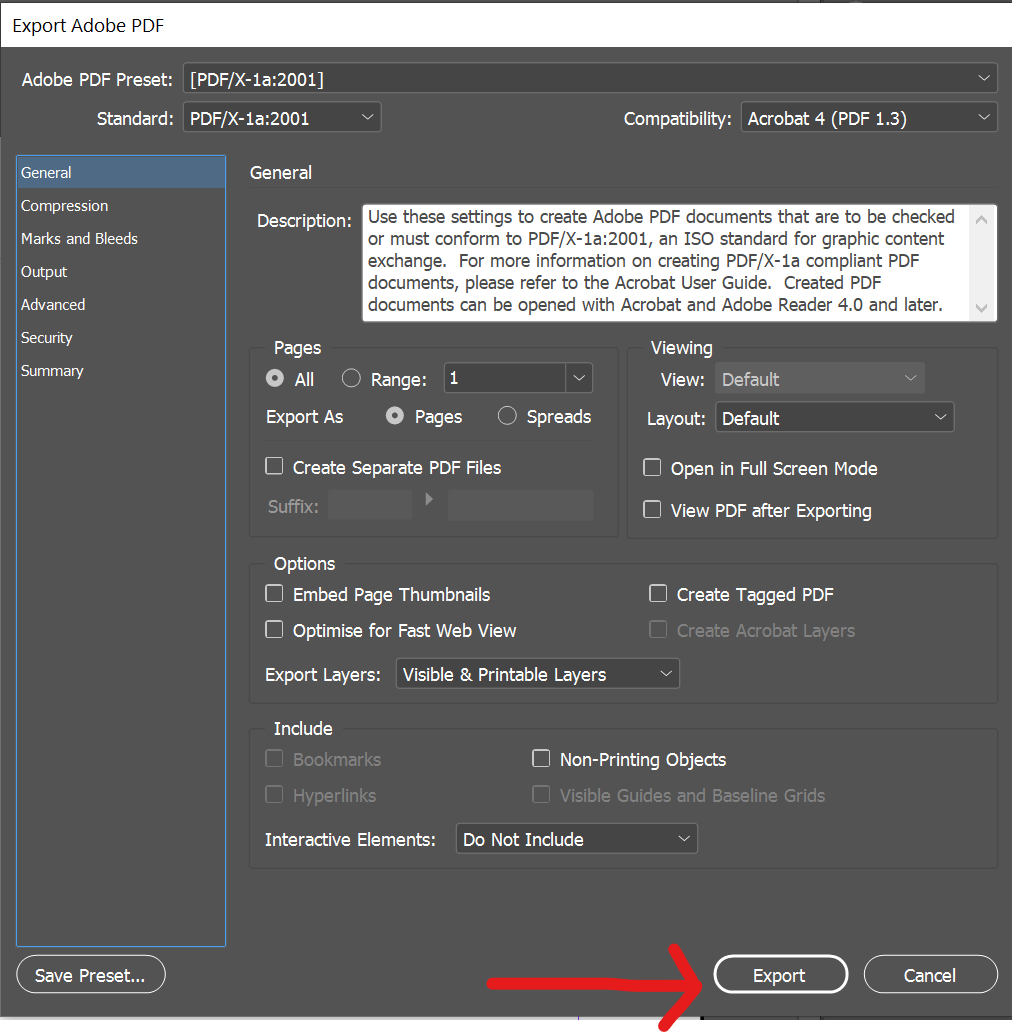
Adobe Acrobat is a powerful software for creating, editing, and managing PDF files. To create a password-protected PDF file using Adobe Acrobat:
- Download and install Adobe Acrobat on your computer.
- Open the document you want to convert to PDF and click on the “Create” option.
- Select “PDF” as the output format and choose the desired settings.
- Click on the “Security” tab and select the password protection options.
- Enter a password in the corresponding fields.
Wondershare PDFelement is a professional software for editing, converting, and protecting PDF files. To create a password-protected PDF file using Wondershare PDFelement:
- Download and install Wondershare PDFelement on your computer.
- Open the document you want to convert to PDF and click on the “Convert” option.
- Select “PDF” as the output format and choose the desired settings.
- Click on the “Security” tab and select the password protection options.
- Enter a password in the corresponding fields.
Online Services For Creating Password-protected Pdf Files
If you don’t want to download and install any software, there are several online services available that can help you create password-protected PDF files.
1. Pdf2go
PDF2GO is an online service that allows you to convert documents to PDF format and protect them with a password. To use PDF2GO:
- Go to the PDF2GO website and click on the “Choose a file” button.
- Select the document you want to convert to PDF and choose the desired settings.
- Click on the “Protect” option and select the password protection options.
- Enter a password in the corresponding fields.
2. Online2pdf
Online2PDF is another online service that allows you to create, edit, and protect PDF files. To use Online2PDF:
- Go to the Online2PDF website and click on the “Choose a file” button.
- Select the document you want to convert to PDF and choose the desired settings.
- Click on the “Protect” option and select the password protection options.
- Enter a password in the corresponding fields.
3. Sejda
Sejda is an online service that allows you to edit, convert, and protect PDF files. To use Sejda:
- Go to the Sejda website and click on the “Choose a file” button.
- Select the document you want to convert to PDF and choose the desired settings.
- Click on the “Protect” option and select the password protection options.
- Enter a password in the corresponding fields.
Mobile Apps For Creating Password-protected Pdf Files
There are several mobile apps available that can help you create password-protected PDF files on your smartphone or tablet.
1. Foxit Pdf Editor (Android/iOS/iPadOS)
Foxit PDF Editor is a popular app for editing, converting, and protecting PDF files on mobile devices. To use Foxit PDF Editor:
- Download and install the app on your device.
- Open the document you want to convert to PDF and click on the “Protect” option.
- Select the password protection options and enter a password in the corresponding fields.
2. Adobe Acrobat Reader (Android/iOS/iPadOS)
Adobe Acrobat Reader is a free app that allows you to view, edit, and protect PDF files on mobile devices. To use Adobe Acrobat Reader:
- Download and install the app on your device.
- Open the document you want to convert to PDF and click on the “Protect” option.
- Select the password protection options and enter a password in the corresponding fields.
3. Xodo Pdf (Android/iOS/iPadOS)
Xodo PDF is another popular app for editing, converting, and protecting PDF files on mobile devices. To use Xodo PDF:
- Download and install the app on your device.
- Open the document you want to convert to PDF and click on the “Protect” option.
- Select the password protection options and enter a password in the corresponding fields.
Conclusion
Creating a password-protected PDF file is an essential step in protecting sensitive information from unauthorized access. With various software solutions, online services, and mobile apps available, you can choose the method that best suits your needs. Remember to always use strong passwords and keep them confidential to ensure maximum security for your digital documents.
Frequently Asked Questions
- Q: What is a password-protected PDF file?
A: A password-protected PDF file is a type of digital document that requires a password to open, view, or edit. - Q: How do I create a password-protected PDF file on my computer?
A: You can use software solutions like LibreOffice, Adobe Acrobat, and Wondershare PDFelement to create a password-protected PDF file on your computer. - Q: Can I create a password-protected PDF file online?
A: Yes, you can use online services like PDF2GO, Online2PDF, and Sejda to create a password-protected PDF file. - Q: How do I create a password-protected PDF file on my mobile device?
A: You can use mobile apps like Foxit PDF Editor, Adobe Acrobat Reader, Xodo PDF, and PDF Expert to create a password-protected PDF file on your smartphone or tablet.
Additional Resources
For more information on creating password-protected PDF files, you can visit the following websites:


