
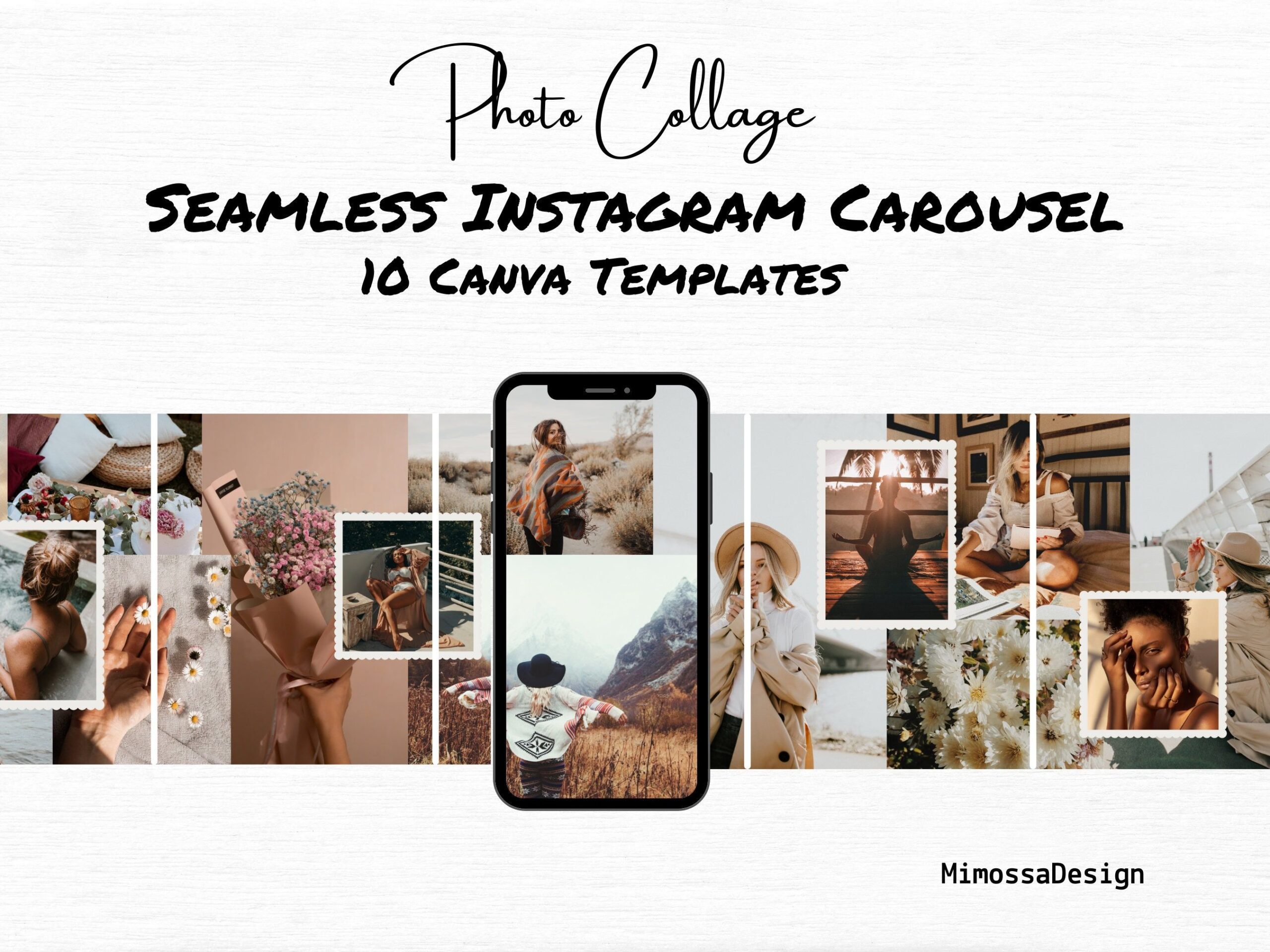
Creating a Collage of Photos on Instagram: A Step-by-step Guide
Are you tired of posting individual photos on Instagram? Do you want to add some creativity to your feed by creating a collage of photos? Look no further! In this article, we will guide you through the process of creating a stunning collage of photos on Instagram using both the app’s built-in functionality and third-party apps.
Why Create a Collage of Photos on Instagram?
Creating a collage of photos on Instagram is an excellent way to showcase multiple memories or moments in one post. It can be particularly useful for:
- Travelers who want to share their entire trip experience in one post
- Photographers who want to showcase their work in a creative and visually appealing way
- Small businesses that want to highlight different aspects of their brand in one post
Creating a Collage on Instagram Using The App’s Built-in Functionality
To create a collage on Instagram using the app’s built-in functionality, follow these steps:
- Open The Instagram App: Open the Instagram app and log in to your account.
- Go to Your Profile: Go to your profile by tapping on the profile icon (represented by two overlapping people).
- Create a New Post: Tap on the “+” icon at the top right corner of the screen to create a new post.
- Select Multiple Photos: Select multiple photos that you want to include in your collage by tapping on them one by one.
- Arrange The Photos: Arrange the photos in the desired order and size.
- Edit And Personalize: Edit and personalize the photo using various filters, effects, and text options.
- Share Your Collage: Once you are satisfied with your collage, tap on the “Share” button to post it on Instagram.
Using Third-party Apps to Create a Collage
If you want more advanced editing features or need help arranging multiple photos in one post, consider using third-party apps like Canva. Canva is a free app that offers various templates and editing tools to create stunning collages for Instagram.
To use Canva, follow these steps:
- Download The App: Download the Canva app from the Play Store or Apple Store.
- Create an Account: Create an account on Canva using your email address or Facebook login.
- Select a Template: Select a template that suits your needs or create a new one from scratch.
- Add Photos And Edit: Add photos to the template, edit them as needed, and add text or other elements if required.
- Export And Share: Export the collage directly to Instagram or download it in JPG format and post it manually.
Tips And Tricks
Here are some tips and tricks to help you create stunning collages on Instagram:
- Use photos with similar colors or themes to create a cohesive look.
- Experiment with different layouts and arrangements to find what works best for your content.
- Add text or captions to provide context and make the collage more engaging.
- Use Canva’s advanced editing features like animations and color effects to take your collage to the next level.
Conclusion
Creating a collage of photos on Instagram is an excellent way to showcase multiple memories, moments, or aspects of your brand in one post. By following the steps outlined above using the app’s built-in functionality or third-party apps like Canva, you can create stunning collages that will engage and impress your audience.
So go ahead, get creative, and start making those Instagram collages today!
Note: The information provided is general guidance and may not be applicable to every individual’s situation. It is recommended to consult the app’s official guidelines for the most up-to-date instructions.


